On this page · 9 sections
Quick answer
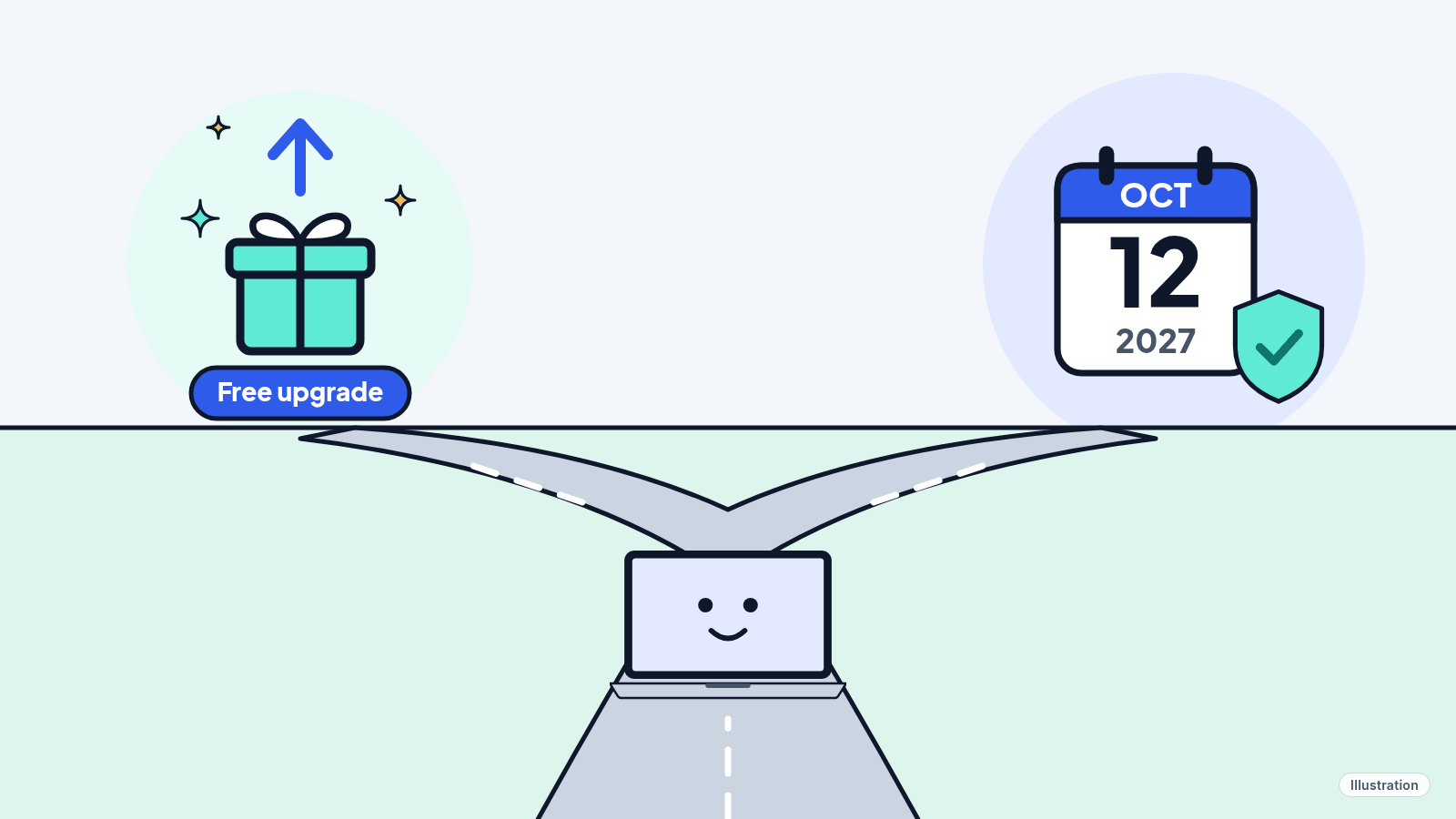
Your Windows 10 PC still works, but it no longer gets security fixes unless you sign up for Extended Security Updates (ESU), which run until Oct 12, 2027. Back up your files, then run the free PC Health Check app. If your PC passes, upgrade to Windows 11 for free in Windows Update. If it doesn't, sign up for ESU in Windows Update: it's free if you back up your settings with Windows Backup.
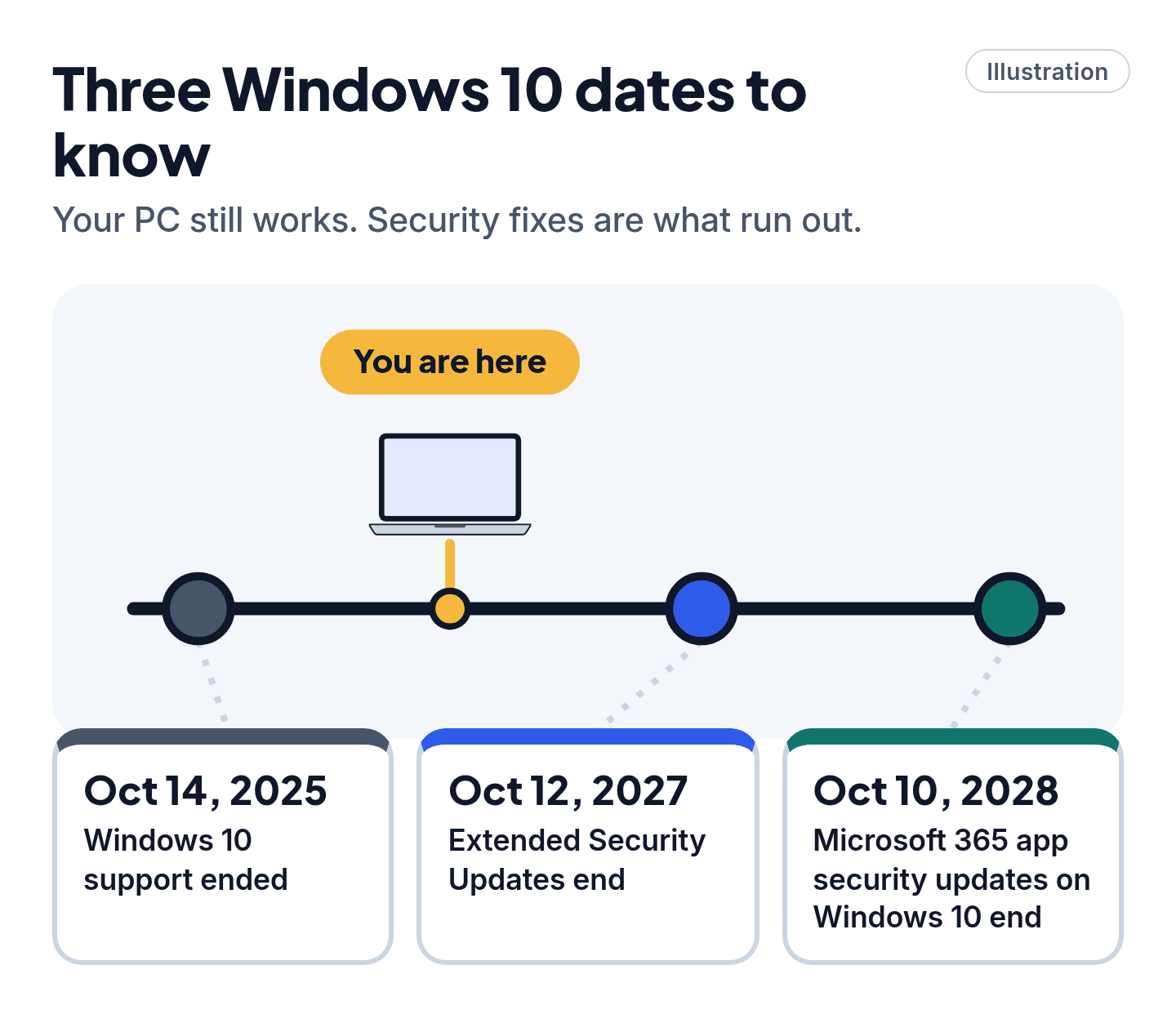
Windows 10 support ended Oct 14, 2025. Consumer ESU covers Windows 10 22H2 (Home, Pro, Pro Education, Workstations) through Oct 12, 2027. It needs the latest cumulative update plus KB5126256 and an admin Microsoft account (not a child account). Enroll via Settings > Update & Security > Windows Update: settings sync is free, or 1,000 Rewards points, or a one-time purchase, with one license for up to 10 PCs. Check Windows 11 eligibility with PC Health Check (TPM 2.0, Secure Boot-capable UEFI, supported CPU). The in-place upgrade keeps your edition and needs Windows 10 version 2004 or later.
Microsoft ended support for Windows 10 on Oct 14, 2025. Your PC didn't stop working that day, and it won't suddenly stop now. But without security fixes it gets riskier every month.
The good news: you have until Oct 12, 2027 to sort it out, and most people can do it for free.
Easy Mode: 5 steps, in order
Takes 10 minutes to check, longer to upgrade or back up. Every step is free for most people. Do them in this order.
1. Check what you have (2 minutes)
Right-click Start, choose Settings, then System > About. Under Windows specifications, look at:
- Edition: Home or Pro (most home PCs).
- Version: you need 22H2 to get Extended Security Updates. If it's older, install updates first: Settings > Update & Security > Windows Update > Check for updates.
The same page shows your processor and memory (RAM), which matter in Step 3.
2. Back up your files first
Do this before you upgrade, change anything, or move to a new PC.
- Windows Backup (free, built in): select Start, type backup and open Windows Backup. It can back up your Desktop, Documents, Pictures, Videos and Music folders to OneDrive, plus your settings, apps list and Wi-Fi passwords. It needs a personal Microsoft account. OneDrive includes 5 GB free. More than that needs a paid Microsoft storage plan.
- File History (free, to a drive): plug in an external drive, then open Control Panel > System and Security > Save backup copies of your files with File History, and select Turn on.
Do you need to buy anything? Only if your files don't fit in 5 GB and you don't already have an external drive. Then a basic external drive or more OneDrive storage is genuinely worth it.
Cheat code
Windows Backup does double duty. Backing up your PC settings with Windows Backup is also what makes Extended Security Updates free (Step 5). And if you get a new PC later, sign in with the same Microsoft account during setup to bring everything back.
3. Find out if your PC can run Windows 11
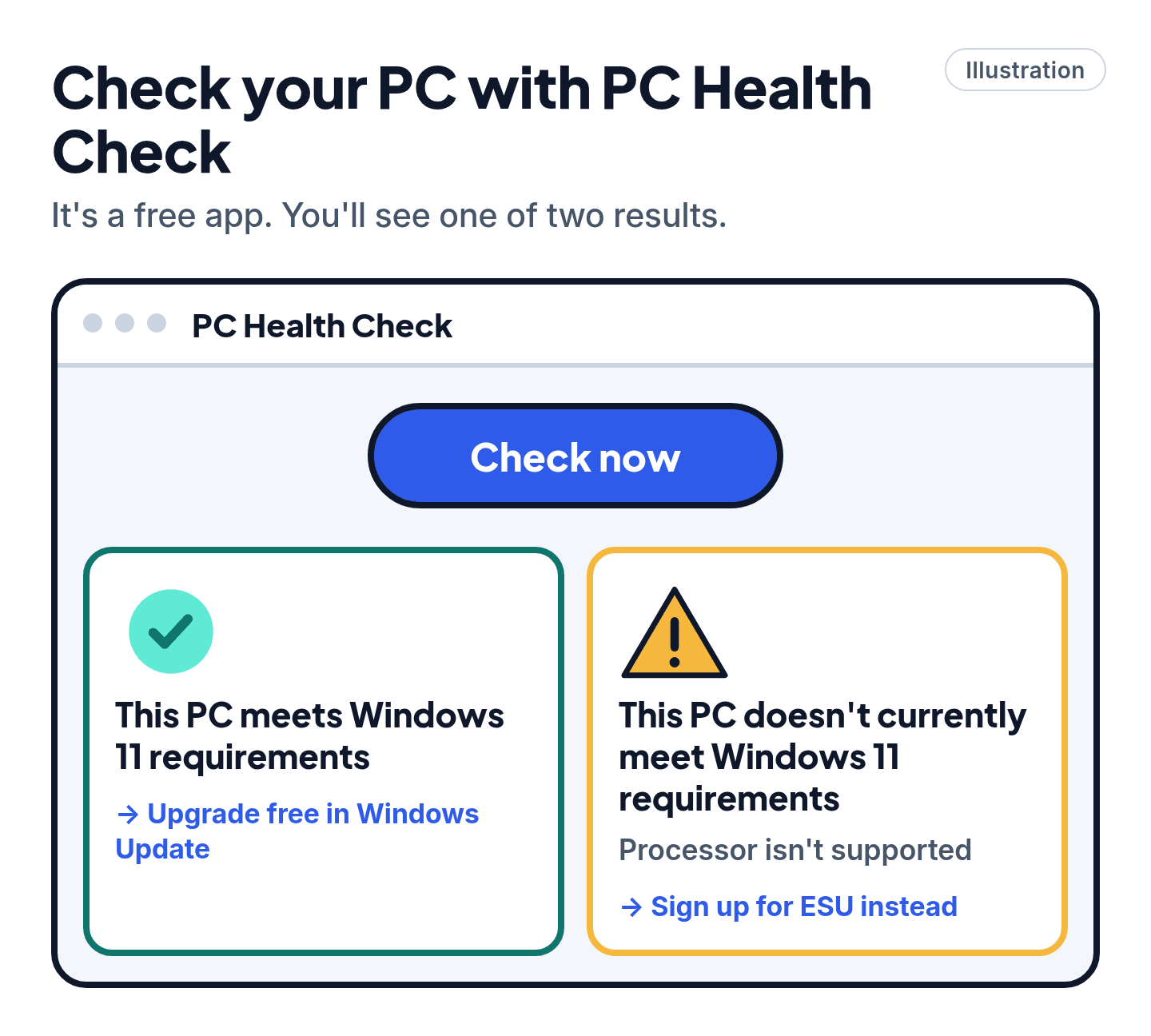
- Select Start and search for PC Health Check. If it's not there, download it from Microsoft at aka.ms/GetPCHealthCheckApp.
- Open it and select Check now in the Windows 11 box.
- It tells you whether your PC meets the requirements, and if not, why.
Microsoft's main requirements: a supported processor, 4 GB of memory, 64 GB of storage, TPM 2.0 and Secure Boot. Memory and storage can sometimes be upgraded. The processor can't.
4. If it passes: upgrade to Windows 11 for free
The upgrade is free, and Home stays Home, Pro stays Pro.
- Back up first (Step 2) and plug in your laptop.
- Go to Settings > Update & Security > Windows Update and install any waiting Windows 10 updates.
- Select Check for updates. When Windows 11 is offered, select Download and install, then Accept and install.
- When it's ready, select Restart now. Your PC will restart several times. That's normal.
Don't see the offer yet? Microsoft sometimes holds it back on a PC while it fixes a compatibility problem. You can wait, or see Pro Mode.
5. If it doesn't pass (or you're not ready): sign up for Extended Security Updates
Extended Security Updates (ESU) keep critical security fixes coming to Windows 10 until Oct 12, 2027. You can sign up any time until then, but your PC is less protected until you do.
- Go to Settings > Update & Security > Windows Update.
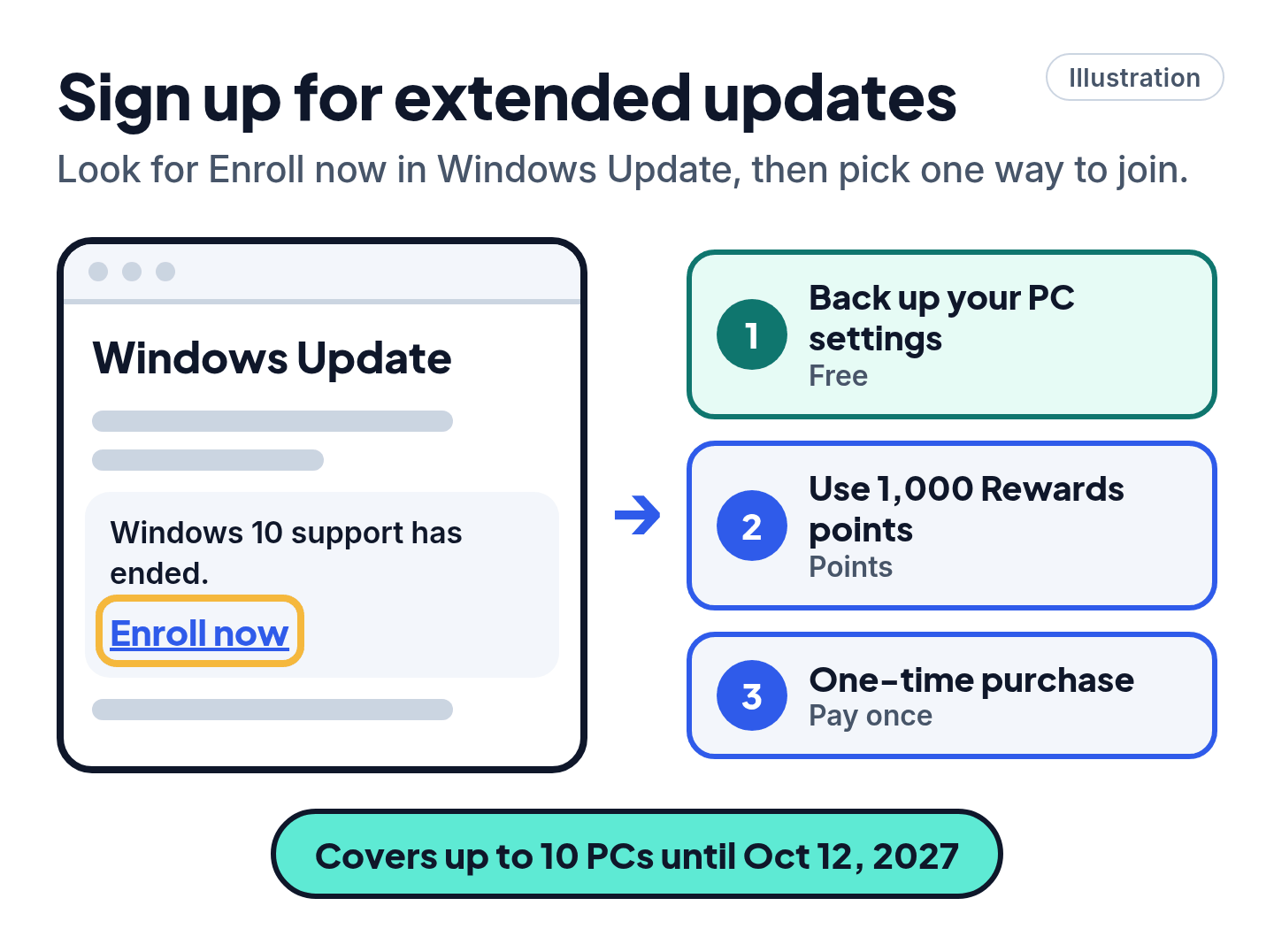
- If your PC qualifies, you'll see a link to enroll. Select Enroll now and sign in with your Microsoft account if asked.
- Pick how to enroll. Microsoft offers three ways:
- Free if you back up your PC settings with Windows Backup.
- 1,000 Microsoft Rewards points.
- A one-time purchase (price below).
- Got more Windows 10 PCs? One enrollment covers up to 10 PCs. On each one, go to the same place and select Enroll now, or Add device if you're signed in with the same account.
Price, as of Oct 23, 2026: $30 USD (or the local equivalent), plus tax, one time, according to Microsoft's ESU page. Options can differ in some regions, such as Europe. Most people can use the free option instead.
Good to know: ESU is security fixes only, with no new features and no tech support. You need Windows 10 version 22H2, the latest updates, and an administrator Microsoft account (a child account can't enroll). You can still upgrade to Windows 11 later.
What happens if you do nothing?
- Your PC keeps working. Your files and apps don't disappear.
- But it gets no security fixes, bug fixes or technical support. Microsoft says that makes it more vulnerable to viruses and malware, and that antivirus alone isn't enough.
- After Oct 12, 2027, even ESU ends. By then, plan to be on Windows 11, either on this PC or a new one.
- Microsoft 365 apps (Word, Excel, Outlook) keep getting security updates on Windows 10 until Oct 10, 2028. Office 2016 and 2019 are no longer supported at all.
Need a new PC eventually? Only if yours can't run Windows 11. Before you buy, Microsoft's end of support page has trade-in and recycling options for the old one, and Windows Backup can move your files and settings across.
Watch out for fake "Windows support"
Scam warning
End of support is a gift to scammers. Microsoft says:
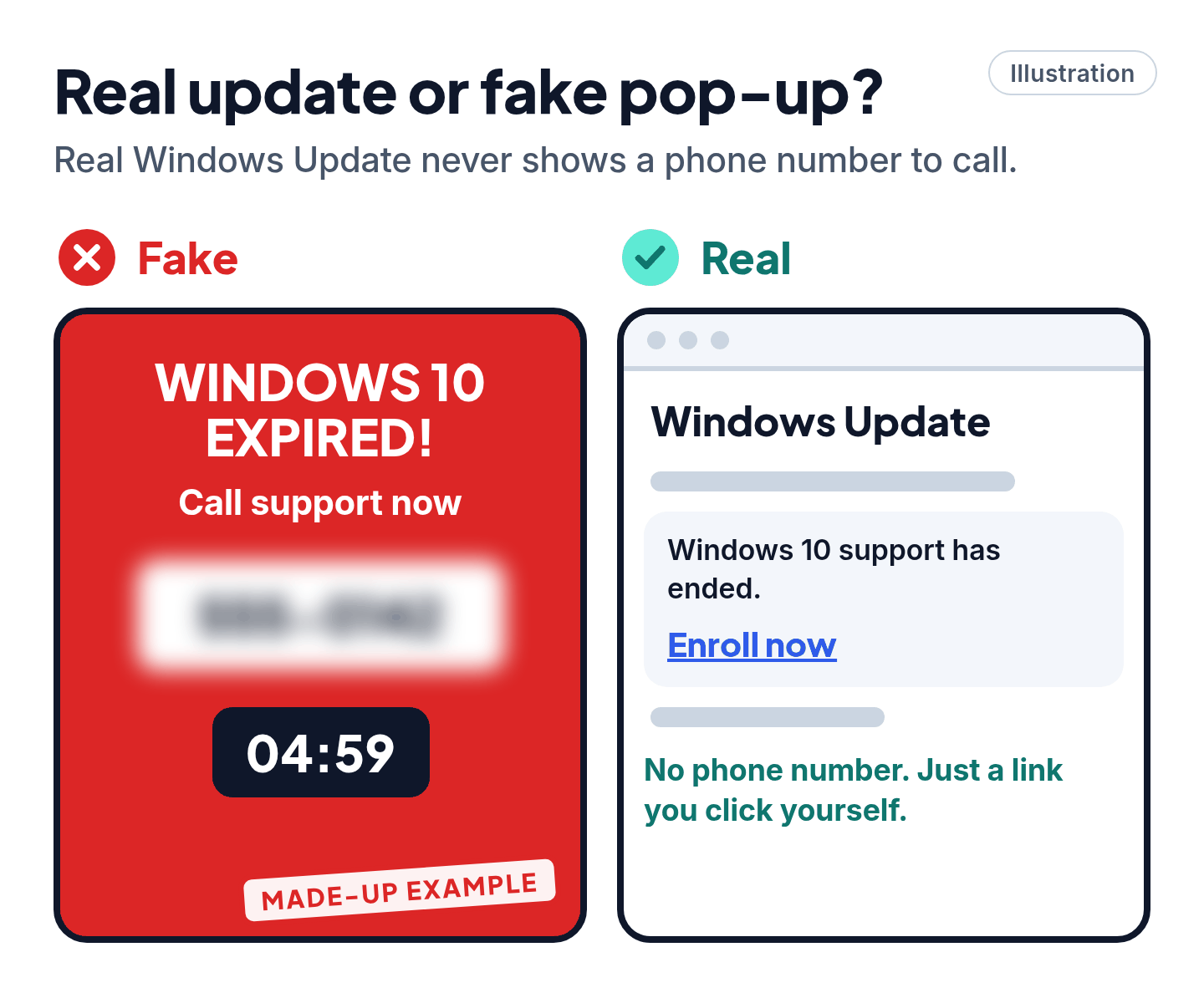
- Microsoft doesn't call, email or text you out of the blue about your PC, and its error messages never include a phone number.
- Pop-ups that lock your screen, go full screen, keep reappearing or play a voice warning are fake. Close the browser. Don't call any number on them.
- Microsoft never asks for payment in gift cards or cryptocurrency.
- The only place to sign up for ESU is Windows Update on your own PC. Not a phone call, a pop-up or an email link.
Already let someone in? Uninstall any app they had you install, run a full scan in Windows Security, change your passwords, and call your bank or card company using the number on your card. Report it at microsoft.com/reportascam. More help: our guide to spotting scams.
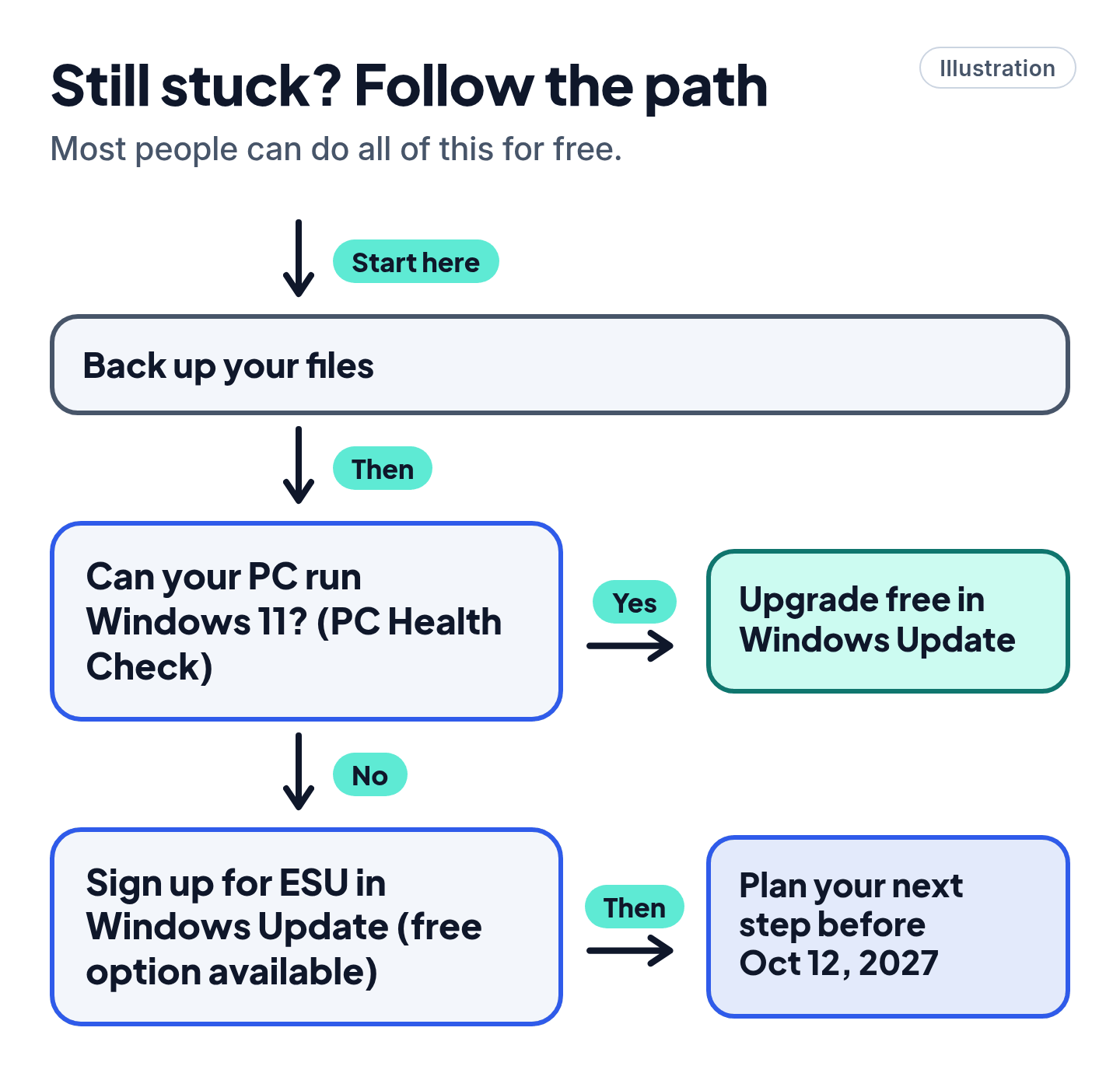
Still stuck? Follow the path
- PC Health Check says it can't run Windows 11? → Sign up for ESU (Step 5). You're covered until Oct 12, 2027.
- No "Enroll now" link? → Install all updates first, check you're on 22H2 (Step 1), and sign in to Windows with an administrator Microsoft account. Work PCs managed by an organization can't use the home program: ask your IT team.
- It passes, but no Windows 11 offer? → Wait a few weeks, or see Pro Mode for Microsoft's Installation Assistant.
- Worried you'll lose files? → Back up first (Step 2). The normal upgrade keeps your files and apps.
Pro Mode
Pro Mode Pro Mode: ESU details, upgrade options and edge cases
ESU prerequisites, in full. Windows 10 version 22H2 (Home, Pro, Pro Education or Workstations), the latest cumulative update, and the ESU Licensing Preparation Package (KB5126256). The license is tied to the Microsoft account you enroll with, and that account must be an administrator, not a child account. If you normally use a local account, you'll be asked to sign in with a Microsoft account. Kiosk-mode PCs and PCs joined to Active Directory or Microsoft Entra, or enrolled in MDM, aren't eligible (Entra-registered is fine). Once one user on a PC enrolls, every user on that PC is covered.
Check your status. Settings > Update & Security > Windows Update shows enrollment. Purchases appear in your Microsoft account Order History. Refunds follow Microsoft's digital purchase policy. Rewards redemptions are final.
Child's PC won't enroll? Microsoft says to sign in to it with your own administrator account (have your child add you as a user if needed), then enroll.
Windows 11 Installation Assistant. Microsoft recommends waiting for the Windows Update offer. If you can't, use the Installation Assistant from Microsoft's Windows 11 download page. It needs Windows 10 version 2004 or later, at least 9 GB free, and an x64 processor. It doesn't run on Arm PCs. Watch out: Windows Update's "Get ready for Windows 11" link doesn't check your PC. PC Health Check does.
Installation media. Running setup from a USB drive or ISO inside Windows 10 lets you choose Keep personal files and apps, Keep personal files only, or Nothing. Booting from the USB drive does a clean install and erases the drive.
S mode. Windows 10 Home in S mode can upgrade and stay in S mode. Pro in S mode must switch out first: Settings > Update & Security > Activation > Go to the Store.
Firmware settings. If PC Health Check's only complaint is TPM 2.0 or Secure Boot, check your PC maker's official support site: on some PCs these are settings in the firmware (UEFI) rather than missing hardware. Don't change firmware settings you're unsure about.
Unsupported hardware. Microsoft documents installing Windows 11 on PCs that don't meet the requirements, but doesn't recommend it. Those PCs aren't entitled to updates, damage isn't covered by the maker's warranty, and a watermark appears on the desktop. We don't recommend it either. ESU is the safer route until 2027. If you do upgrade and regret it, Settings > System > Recovery > Go back works for 10 days only.
Office. Office 2021 support ended Oct 13, 2026, on every version of Windows (Microsoft). Office 2024 is supported on Windows 11 until Oct 2029. It runs on Windows 10 but isn't supported there.
Business PCs. Organization-managed PCs use the commercial ESU program (priced per device, doubling each year), not the $30 consumer one. Ask your IT team.
You've got this
Back up, run PC Health Check, then either upgrade for free or sign up for ESU in Windows Update. That's it, and you have until Oct 12, 2027.
Sources
The 13 pages we checked
- Microsoft: Windows 10 Consumer Extended Security Updates (ESU)
- Microsoft: Windows 10 end of support
- Microsoft Support: Windows 10 support has ended on October 14, 2025
- Microsoft Support: How to use the PC Health Check app
- Microsoft Support: Windows 11 system requirements
- Microsoft Support: Ways to install Windows 11
- Microsoft Support: Installing Windows 11 on devices that don't meet minimum system requirements
- Microsoft Support: Find information about your Windows device
- Microsoft Support: Back up and restore with Windows Backup
- Microsoft Support: Backup and restore with File History
- Microsoft Support: Protect yourself from tech support scams
- Microsoft Learn: Extended Security Updates (ESU) program for Windows 10
- Microsoft Support: End of support for Office 2021
More free guides are on the way.