
On this page · 8 sections
Quick answer
Charge whenever it suits you, and don't drain it to 0%. Turn on your phone's built-in protection: Optimized Battery Charging or Charge Limit on iPhone, Adaptive Charging or Limit to 80% on Pixel, Battery protection on Samsung. Use a charger from the phone maker or a certified one, and keep the phone cool and out from under pillows and blankets while it charges.
Battery wear comes mostly from heat and from time spent at a high charge. Cap the charge if the phone sits plugged in for hours, skip fast charging when the phone is hot or very cold, and use a USB-C Power Delivery charger (the phone only draws what it needs) or an MFi, USB-IF or Qi/Qi2-certified accessory. Leave the occasional full charge alone: the phone uses it to keep its battery percentage accurate.
Unplug at 80%. Never charge overnight. Only use the charger that came in the box. Let it die before you recharge. Everyone has a rule, and many of them contradict each other. We went to the people who build the phones (Apple, Google and Samsung) and to published battery research, and sorted the real advice from the rumors.
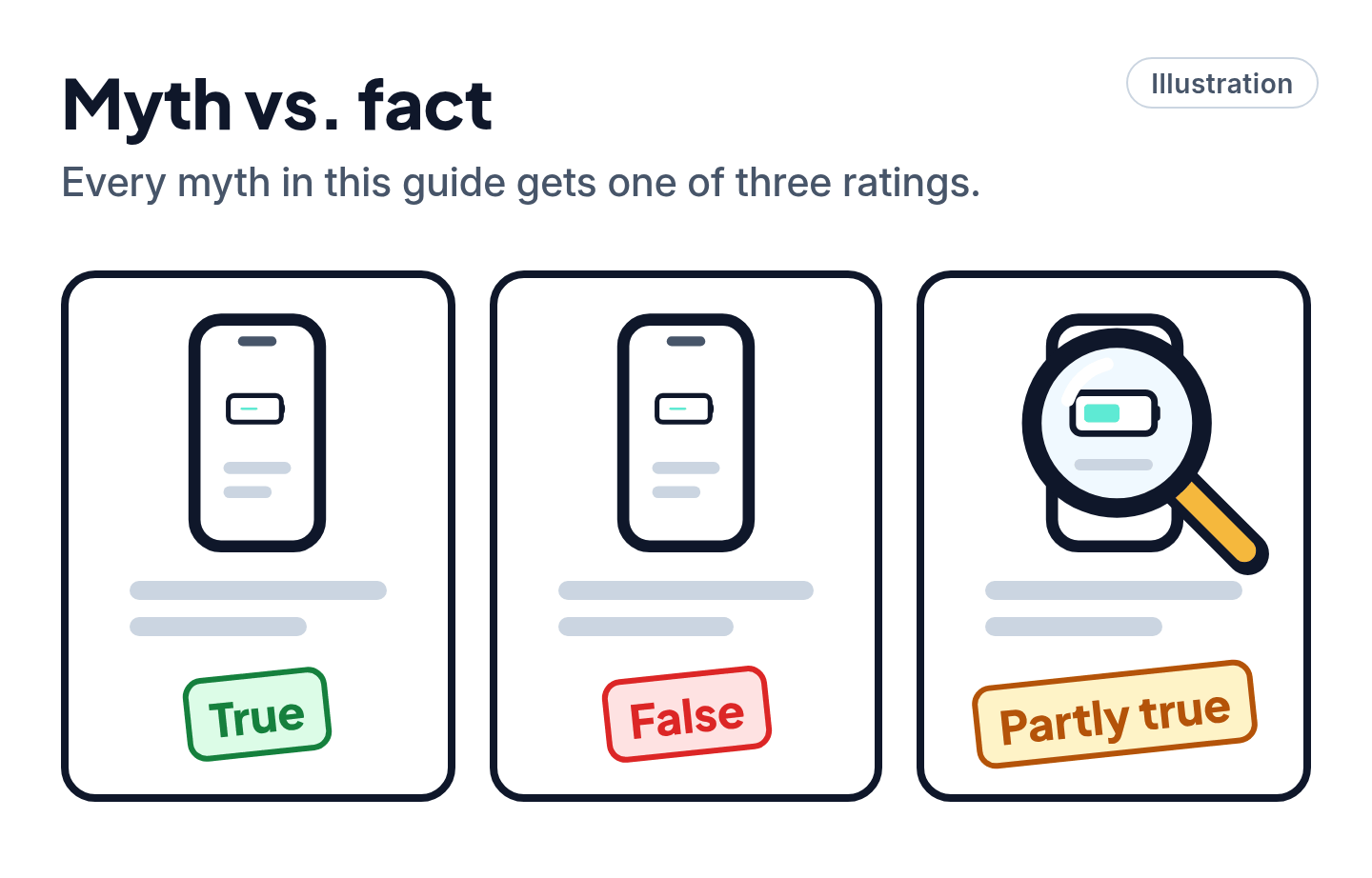
The short version: you can stop worrying. Your phone already protects its own battery in ways most people never switch on. Below are the habits that matter, followed by 12 popular myths, each rated True, False or Partly true.
Easy Mode: 6 habits that keep your battery healthy
Takes 5 minutes to set up. Free, and nothing is deleted. Do habit 1 today; the rest are things to keep in mind.
1. Turn on the protection your phone already has
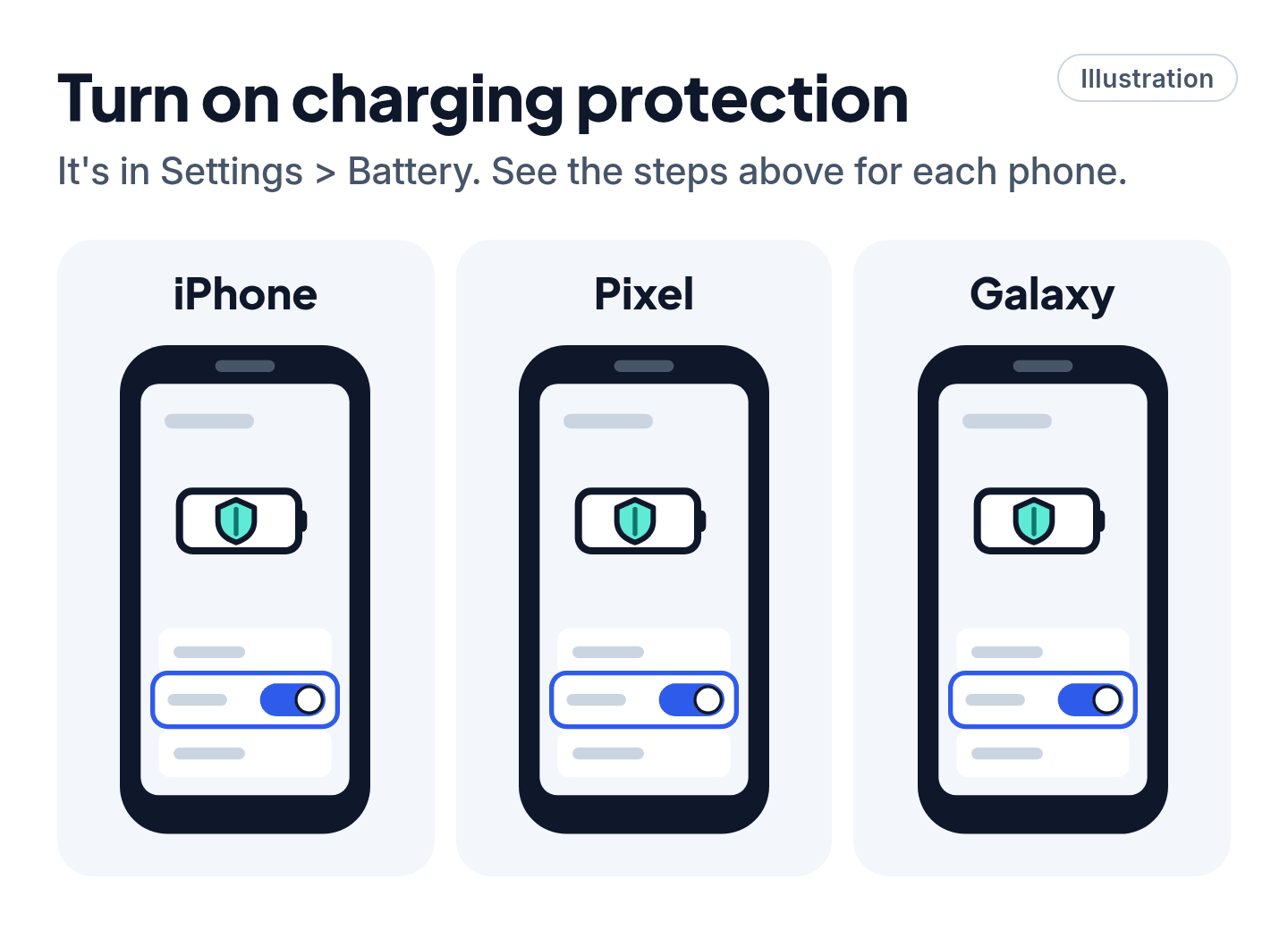
Every major phone maker now builds in a feature that limits how long the battery sits at 100%, because that's one of the things that wears it out. Here's where to find it:
- iPhone 15 and later: Settings > Battery > Charging. Pick a Charge Limit between 80% and 100%. Leave it at 100% and Optimized Battery Charging is available instead: it learns your routine and, in certain situations, waits at 80% before finishing the charge.
- iPhone 14 and earlier: Settings > Battery > Battery Health & Charging > Optimized Battery Charging. Apple turns this on by default.
- Google Pixel: Settings > Battery > Battery health > Charging optimization. Adaptive Charging still reaches 100% but times it to finish just before you usually unplug. Limit to 80% stops at 80%, which Google says suits people who usually end the day with charge to spare.
- Samsung Galaxy: Settings > Battery > Battery protection. Samsung's US support page lists options such as Adaptive, which learns your routine and stops at 80% until shortly before you wake, and Maximum, which stops at a level you choose. Option names vary by model and software version.
- Other Android phones: look in Settings > Battery for a charging-protection or charge-limit option, or check your phone maker's support site.
Our read: the "smart" options (Optimized Battery Charging, Adaptive Charging) are the easy win, because you still wake up to a full phone. Choose a hard 80% cap only if you rarely use your whole battery in a day.
2. Charge whenever it suits you
Top up at lunch, in the car or at your desk. Apple says there's no need to run the battery down before recharging, and both Apple and Google count battery wear in cycles: using 50% today and 50% tomorrow adds up to one cycle, the same as one full drain. Little top-ups don't cost you extra.
3. Keep it cool, especially while charging
Heat is the battery's real enemy. Apple says the sweet spot is room temperature, roughly 62° to 72° F (16° to 22° C), and warns that temperatures above 95° F (35° C) can shorten battery life for good. Charging in the heat makes it worse.
- Don't charge on a sunny windowsill or leave the phone in a hot car.
- Never charge under a pillow, a blanket or your body, and don't sleep on a charging phone. Apple warns against all of these, and Samsung lists bedding among the places a phone heats up.
- If the phone gets hot on the charger, take off its case, as Apple suggests.
4. Use a good charger and cable
You don't have to buy the phone maker's own charger, but skip the no-name gas-station specials. (On a Galaxy, Samsung recommends genuine Samsung or Samsung-certified chargers and cables.) Use the maker's charger or a certified one: MFi ("Made for iPhone") for Apple accessories, the USB-IF certified logo for USB-C chargers and cables, a USB-C Power Delivery (PD) charger for fast charging, and Qi or Qi2 certification for wireless pads. Throw out any cable that's frayed or damaged.
Cheat code
Bigger charger, no problem. A higher-watt USB-C charger (even a laptop's) won't overload your phone. USB Power Delivery lets the phone ask for only the power it needs, and Apple says a Mac laptop's USB-C charger is fine for an iPhone.
5. Go easy while it charges
You can use your phone while it's plugged in. Google says so outright. But gaming, video calls or navigation while it charges, especially on a fast or wireless charger, add heat and slow the charge. If it feels hot, unplug it, close your apps and let it cool, as Samsung suggests.
6. Putting a phone away for a while? Leave it half full
For a phone you won't use for weeks or months, don't store it full or empty. Apple suggests about 50%, Google says at least 50% for a Pixel stored over 30 days, and Samsung suggests 50 to 70%. Keep it somewhere cool, and top it up every few months (Samsung says every 3 to 6; Apple says every 6).
Myth vs. fact: 12 charging rumors, rated
Myth 1: "Charging overnight ruins your battery"
Partly true. Leaving a phone at 100% for hours does add wear. Apple and Google both say that time spent fully charged ages the battery, and that's exactly why they built Optimized Battery Charging and Adaptive Charging. Samsung's battery-care page still says to unplug once it hits 100% to avoid a swollen battery, and its Battery protection settings do that for you.
So overnight charging isn't the problem. Overnight at 100% is, and your phone's built-in protection (habit 1) handles it. Just charge on a hard surface like a nightstand, not in the bed.
Myth 2: "Keep your battery between 20% and 80%"
Partly true, and the science is mixed. The top half of this rule has real support. In a lab study of stored lithium-ion cells, researchers found that cells kept at a high charge lost capacity faster, though the effect came in plateaus rather than rising smoothly. A multi-year study at Sandia National Laboratories found that some battery types wore faster when cycled all the way from 0% to 100%, but warned that the results depend on battery chemistry and shouldn't be applied to every lithium-ion battery. Both studies tested lab cells, not phones.
The phone makers' own 80% options (Charge Limit, Limit to 80%, Battery protection) back up the "don't sit at 100%" half. As for the bottom half, no maker we checked tells you to stop at 20%. Apple does explain that a low charge, especially in the cold, makes an unexpected shutdown more likely.
Our read: switch on the built-in protection and stop watching the percentage. Babysitting a 20 to 80% window costs you battery life today in exchange for a small, uncertain gain years from now.
Myth 3: "Drain the battery to 0% before recharging"
False. That advice dates from older battery types. Apple says there's no need to let a lithium-ion battery fully discharge, and wear is counted in cycles no matter how you split them up. Leaving it flat for a long time is what hurts: Apple warns that a battery stored empty can fall into a deep-discharge state where it may no longer hold a charge, and Samsung says a battery left depleted for a long time can decline faster.
Myth 4: "You need to 'calibrate' your battery"
Partly true. You don't need to "teach" a modern phone its battery. Google's Android Help says so directly. But the battery percentage can drift, and an occasional full charge keeps it honest. Google suggests now and then letting an Android phone dip below 10% and then charging it fully. A Pixel needs a full charge about every 10th cycle, even with Limit to 80% on. An iPhone with a Charge Limit set occasionally charges to 100% by itself for the same reason.
So when your phone sometimes goes past your limit, that's normal, not a fault. This is about an accurate reading, not a healthier battery.
Myth 5: "Fast charging wrecks your battery"
Partly true, and the science is mixed. Fast charging puts more power in quickly, and in lab research high charging speed, a high charge level and cold temperatures all raise the risk of a kind of wear called lithium plating. But phones don't fast-charge flat out the whole time. Apple says iPhone fast-charges to about 80%, then switches to slower trickle charging. Samsung says its phones don't charge at maximum power all the time and slow down when things heat up. Apple adds that fast charging may not work at all when the phone is too hot or too cold.
Our read: with a compatible charger, fast charging is fine for everyday use. Skip it when the phone is already hot or freezing, or when you've got all night anyway. On many Galaxy phones you can switch it off in Settings > Battery > Charging settings.
Myth 6: "Wireless charging cooks your battery"
Partly true. Wireless charging does run warmer. Apple lists it among the normal reasons a phone feels warm, and Samsung says the same. The phones protect themselves, though: an iPhone may limit charging above 80% when it gets too warm, and a Pixel may pause wireless charging until it cools. None of the makers says wireless charging damages the battery; the risk is extra heat.
To keep it cool: center the phone on the pad, take off thick or metal cases, and keep keys, coins and other metal objects off the pad, as Apple's safety guide advises. Google also suggests not moving or using the phone much while it charges wirelessly. Use a Qi- or Qi2-certified charger.
Myth 7: "Cheap, uncertified chargers are risky"
True. Apple warns that counterfeit or uncertified cables can damage your device, get very hot or fail to charge, and its safety guide says adapters that don't meet safety standards could pose a risk of injury or even death. Google and Samsung both warn that incompatible chargers can charge slowly or damage the phone. Note the word uncertified, though: Apple and Google both describe third-party chargers that meet the right standards as fine to use, and Samsung recommends genuine Samsung or Samsung-certified chargers and cables for Galaxy phones.
How to check: look for the MFi badge on Apple accessories, the USB-IF certified logo on USB-C gear, or Qi/Qi2 certification on wireless chargers. Buy from a store you trust, because a logo on a fake is still a fake. USB-IF itself points out that its logo is about compatibility testing and doesn't replace safety regulations.
Myth 8: "A higher-watt charger will fry your phone"
False. With USB-C Power Delivery, the charger and phone talk to each other, and each device takes only the power it needs. Apple says you can charge an iPhone with a 20-watt or higher USB-C adapter, including a Mac laptop's. For a Pixel, Google lists its own 30 W USB-C adapter or another PPS (a type of USB-C fast charging) adapter rated 30 W or more. The same goes for wireless pads: Google says a higher-watt pad only charges faster if the phone supports that speed.
Myth 9: "Using your phone while it charges damages it"
Partly true. It's safe, and Google says you can use a Pixel while it charges. What heavy use does is add heat and slow the charge. Samsung names demanding apps while fast charging as one cause of a hot phone, and says keeping the screen off helps it charge fastest. Apple also notes app use can slow charging. Scrolling or texting is fine. A long gaming session on a fast or wireless charger in a warm room is the combination to avoid.
Myth 10: "Heat is a battery's worst enemy"
True. This one is solid. Apple says temperatures above 95° F (35° C) can permanently reduce battery capacity and that charging in high heat does more damage. Google says to avoid leaving a Pixel above 95° F (35° C) for 6 hours or more and to limit direct sunlight. Samsung says long use or storage above 95° F can shorten battery life. A hot car is the classic killer.
Myth 11: "Cold weather kills your battery"
Partly true. Cold drains the battery faster, and a frozen phone may shut down, but the effect is mostly temporary. Apple says battery life returns to normal once the phone warms up. Charging is a different story: a very cold iPhone may not charge, or may charge slowly, and in lab research charging at low temperatures raises the risk of lasting wear. Apple's tip: bring the phone indoors and let it warm up gradually before you plug it in. Don't put it on a heater.
Myth 12: "Battery-saver and 'battery doctor' apps fix your battery"
False. Google and Samsung both describe batteries as consumable parts that wear out over time, and Apple explains that every lithium-ion battery chemically ages. None of the makers points you to an app to reverse it. Our read: an app can't undo chemistry. Many "booster" apps just close your other apps, and Apple says closing all your apps doesn't help battery life, because apps you aren't using only draw power when they're active or doing specific background tasks. Some of these apps exist only to show ads or scare you into paying.
What does help is the power-saving mode already in your phone (Low Power Mode on iPhone, Battery Saver on Pixel, Power saving mode on Samsung). It stretches today's charge. It doesn't repair the battery, but it doesn't need to.
Scam warning
Your phone's own Settings is the only battery checker you need. Pop-ups saying "your battery is damaged" and apps promising to "repair" or "calibrate" it are worth ignoring. To check the battery for real, open Settings > Battery > Battery Health (iPhone 15 and later) or Settings > Battery > Battery Health & Charging (iPhone 14 and earlier), or the battery health screen on Pixel. If it needs replacing, book it through Apple, Google, Samsung or an authorized repair shop, starting from the official website.
Still stuck? Match what you see
| What you see | What it probably means | What to do |
|---|---|---|
| Phone stops at 80% | A charge limit or charging protection is on (habit 1) | That's working as designed. Need 100% today? See our guide to a phone that won't charge for how to switch it off. |
| Battery runs out by lunch | Usually apps and settings, not the charging | Follow our phone battery draining fast fixes. |
| iPhone says "Charging On Hold" | It's too hot or too cold to charge safely | Move it somewhere room temperature. Charging resumes by itself. |
| Phone gets hot on the charger | Heat from fast or wireless charging, heavy use or a thick case | Unplug it, close apps, take off the case and let it cool before charging again. |
| Battery Health says Service (iPhone) or Reduced (Pixel 8a and later) | The battery has worn down | Plan a battery replacement through the official repair site. |
| Phone looks puffy, the back bulges or the screen lifts at the edges | Possibly a swollen battery | Stop using and charging it. Don't press, pry or puncture it, don't try a DIY fix and don't throw it in the trash. Book an official repair. |
Pro Mode
Pro Mode Pro Mode: how the charging features work, and what the research says
Optimized Battery Charging (iPhone) needs a routine. Apple says it kicks in only after the phone has learned your habits: at least 14 days, plus at least 9 charges of 5 hours or more in one place. On a nightly charger, it holds at 80% and finishes before your usual unplug time. Apple warns that turning it off can increase battery wear.
Charge Limit details (iPhone 15 and later). Choose 80% to 100% in 5% steps. Charging stops within a few percent of the limit and only restarts if the level drops more than 5% below it. iOS may suggest a limit based on how you charge. The phone will occasionally go to 100% anyway to keep its percentage accurate.
Adaptive Charging and Limit to 80% (Pixel). Adaptive Charging takes about 14 days to learn your routine. With Limit to 80% on, Google says a Pixel still needs a full charge every 10th cycle; leave it plugged in at least 30 minutes after it hits 100%. On Pixel 6a and later (always on from Pixel 9a), Google says Battery health assistance also adjusts the battery's maximum voltage in stages from 200 to 1,000 cycles to help stabilize performance and aging.
Samsung Battery protection options. Samsung's US support page describes Basic (stops at 100% and resumes at 95%), Maximum (stops at a level you set; lower means a longer lifespan) and Adaptive (learns your routine, stops at 80% and switches to Basic before you wake up, so it can finish). Samsung notes that screens and settings vary by carrier, software version and model, so your phone may use other names.
How long a battery is built to last. Apple says iPhone 14 and earlier are designed to keep 80% of their original capacity after 500 full cycles, and iPhone 15 models after 1,000. Google says Pixel batteries keep about 80% after roughly 800 cycles (Pixel 3 through 8 Pro and Fold) or 1,000 cycles (Pixel 8a and later). Partial charges count as partial cycles.
What the research actually says. Two open-access studies are worth knowing. Keil and colleagues (Journal of The Electrochemical Society, 2016) stored three kinds of lithium-ion cells at 16 charge levels and found high charge levels sped up capacity loss, in steps rather than a straight line. Preger and colleagues at Sandia (same journal, 2020) cycled cells for years and found that conditions such as temperature and depth of discharge could change lifespan by thousands of cycles, but in chemistry-specific ways; the authors warn against applying one chemistry's results to all lithium-ion batteries. Their paper also notes that lithium plating is promoted by high charge levels, fast charging and low temperatures. Neither tested phones, and phone makers don't publish which exact chemistry each model uses, so treat any precise "best percentage" you see online as a guess.
Checking a certification. Apple says certified accessories carry the MFi badge on their packaging. USB-IF lists certified products on its Integrators List. Google points to the Wireless Power Consortium's database to confirm Qi and Qi2 chargers. Apple says third-party adapters should meet applicable safety standards, and notes that many countries, including the US, use IEC 62368-1 (or the older IEC/UL 60950-1) for chargers.
iPhone "Slow Charger" message. On iOS 18 and later, iPhone may show a Slow Charger message if a higher-watt charger would charge it faster. Apple says it doesn't mean anything is wrong.
A word on swollen batteries. Google says swelling on its own isn't a safety concern, but warns that a lifted screen lets in liquid and dust, and an exposed battery is easier to damage, which can make it overheat. Apple's safety guide says to stop using an iPhone if you suspect battery damage, and Samsung says to stop using a damaged battery and contact an authorized service center. Our read: treat any bulge as a reason to stop charging and book an official repair. Only trained technicians should replace a phone battery.
You've got this
Battery health comes down to three things: avoid heat, don't sit at 100% for hours on end, and use a decent charger. Your phone handles the second one for you once you switch on its protection. Charge whenever you like, enjoy fast charging when you need it, and let the myths go.
Sources
The 34 pages we checked
- Apple Support: About Charge Limit and Optimized Battery Charging on iPhone
- Apple: Maximizing battery life and lifespan
- Apple: Why lithium-ion?
- Apple Support: iPhone battery and performance
- Apple Support: If your iPhone or iPad gets too hot or too cold
- iPhone User Guide: Understand Thermally Limited Charging on iPhone
- Apple Support: If a Charging On Hold notification appears on your iPhone or iPad
- Apple Support: How to wirelessly charge your iPhone
- Apple Support: Fast charge your iPhone
- Apple Support: About iPhone charge speeds
- Apple Support: About Apple USB power adapters
- Apple Support: Charge and connect with the USB-C connector on your iPhone
- Apple Support: Identify counterfeit or uncertified Lightning connector accessories
- Apple Support: About Made for iPhone, iPad, and iPod touch accessories
- iPhone User Guide: Important safety information for iPhone
- Apple Support: Close an app on your iPhone or iPod touch
- Google Pixel Phone Help: Maximize charging on your Pixel phone
- Google Pixel Phone Help: Understand your Pixel battery
- Google Pixel Phone Help: Charge your Pixel phone
- Google Pixel Phone Help: Fix a Pixel phone that won't charge or turn on
- Google Pixel Phone Help: Fix battery drain problem
- Android Help: Get the most life from your Android device's battery
- Samsung US Support: Get the most out of your Galaxy phone or tablet battery
- Samsung US Support: Galaxy Battery: Care and Maintenance
- Samsung US Support: Samsung Galaxy device may appear to be charging slowly or not charging at all
- Samsung UK Support: Why is my Samsung phone overheating or getting hot
- Samsung UK Support: What to do when your Samsung Galaxy device heats up while in use
- Samsung UK Support: How to enable Fast charging and Fast wireless charging on your Samsung Galaxy phone
- Samsung India Support: How to ensure that my Samsung mobile device is powered by safe batteries
- USB-IF: USB Charger (USB Power Delivery)
- USB-IF: Compliance
- USB-IF: Certified USB Charger logo announcement (2016, PDF)
- Keil et al., Journal of The Electrochemical Society (2016): Calendar Aging of Lithium-Ion Batteries: I. Impact of the Graphite Anode on Capacity Fade
- Preger et al., Journal of The Electrochemical Society (2020): Degradation of Commercial Lithium-Ion Cells as a Function of Chemistry and Cycling Conditions
More free guides are on the way.