On this page · 8 sections
Quick answer
Open your storage screen first (iPhone: Settings > General > iPhone Storage; Android: Settings > Storage) to see what's using space. Back up your photos, then clear old videos, apps you don't use and big message attachments, and empty the Recently Deleted or Trash folders so the space actually comes back.
Turn on Optimize iPhone Storage with iCloud Photos or use Free up space in Google Photos after a confirmed backup, offload or archive unused apps, set Messages to keep 30 days or 1 year, clear app caches on Android (cache, not storage), and move big files to a computer.
You go to film the big moment and your phone stops you cold: storage full. Or an update refuses to install because there's no room. The good news: you probably don't need a new phone or a cleaner app. You need 10 to 20 minutes and the tools already built into your phone.
The trick is to look before you delete. One giant video, an app you forgot about or a group chat full of clips is often the real space hog. Find it, back up what matters, clear it out, then empty the trash so the space actually comes back.
Easy Mode: 7 fixes, biggest wins first
Takes 10 to 20 minutes. Free. Nothing is deleted until you choose to delete it. Stop as soon as you have enough room.
Menu names in this guide match current iPhone, Pixel and Samsung Galaxy software. On older software, or on other Android brands, a menu might be named a little differently or sit one screen over. If you don't see an option, use the search bar at the top of Settings.
1. See what's actually using your space
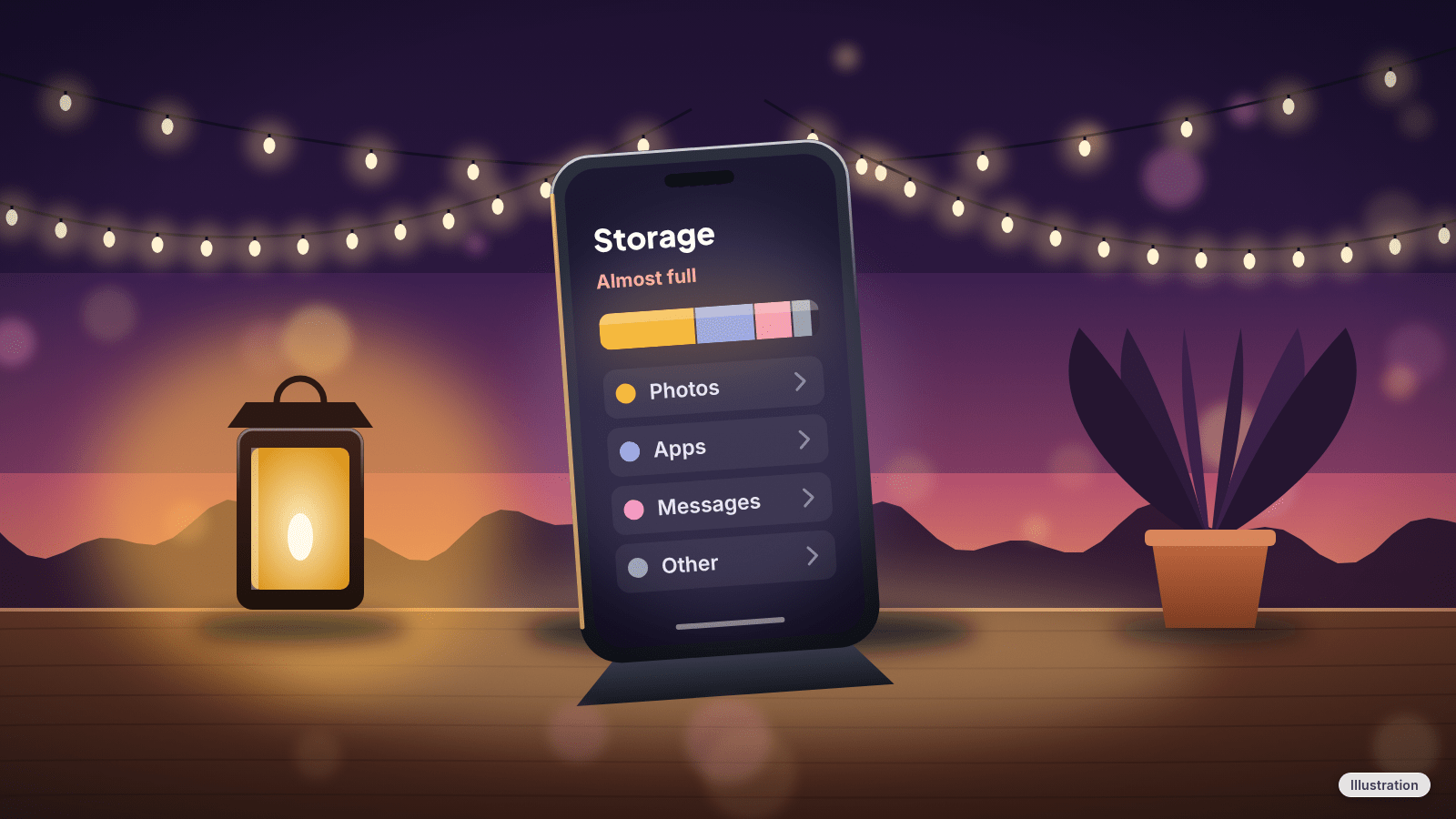
- iPhone: Settings > General > iPhone Storage. You'll see a colored bar at the top, suggestions underneath, then a list of apps with the space each one uses. Biggest apps are at the top.
- Google Pixel and most Android phones: Settings > Storage. Tap a category, like Images or Videos, to see what's in it. Some of these steps need Android 14 or later.
- Samsung Galaxy: Settings > Device care > Storage. Tap a category to see the files in it.
Give the list a minute. Is one app taking up a huge chunk? Is Photos or Messages bigger than you expected? That tells you which fix below to start with.
2. Use your phone's own suggestions
On iPhone, the storage screen shows recommendations above the app list. Read each one before you tap it, and only turn on the ones that make sense for you. If you see a "Storage Almost Full" alert, this is the place to start.
On Pixel and other Android phones, tap Free up space on the Storage screen. It lists photos, videos and apps you haven't used recently. Scroll to a category, tap Select files (or Browse if the category isn't listed), choose what to remove, then tap Move files to Trash.
Nothing is removed until you confirm, so it's safe to look around.
3. Back up your photos and videos, then clear them off the phone
Photos and videos are usually the biggest category. Back them up first, then free up space.
iPhone with iCloud Photos:
- Settings > tap your name > iCloud > Photos, then turn on Sync this iPhone.
- Turn on Optimize iPhone Storage. On iOS 27 or later, it's under Settings > your name > iCloud > Photos > iPhone Storage. With it on, your full-size photos and videos live in iCloud and your iPhone keeps smaller, space-saving copies.
- To check that the upload finished, open the Photos app, tap Collections and look at your account icon in the top-right corner. A partly filled blue circle means photos are still uploading. A red exclamation mark means your iCloud storage is full.
Heads-up: Optimize only works as long as you have room in iCloud. iCloud comes with 5 GB of free storage, which can fill up fast with photos and videos. If iCloud is full, move photos to a computer instead (see Still stuck).
Android with Google Photos:
- Make sure your photos are backed up in Google Photos.
- Open the Google Photos app, tap your profile photo > Free up space on this device > Free up (the button shows how much space you'll get back).
This removes the copies on your phone of photos and videos that are already backed up. You can still see them in the Google Photos app when you're online. They won't show up in your phone's built-in gallery app anymore. Photos and videos less than 30 days old might stay on your phone for now.
Deleting photos and videos you don't want at all:
- iPhone: in Photos, tap Select, tap the photos and videos to remove, then tap the trash can. If you use iCloud Photos, this deletes them from all your devices signed in to the same Apple Account, not just this phone.
- Samsung Galaxy: Settings > Device care > Storage > Images or Videos, select what you don't want, tap Delete, then Move to Trash. Screenshots pile up too: in Gallery, tap Albums > Screenshots, select the ones to remove, tap Delete > Move to Trash.
- Pixel and other Android phones: use Free up space from Fix 2, or delete them in the Google Photos app.
Cheat code
Start with videos. A long video can take more room than a whole album of photos. On a Samsung or Pixel, open the Videos category in Storage. On iPhone, scroll your Photos library for long videos first. Back them up, then delete the ones you don't need on the phone.
4. Offload or delete apps you don't use
- iPhone, one app at a time: Settings > General > iPhone Storage, tap the app, then choose:
- Offload App: removes the app but keeps your documents and data. The icon stays on your Home Screen; tap it to reinstall and pick up where you left off (if the app is still in the App Store).
- Delete App: removes the app and its data from your iPhone. Data the app saved in iCloud stays in iCloud.
- iPhone, automatically: Settings > Apps > App Store, then turn on Offload Unused Apps. When storage is low, your iPhone removes apps you don't use but keeps their data. Their icons stay on the Home Screen with a small cloud symbol. Tap one to reinstall it.
- Android, automatically: open the Play Store, tap your profile photo > Settings > General, then turn on Automatically archive apps. Archiving removes rarely used apps but keeps your personal data. The icon stays, and you can download the app again if it's still on Google Play.
- Android, by hand with Files by Google: open Files by Google, tap Menu > Clean, find the Delete unused apps card, select apps and tap Uninstall. If the card asks for Usage access, that lets Files see which apps you haven't opened lately.
Our read: offloading or archiving is the safest first move. You get the space back, and nothing personal is lost.
5. Clean out message attachments
Group chats full of videos, memes and photos can quietly take up a lot of space.
iPhone (Messages):
- Open a big conversation and tap the contact or group icon at the top.
- Tap a category, like Photos.
- Tap Edit > Select, tap the attachments you want gone, tap the trash can and confirm.
To stop the pile-up for good: Settings > Apps > Messages > Keep Messages (under Message History), then choose 30 Days or 1 Year. Careful: whole conversations and their attachments older than that get deleted automatically. If you use Messages in iCloud, deleting a message on your iPhone also deletes it from your other Apple devices that use Messages in iCloud.
Samsung Galaxy (Samsung Messages): open Messages > More options (three dots) > Settings > More settings, then turn on Delete old messages. Read the screen before you turn it on so you know what will be removed.
Google Messages and other chat apps: delete conversations full of videos you don't need. Other chat apps may have their own storage options in their settings.
6. Delete downloads you've already watched or listened to
- Movies, shows, music and podcasts: open the app that downloaded them (TV, streaming, music or podcast apps) and remove downloads you've finished. On Android, for example, in Google TV tap Library, then Downloaded > Remove next to a video. In YouTube Music, tap your profile photo > Settings > Downloads & storage > Clear downloads.
- Files and downloads: on iPhone, check the Files app for big downloads you no longer need. On Samsung, open My Files > Downloads. On other Android phones, use Settings > Storage or the Files app.
7. Empty the trash so the space actually comes back
Deleting usually just moves things to a trash folder first. That's a safety net, but the space doesn't come back until the trash is emptied.
- iPhone Photos: deleted photos and videos sit in Recently Deleted for 30 days. To clear it now: Photos > Collections > Recently Deleted (under Utilities) > View Album, unlock with Face ID, Touch ID or your passcode, tap Select, choose items, then delete them. Deleting from here is permanent.
- iPhone Messages: deleted messages and attachments sit in Recently Deleted for up to 30 days. In the conversation list, tap the menu button, then Recently Deleted, select conversations and tap Delete. This is permanent.
- Samsung Gallery: Gallery > Menu (three lines) > Trash > More options (three dots) > Empty > Delete.
- Google Photos: deleted photos and videos go to the app's Trash for a limited time, so you can still restore them if you change your mind. Check the Trash in your gallery or photos app (often under Menu > Trash) to see what's there.
Only empty the trash once you're sure you won't miss what's in it.
Still stuck? Find your situation
- iPhone shows a huge "System Data," "System" or "Other" chunk → On current iPhones, the storage bar splits this into two parts. System is iOS itself. Other holds things like Siri voices, fonts, logs, caches, the Spotlight search index and system data such as Keychain. iPhone manages both and removes cached and temporary files on its own when it needs room, so there's nothing to tap there. Focus on the categories you control: Photos, Messages, apps and downloads (Fixes 3 to 7).
- The "iCloud storage full" or "Google storage full" message won't go away → That's your cloud account, not your phone. Freeing up phone space won't fix it, and vice versa. Check iCloud at Settings > your name > iCloud to see which apps use the most. For a Google Account, check your account's storage page. Then delete old cloud backups or files you don't need.
- You need more room but want to keep everything → Copy photos and videos to a computer, check the copy, then delete them from the phone. iPhone can transfer them to a Mac or Windows PC. On Android, connect with a USB cable and copy the files over. Our guide to moving photos and files to a new device covers the steps.
- Samsung with a microSD card slot → In My Files, move big videos, music or downloads from Internal storage to the SD card.
Scam warning
Ignore "your phone is full" or "your phone is infected" pop-ups that push you to call a number. Real security warnings don't ask you to call a phone number. Be wary of any pop-up that rushes you to install a "cleaner" app, too. If a website or ad pushes one, close it. Your phone's own storage screen (Fix 1) shows the real numbers, and the steps above use only tools already on your phone.
Pro Mode
Pro Mode Pro Mode: tune storage settings and keep it from filling up again
Clear app cache on Android (cache, not storage). On Samsung: Settings > Apps > pick the app > Storage > Clear cache. Other Android phones use a similar path in Settings > Apps, but names vary by phone. Cache is temporary data; the app might just be a bit slower the next time it opens. Clear storage (Samsung calls it Clear data) is different: it permanently deletes all of the app's data. Only use it if you're OK starting that app from scratch, and try deleting what you don't need inside the app first.
Android Smart Storage. Settings > Storage > Free up space > Menu > Settings, then turn on Smart Storage. When the phone is almost full, it automatically clears photos and videos that are already backed up. Availability varies by phone and Android version.
iCloud "Recommended for You." On iOS 17 and later, Recommended for You can point out photos, large files and backups you might not need anymore. Look for it in your iCloud storage settings (Settings > your name > iCloud).
Merge duplicate photos on iPhone. If you've saved the same photos more than once, the Photos app can merge duplicate photos and videos to free up space.
Old Samsung Cloud backups. Backups of phones you no longer use take up cloud space, not phone space, but they're easy to clean: Settings > tap your Samsung account name > Samsung Cloud > Restore data, pick the old device, then More options > Delete backups.
Keep originals on iPhone (if you'd rather). If you need full-size originals on the phone for editing, choose Download and Keep Originals instead of Optimize. Just know it uses much more space.
Stop the next pile-up. Leave Offload Unused Apps or Automatically archive apps on, set Messages to keep 1 year, and turn on iCloud Photos or Google Photos backup so you can clear old photos off the phone whenever you need to.
Space that frees itself. When an iPhone is low on storage, it frees up space by removing things it can download again or doesn't need, like unused apps and temporary files. So the free space number can go up on its own.
You've got this
Full storage usually comes down to photos, videos, a few big apps or message attachments. Look first, back up what matters, clear the biggest items, then empty the trash. That covers most phones in one sitting.
References
All 12 reference links
- Apple Support: How to check the storage on your iPhone and iPad
- Apple Support: Manage storage on iPhone
- Apple Support: Manage your photo and video storage
- Apple Support: Back up and sync your photos and videos with iCloud
- Apple Support: Delete or hide photos and videos on iPhone
- Apple Support: Delete messages and attachments in Messages on iPhone
- Apple Support: Remove or delete apps from iPhone
- Android Help: Free up storage on your Android device
- Google Photos Help: Free up space on your device (Android)
- Files by Google Help: Delete unused apps and free up space
- Samsung Support: Free up storage space on your Samsung phone or tablet
- FTC Consumer Advice: How to spot, avoid, and report tech support scams
Never miss a cheat code
Get a new 60-second fix every day: follow on TikTok, YouTube or Instagram.
Want AI to answer your clients?
Our ready-made AI setups come with a step-by-step guide in Easy Mode and Pro Mode. You set them up yourself.
See the AI setupsRelated fixes
New Phone or Computer? How to Move Your Photos, Messages and Files Over for Free
Moving to a new iPhone, Android, Windows PC or Mac? Use the free, built-in transfer tools to bring your photos, messages and files along, step by step.
New Device Setup · 8 min read
Phone Battery Draining Fast? Free Fixes for iPhone and Android
Phone battery dying by lunch? Find what's draining it and fix it free on iPhone, Pixel or Samsung Galaxy before you pay for a new battery or phone.
Phones & Storage · 5 min read
Selling or Giving Away an Old Device? How to Wipe It Safely
Before you sell or give away an iPhone, Android phone, Windows PC or Mac: back up, sign out so it isn't locked to you, erase it, then take out your SIM.
New Device Setup · 11 min read