
On this page · 8 sections
Quick answer
Stop the print job. On a Canon, press Stop, then turn the printer off and unplug it; on a Brother, unplug it; on an HP ENVY 6100 or DeskJet Plus Ink Advantage 6100, unplug it before you move the carriage by hand. On an Epson ET-2800, keep your hands off the buttons while you work. Pull the paper out slowly with both hands, along your maker's path, and look for torn bits. Jam message but no paper? HP says it can take two or three restarts. Then load flat, uncurled paper of one size, with the guides against the edges.
Power down per maker (Canon: Stop, then off and unplug; HP ENVY 6100/DeskJet Plus Ink Advantage 6100: unplug before moving the carriage; Brother: unplug; Epson ET-2800: cancel the job, hands off the panel, don't tilt it). Extract along the paper path with both hands (HP: no tweezers or pliers), then sweep for fragments. False jams: HP's 60-second reset straight to a wall outlet, 2 or 3 power cycles; Canon: recheck for scraps; Epson W-01 and E-01 per its table. Then clean the rollers where your maker gives steps (HP ENVY Inspire, Brother; Canon TS3500 for paper that won't feed) and fix the loading.
A paper jam stops the printer, and yanking the sheet out can tear it and leave bits behind that cause the next jam. HP, Canon, Epson and Brother each show their own safe way out, so the steps below are labeled by maker and by the models each maker's page covers.
These steps are for a printer you own. If it's a work, school or office printer, or one you lease, ask that organization's IT team before you open it up. Doors, buttons and screen messages vary by model and country; the steps below follow the U.S. support pages of HP, Canon, Epson and Brother as of Oct 23, 2026. If your model isn't named, look up its own jam page on the maker's support site. These steps are for inkjet printers. Laser printers are different: Brother's jam steps for its HL-2220 laser printer, for example, warn that right after printing "some internal parts will be extremely hot," and say to open the front cover and wait at least 10 minutes for the machine to cool down. On a laser printer, use its own jam page.
Easy Mode: clear the jam, easiest step first
Go slowly. Every maker here warns against forcing the paper. Printer not jammed, just showing as offline? Try our printer offline fixes. Pages come out, but blank or with streaks? See our blank or streaky pages guide.
1. Stop the job, then power down the way your maker says
- Canon (TS3500 series): if paper jams while it's printing and you need to turn the printer off to get it out, Canon says to press the printer's Stop button first. For paper stuck inside, Canon's steps begin: turn the printer off and unplug it.
- Brother (MFC-J1205W and MFC-J1215W): step 1 of Brother's inside-jam steps is to unplug the machine from the outlet.
- HP (ENVY 6100, 6100e and 6100r, and DeskJet Plus Ink Advantage 6100): HP says to unplug the power cord before you move the carriage (the part that holds the cartridges) by hand, to avoid the risk of electrical shock. Open the cartridge access door and let the carriage stop moving first.
- Epson (ET-2800): Epson's steps begin with canceling the print job, if necessary, and end with following the prompts on the printer's screen; they don't say to turn it off. Epson's warning: keep your hands off the control panel buttons whenever a hand is inside the printer, because it could start up and injure you.
Our read: whichever of these inkjets you have, wait until nothing inside is moving before your hands go in.
2. Pull the paper out slowly, along your maker's path
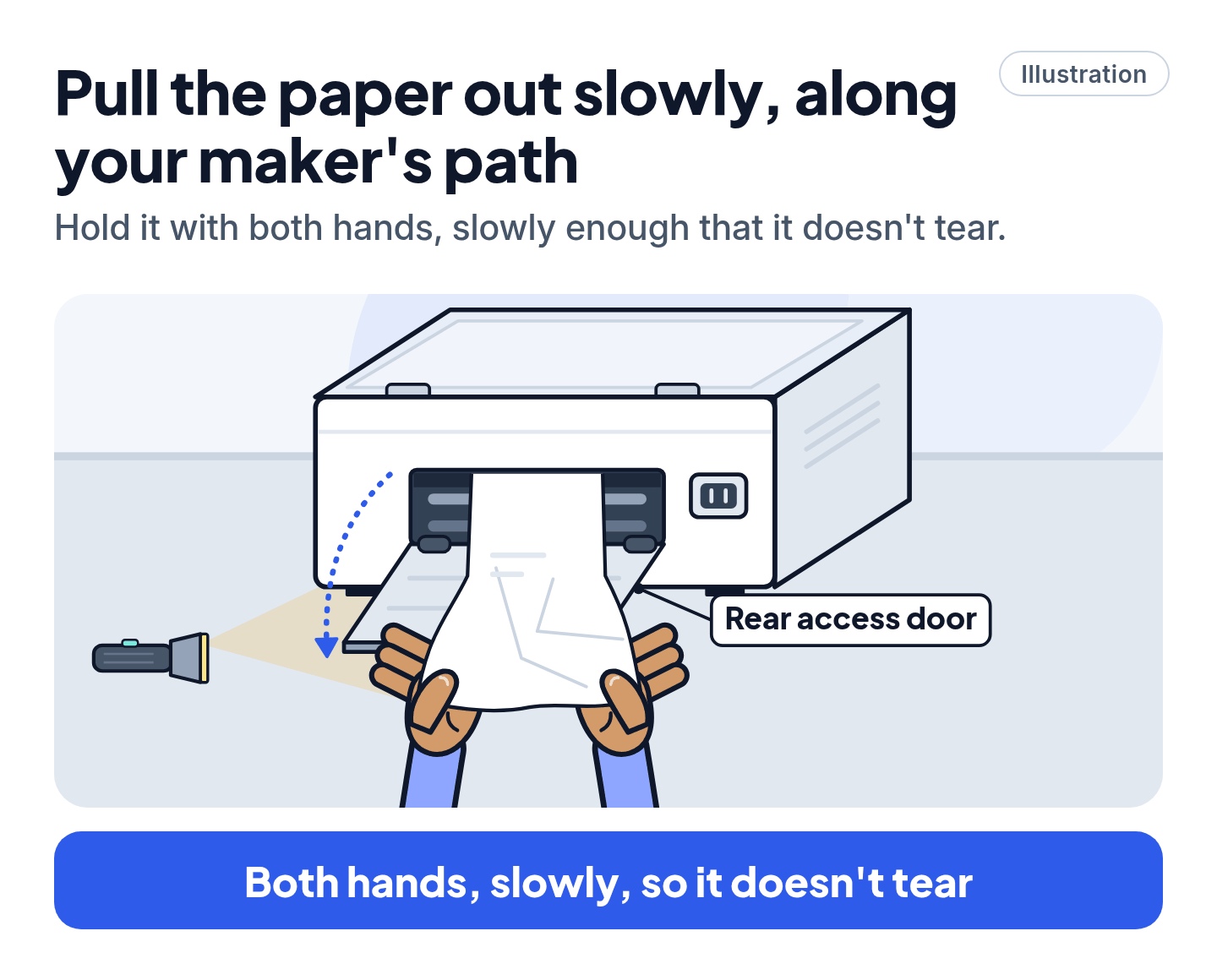
- HP (ENVY 6100, 6100e and 6100r, and DeskJet Plus Ink Advantage 6100): HP says to check every area where paper can jam. Use both hands and pull the paper straight out; don't reach for tweezers, needle-nose pliers or other sharp tools. The areas are the carriage and cleanout area (open the cartridge access door and wait until the carriage stops moving; if the carriage is in the center, unplug the power cord, as HP's caution says to before you move the carriage by hand, then slide it to the right and remove any paper or objects in its path; take off the paper path cover, clear the paper path, snap the cover back in and close the door), the input tray, the output tray and the bottom of the printer. HP advises against pulling jammed paper out from the front, because it can tear and leave pieces inside. A flashlight helps. On the ENVY Inspire 7200e and 7900e, HP's page also has you gently tilt the printer from the front, about 60°, to reach the base, and warns not to move the print carriage too far to the left or right. Once the paper is out, HP's general "Cannot print" page says to "close all the doors, and restart the printer to clear the message."
- Canon (TS3500 series): if you can see the paper at the paper output slot or the rear tray, pull it out from whichever is easier, holding it with both hands, slowly enough that it doesn't tear. Then reload the paper and press the printer's OK button; Canon says printing resumes, and to reprint any page that didn't print. Can't get it out? Canon says not to pull hard: turn the printer back on, and it may push the paper out by itself. If the paper tears or stays inside, follow Canon's inside steps: turn it off and unplug it, retract the paper output tray and open the cover. Don't touch the clear film inside. If the paper is under the FINE cartridge holder, slide the holder slowly to the far right or left. Pull the paper out slowly with both hands, then check under the holder, for small bits, and in the empty spaces on the left and right. Close the cover, plug it in and turn it on. Canon says this cancels every job waiting to print, so send yours again.
- Epson (ET-2800): take out any jammed paper from the rear paper feeder. Then raise the control panel, open the inner cover and lift the scanner unit until it clicks into place. Epson also warns not to touch any parts that stick out inside the printer, and to be careful not to trap your hands or fingers when you open or close the scanner unit. Remove the paper inside without touching the parts Epson's page marks. To close, lift the scanner slightly and lower it; when it catches, lift it again and lower it all the way. Close the inner cover, lower the control panel and follow the screen prompts. Epson says forcing the paper out may damage the printer, and not to tilt it, stand it on its side or turn it upside down while you work, or ink may leak.
- Brother (MFC-J1205W and MFC-J1215W): with the machine unplugged, pull the paper tray completely out, slowly pull out the jammed paper, and look carefully inside for scraps. Then push down on the Jam Clear Cover on the back, open it, and slowly pull out any paper there. Close the cover completely, push the tray firmly back in and, while holding it there, pull out the paper support until it locks and unfold its flap, then plug the power cord back in. Brother warns that ink can easily get on your hands; wash it off right away with soap or detergent.
3. Jam message, but no paper? Clear a "phantom jam"
- HP: HP notes that not every jam is real: a printer can show a jam message with no paper stuck anywhere. If you don't find any, restart: turn the printer off, wait for it to shut down fully, then turn it back on. HP's "Cannot print" page says it might take two or three power cycles to clear the error. HP's reset on the ENVY Inspire and 6100 pages: turn it off with the power button (or disconnect the cord if it won't turn off), unplug it, wait 60 seconds, then plug it straight into a wall outlet and turn it on.
- Canon (TS3500 series): if a jam message shows up on your computer when you print again after clearing it, Canon says some paper may still be inside, so check again for bits. Canon's other checks: is anything blocking the paper output slot? Is anything stuck in the rear tray? (Turn the printer off and unplug it before you take it out.) Is the paper curled? Flatten it before you load it.
- Epson (ET-2800): Epson's message list says W-01 means paper is jammed: take it out, then press the button shown on the screen; if the error stays, turn the printer off and on. For E-01, a printer error, turn it off and on; if that doesn't fix it, Epson says to check for a jam, and to contact Epson if there isn't one.
- Brother (MFC-J1205W and MFC-J1215W): Brother's jam page names 2 causes. Either paper is jammed (gently remove it, press Stop, and make sure the paper guides are set to your paper size; Brother adds not to extend the tray when you load A5 or smaller paper), or paper dust has built up on the pick-up rollers (clean them; see Pro Mode). If paper won't feed at all, Brother's light-signal page lists a Jam Clear Cover that isn't closed correctly as one cause: close it evenly at both ends.
4. Load paper the way your maker says
HP's jam page lists some common causes: too much paper in the tray, different thicknesses loaded together, or paper that isn't right for your printer.
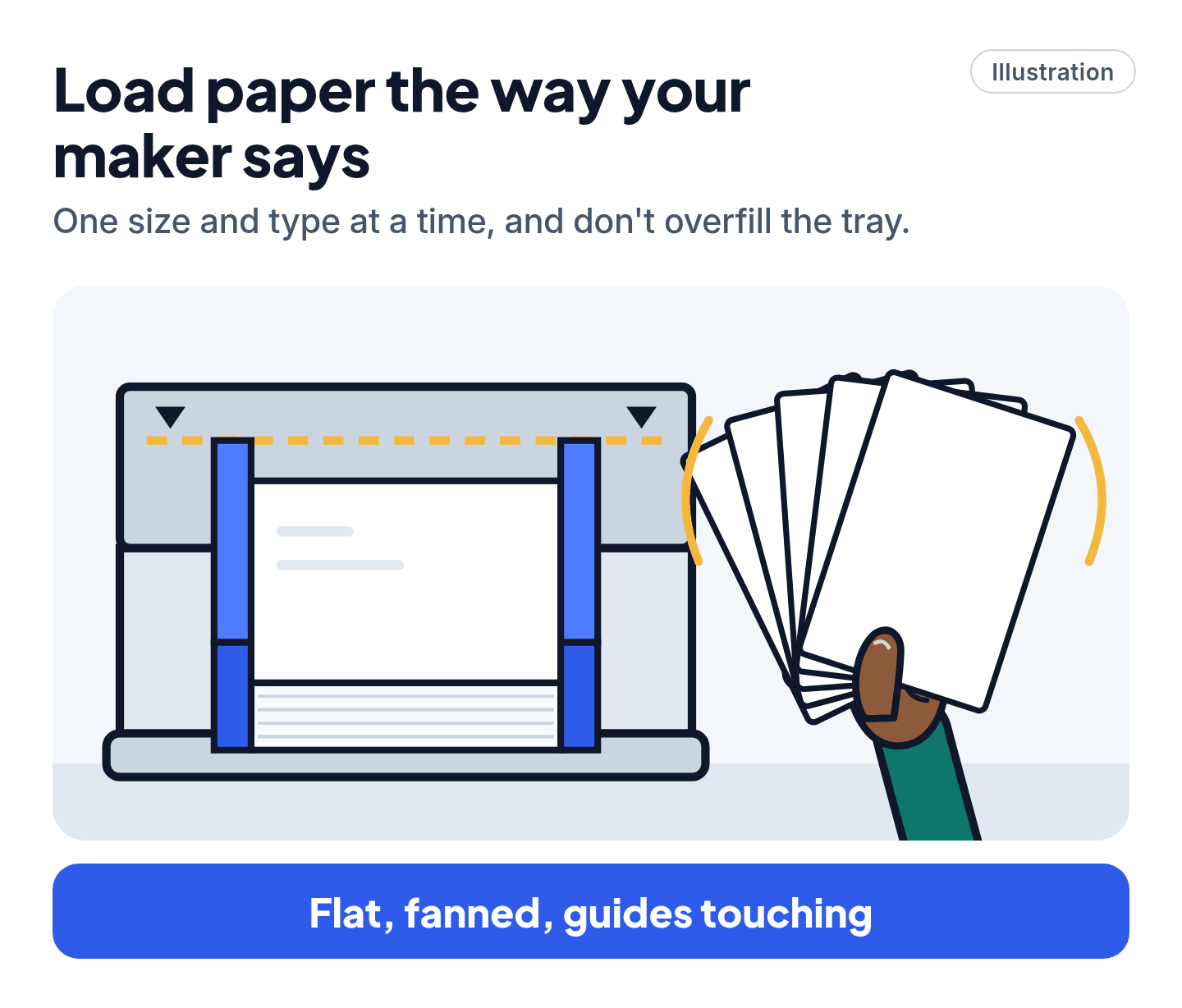
- HP (ENVY 6100, 6100e and 6100r, and DeskJet Plus Ink Advantage 6100): keep the printer on a flat surface and take printed pages out of the output tray often. Use paper that isn't wrinkled, folded or damaged, and store unused paper flat in a resealable bag. Don't use paper that's too thick or too thin, and don't overfill the tray. Load one paper size and type at a time, set the width guides snug against the stack without bending it, and don't push paper too far in. Don't add paper while it's printing.
- Canon (TS3500 series): use suitable paper and load it correctly. For documents with photos or graphics, Canon recommends a size other than A5, because A5 paper may curl and jam on its way out.
- Epson (ET-2800): place the printer on a flat surface. Load paper in the middle of the rear paper feed, printable side up, with the edge guides against the paper and the stack no higher than the arrow mark on the guides. If several sheets feed at once, fan the edges. If it jams when printing on both sides, load fewer sheets. Use new, smooth paper that isn't curled, creased, old, too thin or too thick, and check that the paper size and type set on the control panel match.
- Brother (MFC-J1205W and MFC-J1215W): load one size and type at a time, and change the paper size setting when you switch. Fan the stack well, and make sure it isn't curled or wrinkled. Load it printing side down and don't push it in too far, or it may lift at the back of the tray. Brother says more than 20 sheets of 5" x 7" photo paper may cause jams. To top up, take out the paper that's left and add it to the new stack.
5. Still jamming? Get official service
- HP: if it's still jamming after every step, HP's next step is to have the printer serviced or replaced through HP Customer Support, at support.hp.com. HP says repair fees might apply for out-of-warranty products.
- Canon: if the steps don't solve it, Canon says to contact your nearest Canon service center to request a repair. Canon's U.S. support site is usa.canon.com/support.
- Epson: for an E-01 error with no jam, Epson says to contact Epson for support, at epson.com/support.
- Brother: for more tips, Brother's LED page points you to your model's FAQs & Troubleshooting page at support.brother.com.
- Work, school or leased printer: the IT team.
Our read: if a cover won't close, a part looks broken or you hear grinding, stop and use the maker's service instead of taking the printer apart.
Don't call a "printer support" number from a search ad
Scam warning
- Our read: never call a number from a pop-up, a search ad or an unknown "support" site. Reach the maker only through its official support site, typed in yourself: support.hp.com, usa.canon.com/support, epson.com/support or support.brother.com.
- FTC: tech support scammers may try to get their websites into search results or run their own ads online, hoping you'll call their number. The FTC also says real security pop-ups will never ask you to call a phone number.
- Our read: a paper jam is cleared with your hands, at the printer. No one needs remote access to your computer to fix one.
Still stuck? Find your situation
| What you see | Possible cause | What to do |
|---|---|---|
| Jam message, but no paper you can see | A torn scrap inside, or a false jam (HP) | Check again with a flashlight, then restart (step 3) |
| HP jam error won't clear | HP says it can take 2 or 3 power cycles | HP's 60-second reset (step 3) |
| Epson shows W-01 | Paper jammed | Remove it, press the button shown, then off and on if needed (step 3) |
| Epson shows E-01 | Printer error | Off and on, check for a jam, then Epson support (steps 3 and 5) |
| Brother won't feed after a jam | Jam Clear Cover not closed evenly | Close it evenly at both ends (step 3) |
| Several sheets feed at once | Sheets stuck together | Fan the stack (step 4) |
| Jams keep coming back | Paper dust on the rollers, or the paper itself | Clean the rollers (Pro Mode), check the loading (step 4), then service (step 5) |
Pro Mode
Pro Mode Pro Mode: clean the rollers and clear paper dust
Clean the paper feed rollers (HP ENVY Inspire 7200e and 7900e). HP says dust, paper fiber and other debris can build up on these rollers and cause jams. You need a lint-free cloth or swab and distilled, filtered or bottled water; HP warns that tap water might damage the printer. Turn the printer off, unplug the power cord and disconnect any other cable. Dampen the cloth lightly and squeeze out the excess. Take out the input tray, pull out the main tray and gently tilt the printer from the front, about 60°, to reach the base. Press the cloth against the rollers and turn them away from you with your fingers, with moderate pressure. Let them dry completely, about 10 minutes. HP's page also has a document-feeder cleaning: remove any originals, lift the feeder cover, gently clean the separator pad and rollers with the damp cloth, let them dry (about 10 minutes) and lower the cover until it snaps into place.
Sweep out small bits (HP ENVY Inspire 7200e and 7900e). HP says jams are more likely when small bits of paper get stuck in the paper path. To clear them, HP has you run thicker paper, such as photo paper, through the printer. Take the paper out of the input tray, load one full-size sheet of photo paper (letter or A4) and send a blank print or copy job. When it comes out, open the input tray, lift the front of the printer and remove any torn paper or debris from the tray and rollers. Close the tray, then reload normal paper.
Clean the paper pick-up rollers (Brother MFC-J1205W and MFC-J1215W). Brother says cleaning them from time to time may prevent jams by helping paper feed correctly. Unplug the machine. Close the paper support flap and the paper support if they're open, then pull the paper tray completely out. Wipe the rollers with a soft, lint-free cloth moistened with water, turning them slowly so you clean the whole surface, then wipe them with a dry lint-free cloth. Slowly push the tray all the way in and plug the power cord back in.
Clean the paper feed rollers (Canon TS3500 series). Canon's manual gives this for paper that isn't feeding properly, when the roller is dirty or has paper powder on it; its jam pages don't list it. You need one sheet of A4 or Letter plain paper, or a store-bought cleaning sheet. With the printer on, take any paper out of the rear tray. Press Setup until 7 shows on the screen, then press Black or Color; the roller turns as it cleans without paper. When it stops, load the sheet in the rear tray and press Black or Color again. Once the paper comes out, press Stop. Still not feeding? Canon has you turn the printer off, unplug it and wipe the rollers inside the rear tray with a moistened cotton swab while you turn the shaft by hand, two or more times, then turn it on and run the cleaning again. Canon says not to touch the rollers with your fingers.
Epson. The Epson jam pages we used don't include a roller cleaning. Our read: don't tip an Epson to reach its rollers, since Epson warns that tilting it may make ink leak; use its loading tips in step 4 instead.
You've got this
Our read: most jams come out with patience. Power down the way your maker says, use both hands (HP says to skip tweezers and pliers), hunt down the last torn scrap, and load flat paper of one size. If it keeps happening, the maker's own service is the safe next step.
Sources
The 18 pages we checked
- HP Support: Fix Paper Jam Errors
- HP Support: HP ENVY Inspire 7200e, 7900e Printers - 'Paper Jam' error
- HP Support: HP DeskJet, ENVY 6100 Printers - 'Paper jam' error
- HP Support: HP printers – Cannot print
- Canon TS3500 series manual: 1300 (paper jammed when feeding from the rear tray)
- Canon TS3500 series manual: Paper Is Jammed inside Printer
- Canon TS3500 series manual: Other Cases
- Canon TS3500 series manual: Cleaning Paper Feed Rollers
- Epson ET-2800 user's guide: Paper Jam Problems Inside the Product
- Epson Support, ET-2800: Product status messages
- Epson Support, ET-2800: I'm having paper feed problems. What should I do?
- Brother Support, MFC-J1205W: Printer Jam or Paper Jam
- Brother online user's guide, MFC-J1205W/MFC-J1215W: Paper is Jammed Inside the Machine
- Brother online user's guide, MFC-J1205W/MFC-J1215W: Error and Maintenance LED Indications
- Brother online user's guide, MFC-J1205W/MFC-J1215W: Load Cut-Sheet Paper or Photo 2L Paper in the Paper Tray
- Brother online user's guide, MFC-J1205W/MFC-J1215W: Clean the Paper Pick-up Rollers
- Brother Support, HL-2220: Clear paper jams.
- FTC Consumer Advice: How To Spot, Avoid, and Report Tech Support Scams
More free guides are on the way.