On this page · 8 sections
Quick answer
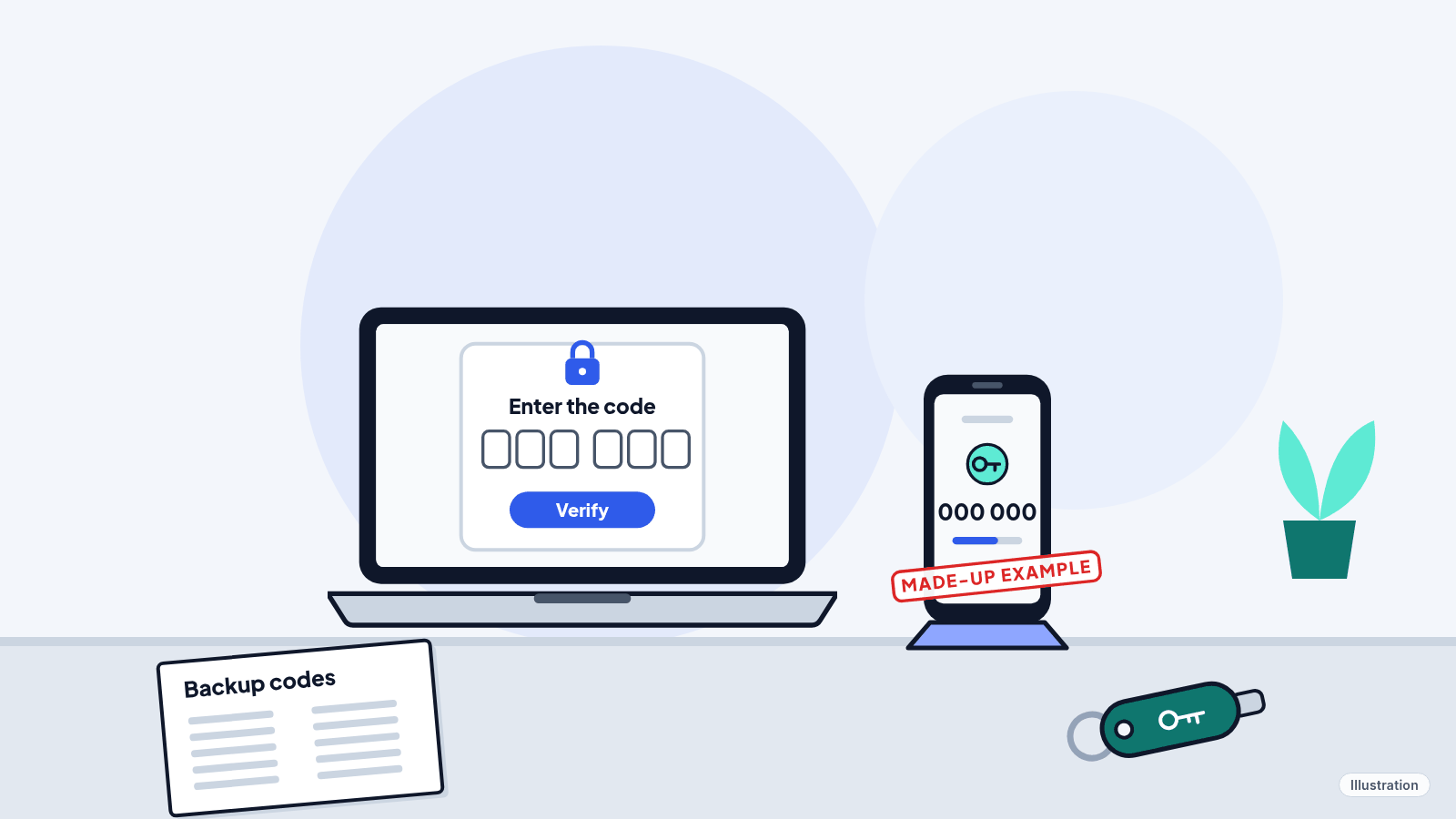
Open each account's security settings and turn on the second step: Google calls it 2-Step Verification, Apple and Meta call it two-factor authentication, Microsoft calls it two-step verification, and Amazon calls it Two-Step Verification. Use an authenticator app or a passkey if you can; a text code is better than nothing. Then save your backup codes on paper and add a second way back in, like another phone number or a recovery email.
Google: Security & sign-in > How you sign in to Google > Turn on 2-Step Verification; save the 10 backup codes. Apple: Settings > [your name] > Sign-In & Security (most accounts already use two-factor authentication); add a second trusted number. Microsoft: account.microsoft.com/security > Manage how I sign in > Additional security > Two-step verification > Turn on; keep three pieces of security info and save a recovery code (SMS is being phased out). Facebook and Instagram: Accounts Center > Password and security > Two-factor authentication. Amazon: Your Account > Login & security > Two-Step Verification (2SV) Settings.
A stolen password shouldn't be enough to get into your email, your photos or your shopping account. Two-step verification adds a second check on top of your password: a code, a tap on your phone or your fingerprint. Each company gives it a slightly different name, but it's the same idea. The FTC says turning it on takes a few minutes, and it can save you hours of cleanup after a hack.
These steps are for accounts you own. If the account comes from your work or school, these steps might not work, so ask their IT team. Menus vary by app version, device and country; the steps below follow each company's own help pages as of Oct 23, 2026, so if a label on your screen is a little different, look for the closest match.
Easy Mode: turn it on, account by account
Start with the accounts that matter most. The FTC's order: your most sensitive accounts first (it lists bank, credit cards, email, social media, tax filing site and payment apps), then other accounts, such as shopping sites.
1. Pick your second step
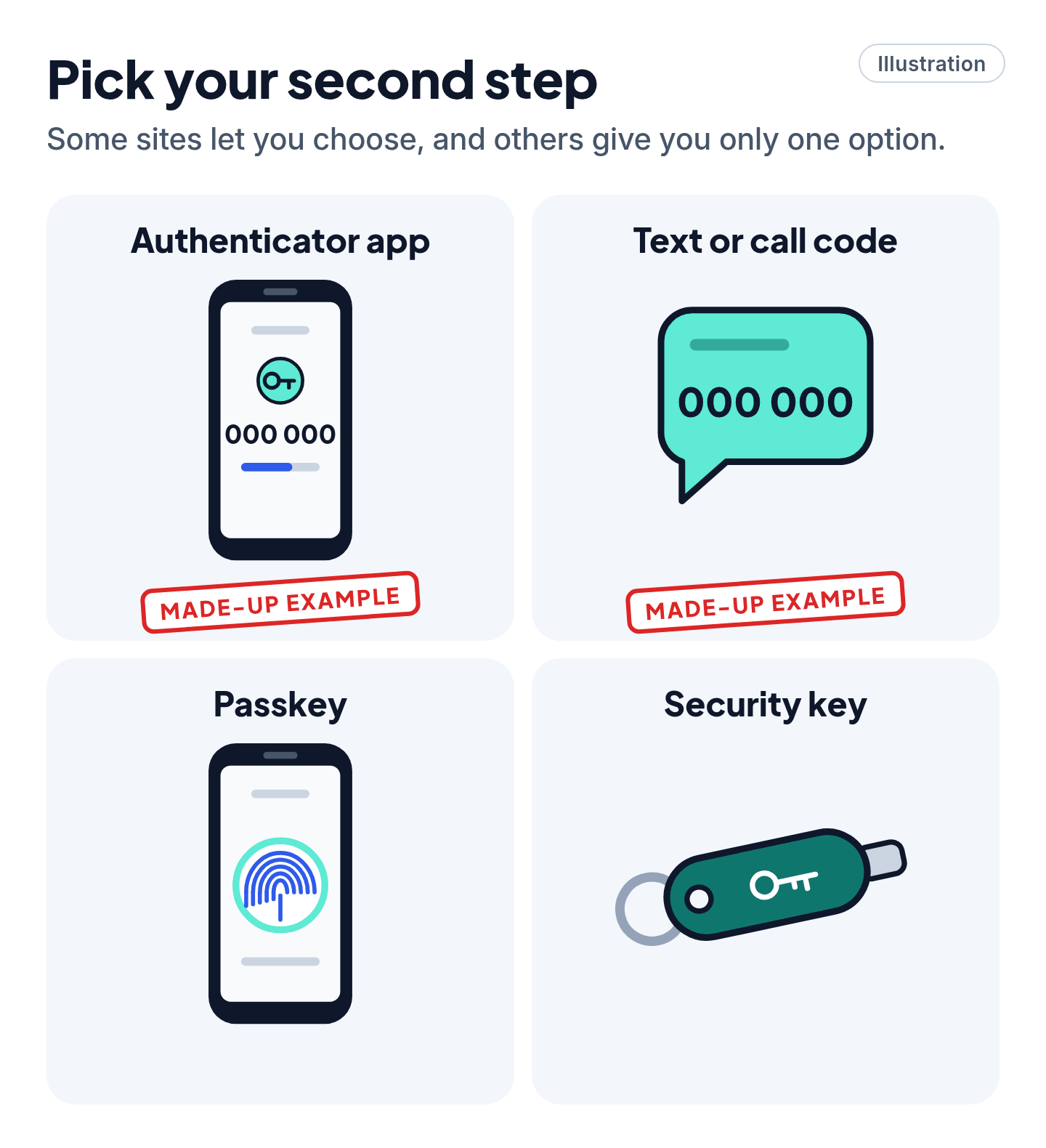
Some sites let you choose, and others give you only one option. Here's what each one means:
- Authenticator app: an app on your phone (the FTC names Google Authenticator, Microsoft Authenticator and Duo as examples) makes a new code every so often. The FTC says it's safer than a text because a thief who takes over your phone number (a SIM swap) can't get the code. Google says its app still makes codes with no internet or mobile service.
- Text or call code: the site sends a one-time code to your phone, usually six digits. The FTC calls it common and simple, since all you need is a phone that gets texts. It says it beats having no second step, but an app or a security key is safer when the site offers one.
- Passkey: you sign in with your fingerprint, face or the screen lock on your phone or computer instead of typing a password. Google says a passkey skips the second step, because unlocking your device already proves it's you. Only make a passkey on a device that's yours alone: Google warns that anyone who can unlock that device can get into your account.
- Security key: a small physical key that plugs in or taps your phone. The FTC calls it the strongest choice. See Pro Mode.
Our read: if you're not sure, use an authenticator app or a passkey, and keep a text code or backup codes as your spare way in. Microsoft is phasing out text codes, so for a Microsoft account your spare is a verified email and a recovery code (steps 4 and 7).
2. Google: turn on 2-Step Verification
On a computer, go to your Google Account (myaccount.google.com) and click Security & sign-in. Under "How you sign in to Google," select Turn on 2-Step Verification and follow the on-screen steps. (If it's already on, the same spot just says 2-Step Verification.) Google's Android steps are the same: open your Google Account, tap Security & sign-in, then select Turn on 2-Step Verification.
- Google suggests its sign-in prompts (a tap on your signed-in phone) as the second step. It says they're easier than typing a code and help protect you from SIM swaps.
- A phone number you add for 2-Step Verification may not be trusted by Google for up to 7 days, Google says. A new Google Authenticator setup can also take up to 7 days to show up as a sign-in option.
- Google lets you tick "Don't ask again" so a computer or phone stops asking for the second step. Our read: only tick it on a device that's yours, never on a shared or public computer.
3. Apple: check that two-factor authentication is on
Apple says most accounts already use two-factor authentication. To check, or to turn it on (these paths are from Apple's page dated Aug 13, 2026, for current software; older versions may label them differently):
- iPhone or iPad: open Settings > [your name] > Sign-In & Security.
- Mac: open System Settings > [your name] > Sign-In & Security.
- On the web: sign in at account.apple.com and choose Upgrade Account Security if you see it.
Once it's on, Apple shows a six-digit code on your other Apple devices, or texts or calls your trusted phone number. Apple needs at least one trusted number. If you have more than one phone number, Apple suggests adding one that isn't linked to your iPhone as an extra trusted number. To add one, go to the same Sign-In & Security menu and choose Two-Factor Authentication > Add Trusted Phone Number.
If your Apple Account was set up with two-factor authentication from the start, Apple says you can't turn it off. If you turned it on recently, Apple gives you two weeks to switch back.
4. Microsoft: turn on two-step verification
Sign in at account.microsoft.com/security and select Manage how I sign in. Under Additional security, find Two-step verification and choose Turn on. Follow the on-screen steps; if you set up the Microsoft Authenticator app, you'll scan a QR code with your phone.
Two things to know first:
- Microsoft is phasing out text codes for personal accounts. It points people to passkeys and a verified email address instead.
- Add extra security info before you turn it on. With two-step verification on, your password alone can't get you back in. Microsoft says that if you lose your contact method, getting back in can take 30 days, or you could lose the account. It strongly suggests keeping three pieces of security info on your account, and it recommends two email addresses: the one you use every day and a backup.
5. Facebook and Instagram: turn on two-factor authentication
Meta is moving some people from Accounts Center to "Meta Account settings," so you may see either name.
- Facebook (computer): click your profile picture in the top right, then click Settings and privacy > Settings > Accounts Center > Password and security > Two-factor authentication. Pick your account and choose a method: a security key, an authentication app or text message (SMS) codes.
- Instagram (computer): click More in the bottom left, then Settings > See more in Accounts Center > Password and security > Two-factor authentication, and pick your account. Instagram offers an authentication app (the one it recommends), text message or WhatsApp. WhatsApp only works after you turn on text messages. Instagram says the app method can only be set up in the Instagram app for iPhone or Android.
When it asks to save or trust the browser or device, only say yes on a device that's yours. Don't do it on a public or shared computer.
6. Amazon: turn on Two-Step Verification
Go to Your Account > Login & security. Select Edit next to Two-Step Verification (2SV) Settings, then Get Started, and follow the steps. Amazon lets you get the code by text message or from an authenticator app. For more, search for "What is Two-Step Verification?" on Amazon's help site.
7. Save your backup codes and add a second way back in
This is the step that keeps you from getting locked out if you lose your phone.
- Google backup codes: go to Security & sign-in and, under "How you sign in to Google," click 2-Step Verification. Under "Backup codes," click Continue, then Get backup codes. You get a set of 10 eight-digit codes, and each one works once. Print them or download them. Making a new set cancels the old one.
- Facebook: you can get 10 recovery codes to use when you can't get to your phone.
- Instagram: if you lose access to your phone or email, a backup code gets you in.
- Google recovery phone and email: under "How you sign in to Google," add a Recovery phone and a Recovery email. Don't use a Google Voice number as your recovery phone: Google warns its codes could go to the account you're locked out of. Google says a new or changed recovery phone number can take up to 7 days to take effect.
- Apple: add a second trusted number (step 3). You can also add up to five recovery contacts, people who can help you get back in; see Pro Mode.
- Microsoft: keep those three pieces of security info up to date (step 4), and make a recovery code. On the Manage how I sign in page (account.live.com/proofs/manage/additional), scroll down to Recovery code and select Generate a new code. Microsoft says to print it and keep it somewhere safe, not on a device you use to sign in. Making a new code stops the old one from working, and Microsoft can't show you an old code again.
- Amazon: Amazon's recovery steps start with a backup method you've registered or a device it already trusts. Our read: add a backup method while you can still sign in.
Our read: keep printed codes at home with your important papers, not in a photo on the same phone. If you do get locked out of Google, Apple, Microsoft, Facebook or Instagram, our account recovery guide walks you through getting back in.

Never give anyone your codes
Scam warning
- A code is a key. Google says the only time it asks for a backup code is when you sign in. Our read: anyone who calls, texts or emails asking for a sign-in code, backup code or recovery code is trying to get into your account.
- Microsoft's support agents aren't allowed to send you password reset links or change your account details. Our read: anyone who offers to do that for you isn't Microsoft.
- Our read: if a code arrives that you didn't ask for, someone may have your password. Change it from the company's own website or app, and see our scam link guide if you gave anything out.
Still stuck? Find your situation
| What you see | What it means | What to do |
|---|---|---|
| The setting is missing or grayed out on a work or school account | Your IT team controls it | Ask your IT team or administrator |
| Your new phone or authenticator app isn't offered at Google sign-in | Google is still checking it | Wait; Google says it can take up to 7 days |
| Instagram on a computer won't let you pick an authentication app | Instagram only sets that up in its phone app | Use the Instagram app on your iPhone or Android phone |
| Microsoft asks you to stop using text codes | Microsoft is phasing out text codes for personal accounts | Set up a passkey or a verified email address (step 4) |
| You lost the phone that gets your codes | You'll need your backup plan | Use a backup code or second number from step 7, then set up the second step on your new phone |
Pro Mode
Pro Mode Pro Mode: security keys, recovery keys, recovery contacts and passkey requirements
Security keys for an Apple Account. Apple lets you add physical security keys in place of six-digit codes. You need at least two and can add up to six, and every device you're signed in on needs iOS 16.3, iPadOS 16.3 or macOS Ventura 13.2 or later. Apple warns that if you lose all your trusted devices and security keys, you could lose access to your account for good. Facebook also takes a security key as a two-factor method.
Apple recovery key: think twice. A recovery key is a 28-character code, and setting one up turns off Apple's standard account recovery. Apple says that if you've set one up and can't give it when you lose access to your account, you're locked out for good. If you set one up anyway (iOS 14, iPadOS 14, macOS Big Sur or later), print it or write it down and keep it somewhere safe, not in your Passwords app, Notes, iCloud Drive or iCloud Photos.
Apple recovery contacts. A recovery contact is someone you trust who can get a code for you if you forget your password; they can't see your account. You can add up to five. You need iOS 15, iPadOS 15 or macOS Monterey 12 or later, iMessage turned on for both of you, and you both have to be over 13 (the age varies by country or region). On an iPhone: Settings > [your name] > Sign-In & Security > Recovery Contacts > Add Recovery Contact. Apple says its own account recovery can take a few days or longer, and contacting Apple can't speed it up.
Google recovery contacts and timing. Google lets you add recovery contacts under "How you sign in to Google." The request lasts 7 days, and once the person accepts, there's another 7-day wait before they can help. After you change recovery info, Google may keep sending codes to your old info for 7 days.
Google passkeys. Create one at myaccount.google.com/signinoptions/passkeys. Google lists Windows 10, macOS Ventura or ChromeOS 109 and up on computers, and Android 9 or iOS 16 and up on phones.
Microsoft app passwords. Some older apps and devices can't ask for a code. If one says your password is wrong after you turn on two-step verification, Microsoft says you'll need an app password for it.
You've got this
Turn on the second step for your email and bank accounts first, then your Apple or Google account, your social media and your shopping accounts. Then save your backup codes on paper and add a second phone number or email. The FTC says a few minutes now can save you hours later.
Sources
The 20 pages we checked
- FTC Consumer Advice: Use Two-Factor Authentication To Protect Your Accounts
- Google Account Help: Turn on 2-Step Verification
- Google Account Help: Sign in with backup codes
- Google Account Help: Get verification codes with Google Authenticator
- Google Account Help: Sign in with a passkey instead of a password
- Google Account Help: Set up recovery options
- Apple Support: Two-factor authentication for Apple Account
- Apple Support: About trusted phone numbers and trusted devices for Apple Account
- Apple Support: Get a verification code and sign in with two-factor authentication
- Apple Support: Set up a recovery key for your Apple Account
- Apple Support: Set up a recovery contact for your Apple Account
- Apple Support: About Security Keys for Apple Account
- Microsoft Support: How to use two-step verification with your Microsoft account
- Microsoft Support: Microsoft to stop sending SMS codes for personal accounts
- Microsoft Support: How to get a Microsoft account recovery code
- Facebook Help Center: How two-factor authentication works on Facebook
- Facebook Help Center: Set up Facebook login recovery codes
- Instagram Help Center: Securing your Meta Account with two-factor authentication
- Amazon Customer Service: What is Two-Step Verification? (Amazon's help site)
- Amazon Customer Service: Recover Your Account after Two-Step Verification Fails (Amazon's help site)
More free guides are on the way.