
On this page · 8 sections
Quick answer
Plug the computer straight into a wall outlet you know works, with no power strip, and use its own charger. Give a dead laptop time to charge (Microsoft says at least 15 minutes for a Surface). Unplug everything else, then try your maker's power reset: hold the power button for about 15 seconds on HP or 15 to 20 on Dell with the charger unplugged, or about 20 seconds on most Surface models. If you hear a fan but see nothing, the problem may be the screen. On a Mac, hold the power button about 10 seconds, then press it again.
Isolate power vs. display vs. POST. Check the adapter LED, bypass strips and docks. Drain flea power per the maker (HP 15 s; Dell 15–20 s, or RTC reset on select non-removable-battery laptops; Lenovo pinhole or 10 s+; Surface about 20 s). Read HP caps lock blinks or Dell amber power LED (desktops) or laptop LED/beep codes against the maker's tables. Mac: 10-second hold, accessories off; SMC reset only on Intel (T2 or non-T2 steps); Apple silicon just restart. Then official service.
You press the power button and nothing happens: no lights, no fan, no screen. Before you assume the worst, run through the checks below. They come from HP, Dell, Lenovo, Microsoft and Apple's own help pages.
These steps are for a computer you own. If it's a work or school computer, ask their IT team first, because they may handle repairs for you. Menus, buttons and lights vary by model, so the steps below follow each maker's own help pages as of Oct 23, 2026. If your model is different, check its user guide on the maker's support site.
Easy Mode: start with the power
Go in order, starting with the easiest checks.
Safety first: is the laptop bulging? If the case bulges, the trackpad is raised or stiff, the laptop no longer sits flat or the bottom cover has gaps, the battery may be swollen. Dell says to stop using it, don't charge it, unplug the charger, set it on a non-flammable surface away from heat and sunlight, and don't press on, puncture or try to pull out the battery. Microsoft says to stop using a Surface whose battery has visibly swollen and handle it carefully. Skip the steps below and contact the maker for repair (step 7).
1. Check the outlet, the cable and the charger
- Plug straight into the wall. Dell says to bypass power strips, extension cables and other power protection devices while you test. Lenovo says not to charge through power strips, surge protectors or docking stations. If a desktop does stay on a power strip, Dell says to make sure the strip is plugged in and switched on.
- Make sure the outlet works. Plug a lamp or phone charger into it. Dell suggests testing the outlet with another device.
- Push the cable in firmly at both ends. On a desktop, Dell says to reseat the cable at the back of the computer and at the outlet.
- Laptops: use the right charger. Lenovo says to check the charger's label to make sure it's the one made for your model. If the computer has a power light, see whether it comes on; Dell also says to check that the light on its charger is lit. If not, Dell suggests another working charger and Lenovo another Lenovo-approved one. For a Mac, Apple says to try another compatible cable or adapter if you have one.
- Give a dead battery time. Microsoft says to charge a Surface with its own power supply for at least 15 minutes. Lenovo says to charge a ThinkPad or ideapad for at least 5 to 10 minutes, because some batteries won't run until they reach a certain level (10% or more).
2. Unplug everything else
The makers' no-power steps all include unplugging accessories. Unplug USB drives, memory cards, printers, external monitors and hubs, and take a laptop off any dock. Microsoft's Surface list also includes the Type Cover keyboard. Then try the power button again. If it starts, Dell suggests plugging things back in one at a time and checking the computer each time.
3. Is it on, but the screen is dark?
Listen and look closely. If you hear a fan, Lenovo says the problem may be the display, not the power. Dell says the same if the power and keyboard lights come on but the screen stays blank.
- Turn up the brightness with your keyboard's brightness keys. Lenovo says a screen set too low can make the computer seem to have no power.
- Wake it up. Move the mouse, press a key or press the power button once. Lenovo suggests this for a computer that may be in sleep or hibernate.
- Surface: Microsoft suggests closing and reopening the lid or keyboard, then pressing the power button. You can also wake it with Ctrl + Shift + Windows logo key + B.
- Desktops and monitors: make sure the monitor is plugged in, turned on and connected to the computer. Dell also says to check that the monitor is set to the right input source. Lenovo suggests trying a different monitor if you have one.
4. Do your maker's power reset
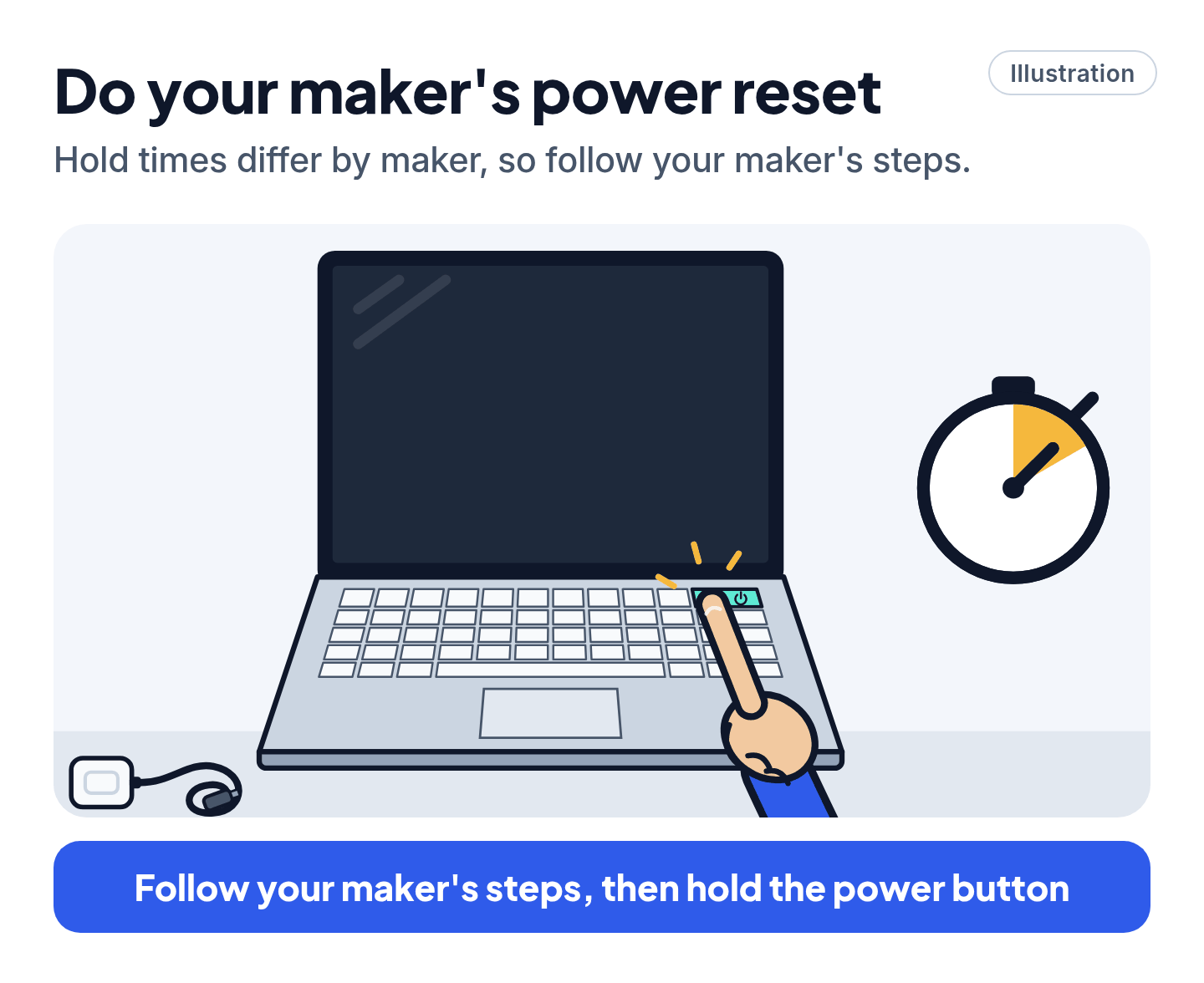
A power reset (some makers call it a hard reset or power drain) drains leftover power from the computer, Dell says. HP and Dell both say it doesn't erase your personal files. Start by turning the computer off and unplugging the charger or power cord.
- HP: take out any discs and memory cards and unplug anything you don't need, like printers and USB drives. With the charger unplugged, hold the power button for about 15 seconds. Plug the charger back in and turn the computer on. HP says that on a business laptop, you hold the Windows key + V and then press the power button to turn it on.
- Dell: on a desktop, unplug the power cord. On a laptop, unplug the charger and take out the battery if it comes out (never a swollen one). Unplug USB drives, printers, webcams and memory cards. Hold the power button for 15 to 20 seconds, then plug everything back in and turn it on. If your Dell laptop's battery doesn't come out, Dell points you to a different reset instead (see Pro Mode).
- Lenovo (ThinkPad and ideapad): unplug the power and any devices, and take out the battery if it comes out (never a swollen one). If the battery is built in, look for a tiny emergency-reset hole: with the power unplugged, press inside it with a straightened paper clip, then plug in and turn it on. Not every model has one; your user guide shows where it is. On other models, hold the power button for at least 10 seconds. Lenovo's separate power-drain article says to hold it for about 1 minute, and that you won't see anything happen while you do.
- Microsoft Surface: press and hold the power button until the logo appears, about 20 seconds, then let go. That works on Surface Pro (5th Gen) and later, Surface Laptop, Surface Go and other recent models; older models are in Pro Mode.
- Other brands: search your maker's support site for its power reset steps.
5. Read the lights and beeps
If the computer blinks a light or beeps but won't start, that pattern is a message.
- HP laptops: the caps lock light may blink in a pattern of long red and short white blinks. Red blinks point to a bigger problem area and white blinks to a smaller one; on models without a two-color light, all the blinks are white. Not every model beeps. HP's page, "HP Notebook PCs - Computer beeps or a light blinks during startup," lists what each pattern means.
- Dell: Dell says a Dell logo that never moves on usually means the computer failed its startup self-test. On a Dell desktop or all-in-one, so does an amber or orange power light; on a Dell laptop, look for beeps or blinking diagnostic, caps lock or num lock lights. Note the pattern, then look it up in your user manual or on Dell's support site.
Our read: take a short phone video of the lights, so you can count the blinks slowly and show it to support.
6. Mac: Apple's steps
- Check power first. Apple says to make sure the cable isn't damaged and is plugged firmly into the Mac and a working outlet, and to try another compatible cable or adapter if you have one. On a Mac without a built-in screen, check that the display is plugged in, connected and turned on.
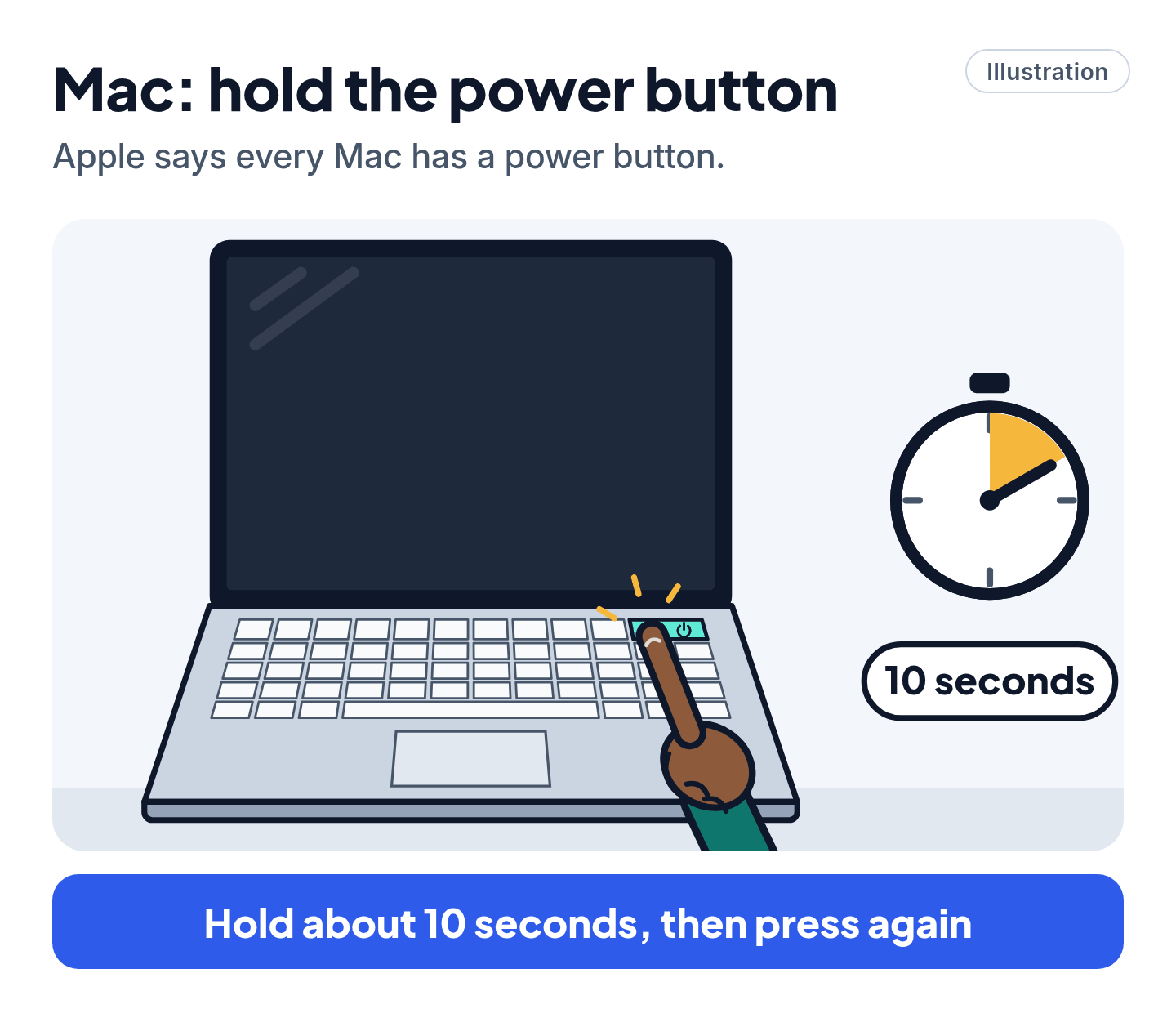
- Hold the power button for about 10 seconds, then press it again normally. Apple says every Mac has a power button; on a Mac laptop with Touch ID, press and hold Touch ID.
- Unplug all accessories, such as printers, drives, USB hubs and phones, and try the 10-second hold again.
- Something on the screen? If you see a flashing question mark or a circle with a line through it, Apple says your Mac is on but isn't starting up. Apple's article "If your Mac doesn't start up all the way" explains what each screen means and what to do. If it seems to be on but the screen stays blank, Apple says it could be a software problem, and it has a separate article for that (see Pro Mode).
- Apple silicon Macs (M-series): there's no SMC reset to do. Apple says the SMC resets by itself when you restart or shut down and turn it on again with the Mac plugged in.
- Intel Macs only: resetting the SMC, the chip that manages power, might help. The key steps are in Pro Mode.
7. Still nothing? Get it repaired the official way
- Mac: Apple says a Mac that still won't turn on might need service. Start at support.apple.com/mac-laptops/repair or support.apple.com/mac-desktops/repair and choose Get started. Apple's warranty covers manufacturing problems for one year from purchase.
- Surface: If your Surface won't power on at all, Microsoft says it has to go to Microsoft to be repaired or replaced. You create a service order online; check your warranty at account.microsoft.com/devices. A work or school Surface has separate business options.
- HP, Dell and Lenovo: go to support.hp.com, dell.com/support or pcsupport.lenovo.com and enter your model or serial number for repair options. Dell says you can send in a laptop that won't turn on for repair in the United States, Canada, the United Kingdom, France, Germany, Italy, the Netherlands and Poland.
- Work or school computer: your IT team.
Our read: if a repair shop or website you don't know asks for remote access or payment before it has even looked at the computer, stop and use the maker's own site instead.
Watch out for fake tech support
Scam warning
- Our read: when you search for help, ads and look-alike sites can pose as HP, Dell, Lenovo, Microsoft or Apple. Type the maker's support address yourself: support.hp.com, dell.com/support, pcsupport.lenovo.com, support.microsoft.com or support.apple.com.
- Our read: if someone contacts you out of the blue offering to fix your computer, hang up or close the message and go to the maker's site yourself. Our scam guide covers the warning signs.
Still stuck? Find your situation
| What you see | What it means | What to do |
|---|---|---|
| A fan or light comes on, but the screen stays black | The computer may be on; the problem may be the display | Turn up the brightness, wake it, or try another monitor (step 3) |
| A Dell desktop's power light is amber or orange, or a Dell laptop's lock lights blink | Dell says it usually failed its startup self-test | Note the blink or beep pattern and look it up (step 5) |
| An HP laptop's caps lock light blinks | HP's error-code pattern | Count the red and white blinks and check HP's page (step 5) |
| A Mac shows a flashing question mark | Apple says the Mac is on but not starting up | See Apple's startup steps (step 6) |
| A Surface doesn't turn on at all after charging and a 20-second hold | Microsoft says it needs repair | Create a service order (step 7) |
| Nothing at all after every step | It likely needs service | Use the maker's repair page (step 7) |
Pro Mode
Pro Mode Pro Mode: Dell RTC reset and M-BIST, Intel Mac SMC reset, older Surface models and a blank Mac screen
Dell RTC reset (select laptops only, use with care). For Dell laptops whose battery doesn't come out, Dell's hard reset page points to a real-time clock (RTC) reset. It's only on select Alienware, Inspiron, Latitude, Precision, Vostro and XPS laptops; the page's list of affected platforms also names Dell Plus, Dell Pro Plus, Dell Pro Premium and Dell Pro Rugged laptops. With the charger connected, hold the power button for about 30 to 35 seconds, until the power light blinks three times. Dell says the reset stops if you let go before 25 seconds or hold past 40, or if the charger comes out, and that the laptop will restart several times during the reset. It puts the BIOS back to factory settings and resets the date and time, and the laptop may not start Windows until you fix those settings in the BIOS. Dell also says it may be turned off if a BIOS admin password is set. Our read: if you didn't set up the BIOS yourself, or it's a work laptop, leave this to support.
Dell M-BIST. On Dell laptops from the Latitude XX90 series onward, Dell's built-in motherboard test runs even with no video. Hold the M key and the power button together. If the battery light turns amber, Dell says it found a fault and to contact Dell support. No light means no motherboard fault was found.
Intel Mac SMC reset. First, check which chip your Mac has. Apple's steps:
- Laptop with the T2 chip: shut down. Keep the power button (or Touch ID) held down for 10 seconds, let go, wait a few seconds and turn it on. If that doesn't help, shut down and hold left Control, left Option and right Shift for 7 seconds, then hold the power button as well for another 7 seconds. Let go, wait a few seconds, and turn it on.
- Laptop without the T2 chip: shut down, then hold left Shift, left Control, left Option and the power button together for 10 seconds. Let go and turn it on.
- Desktop (T2 or not): shut down and unplug the power cord. Wait 15 seconds, plug it back in, wait 5 seconds, then press the power button.
Apple says an SMC reset doesn't touch NVRAM or PRAM.
Older Surface models. For Surface Pro, Pro 2, Pro 3 and Pro 4, Surface Book, Surface 2, Surface 3 and Surface RT, Microsoft says to hold the volume-up button and the power button together for at least 15 seconds, until the screen turns off (keep holding even if the logo flashes). Let go, wait 10 seconds, then press the power button.
Mac stuck on a blank screen. Apple says to hold the power button for up to 10 seconds until it turns off, then turn it on again. If the screen is still blank, start up from macOS Recovery and use Disk Utility to repair the startup disk (Apple's Disk Utility article walks through its First Aid button), then reinstall macOS from Recovery if that doesn't help. If it won't start from Recovery, an Apple silicon or T2 Mac might need its firmware revived or restored, which Apple's article explains.
You've got this
Our read: start with a working outlet, the right charger, a few minutes of charging and the maker's power reset before you think about repair. If yours still won't start, the lights and beeps tell support where to look, and the maker's own repair page is the safe next step.
Sources
The 19 pages we checked
- Apple Support: If your Mac doesn't turn on
- Apple Support: If your Mac starts up to a blank screen
- Apple Support: If your Mac doesn't start up all the way
- Apple Support: How to repair a Mac storage device with Disk Utility
- Apple Support: Reset the SMC of your Mac
- Apple Support: Apple Service and Repair for Mac Laptops
- Apple Support: Apple Service and Repair for Mac Desktops
- Microsoft Support: Surface won't turn on or start
- Microsoft Support: Force a shutdown and restart your Surface
- Microsoft Support: How to get service or repair for Surface
- Microsoft Support: Caring for your Surface battery
- HP Support: HP PCs - How to power reset your computer
- HP Support: HP Notebook PCs - Computer beeps or a light blinks during startup
- Dell Support: How to Perform a Hard Reset on a Computer Easily and Effectively
- Dell Support: How to Reset the Real-Time Clock to Recover Your Dell Laptop
- Dell Support: Resolve No Power, No POST, No Boot or No Video Issues
- Dell Support: The Battery is Draining Quicker than Expected on a Dell Laptop (Section 6: Swollen or Deformed Battery)
- Lenovo Support: Troubleshooting No Power Issues
- Lenovo Support: How to perform energy drainage - Notebook
More free guides are on the way.