On this page · 7 sections
Quick answer
Give the child their own account, not yours. On iPad, set up Family Sharing, use Quick Start from your iPhone or iPad to set up the child's device, then on your phone go to Settings > Family > the child's name > Screen Time. Turn on Ask to Buy under Settings > Family > child's name > Apps & Websites > Restrictions. On Android, create a supervised Google Account in Family Link or during device setup (Create account > For my child), then set screen-time limits and app blocks in the Family Link app. On Android 17 you can also set a parental controls PIN in Settings > Parental controls. Do not leave the tablet signed in to an adult account.
Apple: manage Screen Time from the organizer or parent device; the Screen Time passcode for a Child Account must be set on the parent's device, not the child's. Ask to Buy and Ask to Browse are on by default for children under 13; Limit Adult Websites is on by default under 18; in some places those cannot be turned off. Google: Family Link cannot supervise iPhones, iPads or non-Chromebook computers; purchase approvals apply only to Google Play billing. Family Link daily limits apply per device. Pixel Tablet users under 9 can get a child account without a Gmail address and password, with limits on some apps until a parent upgrades the account.
A new tablet is a generous gift. It is also, left on an adult Apple or Google account, a small store with your credit card already saved. The setup that lasts is the one that gives the child their own account and puts the limits on that account before the wrapping paper is in the recycling.
These steps are for an iPad or Android tablet in a household you manage. They follow Apple and Google support pages opened Nov. 10, 2026. Ages for child accounts and some default locks vary by state, country or region. If you are handing down an old tablet, wipe your account off it first with our wipe guide.
Easy Mode: their account, then the limits
1. Start with a family group and a child account
On Apple, the family organizer (an adult) opens Settings, taps their name, then Family, and follows the screens to start a Family Sharing group. Each person needs their own Apple Account. A child needs a Child Account in that group, not a shared login with a parent or a sibling. You can create that account while you set up the iPad, or invite a child who already has one.
On Google, you need your own Google Account and you need to be 18, or the age your country requires, and in the same country as the child. Install the Family Link app on your phone (Android 6 or later, or iPhone or iPad on iOS 16 or later) or use familylink.google.com. Family Link can supervise an Android tablet or a Chromebook; it cannot supervise an iPhone, an iPad or a regular Windows or Mac computer.
2. Set up the tablet itself
iPad: Turn it on and, when Quick Start appears, bring your iPhone or iPad next to it (Bluetooth on, iOS or iPadOS 16 or later). Choose who will use the new device, or Create New Child Account, then finish the screens. Apple says you can also tap Set up Without Another Device. During setup, you can pick which apps the child can use so the Home Screen starts a little quieter.
Android: Turn the tablet on and follow the screens. When it asks you to sign in, choose Create account, or More options > For my child, and enter the child's details. Sign in with your own Google Account to give consent and pick the child's settings. On a Pixel Tablet, if the child is under 9, you can instead sign in with the parent account first, then go to Settings > System > Multiple users, turn on Allow multiple users, choose Add child, and continue without a Gmail address if you want that option. Some apps will later ask you to add a Gmail address and password.
If the Android tablet is already set up on someone else's account, Google says to remove existing accounts and any apps or photos the child should not have, then add the child's account.
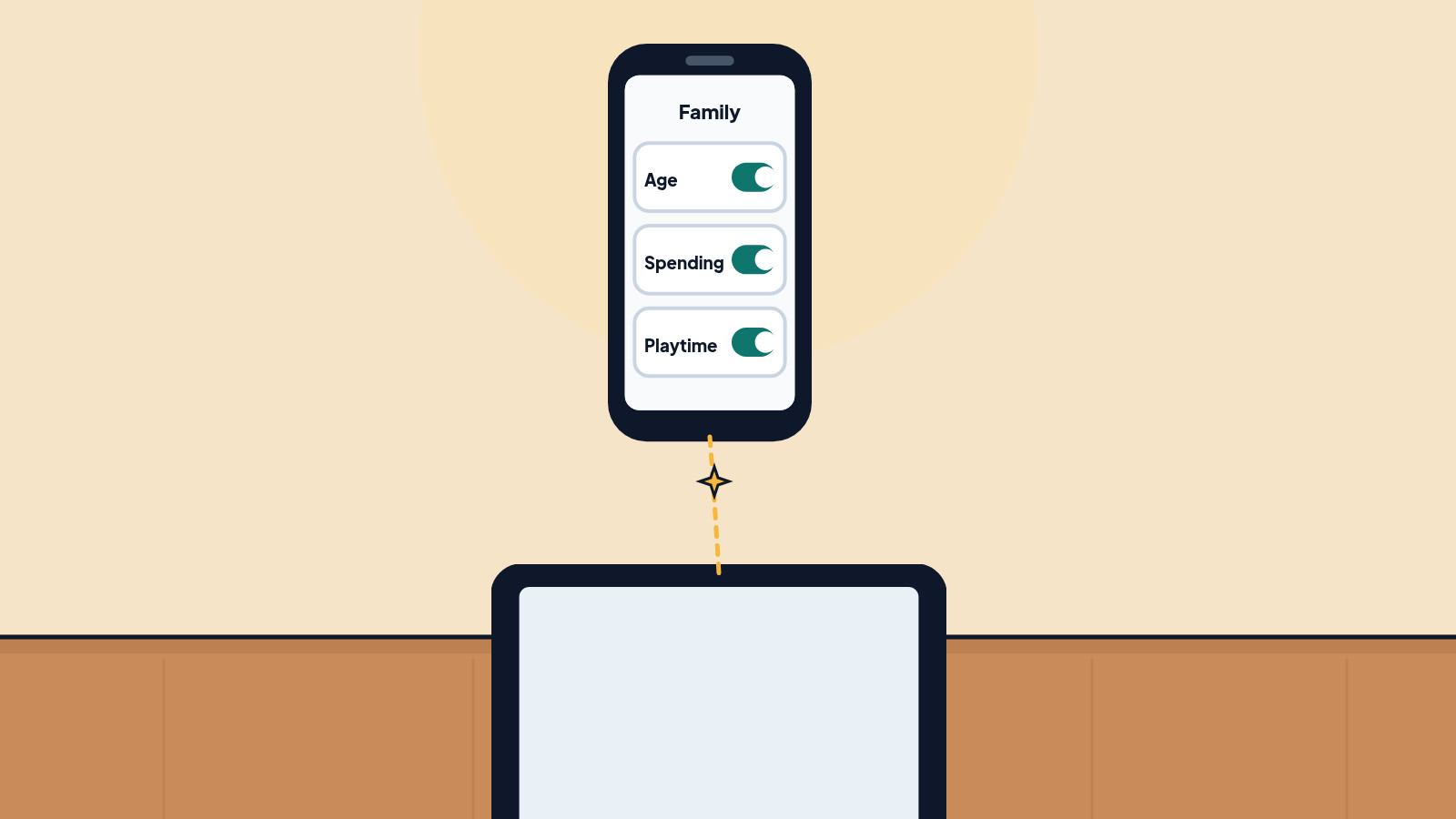
3. Put the limits on from your own phone
iPad / Screen Time: Apple recommends managing this from the family organizer or parent device. Open Settings, tap Family, tap the child's name, tap Screen Time, and follow the on-screen setup. If you use Family Sharing to manage the child's account, the Screen Time passcode has to be set on your device, not on the child's.
Then set the approvals that stop surprise charges and random websites:
- Settings > Family > [child] > Apps & Websites > Restrictions > Ask to Buy, and turn on Require Purchase Approval. Apple says Ask to Buy and Ask to Browse are on by default for children under 13, and in some places Ask to Buy cannot be turned off for a child under 18.
- Under Apps & Websites > Restrictions > Filtering, choose Limit Adult Websites or Ask to Browse. Limit Adult Websites is on by default for children under 18.
- Time Allowances and Screen Time Schedule are on the child's page in Family if you want daily budgets or a bedtime-style schedule.
- Allowed Contacts and Communication Safety are there too, if you want a say in who they message and a warning about sensitive photos and videos.
Android / Family Link: Open the Family Link app, select the child, then Screen time > Time limits, and turn on Daily limit. Set a weekly schedule. You can also block or allow apps under Screen time > Time limits > App limits, and set up location later if you want it. A daily limit applies to each Android or Chromebook device separately: two hours on the tablet is not shared with two hours on a phone.
On Android 17, you can also set on-device controls: Settings > Parental controls > Set up Parental controls PIN, then daily limits, downtime, app limits, web content filters and app store filters. Add a recovery account so a forgotten PIN does not force a factory reset. You can later switch those on-device controls into Family Link from the same Parental controls screen.
4. Keep your own account off the tablet
The whole point fails if the child can pick up the tablet, switch users, and land in your App Store or Google Play. Sign out of adult accounts, do not leave a parent profile sitting unlocked, and on iPad keep the Child Account as the one that is signed in. If they need a website for school, allow that site ahead of time instead of handing them your login.
Set this up before the tablet becomes a habit, and the limits feel like part of the gift, not a punishment added later.
Still stuck? Find your situation
| What you see | Likely cause | What to do |
|---|---|---|
| The child can buy apps on an iPad | They are on an adult account, or Ask to Buy is off | Steps 1 to 3; check Require Purchase Approval |
| Family Link will not supervise an iPad | Family Link does not supervise iPhone or iPad | Use Apple Family Sharing and Screen Time |
| A forgotten Android parental PIN | No recovery account was added | Add a recovery account when you can; otherwise a reset may be required |
| A Pixel child account cannot open some apps | The account may not have a Gmail address yet | Follow Google's prompt to upgrade the account from a parent login |
| This is a hand-me-down still signed in to you | The old account was never removed | Wipe it first, then start at step 1 |
Pro Mode
Pro Mode Pro Mode: what the defaults already do, and what Family Link will not cover
On current iPhone, iPad and Mac software, Apple has a newer Screen Time layout. If some devices in the family group cannot update, Apple says you can keep using the previous version of the controls. Update what you can so the settings sync.
Family Link purchase approvals apply only to purchases made through Google Play's billing system. A school Google Workspace for Education account can be added as another user on an Android tablet, but Family Link will not supervise that school account.
If you also need the wider family-sharing picture, including purchases and storage on gifted phones, a Family Sharing guide is coming soon.
Helpful gear
iThis page has affiliate links. If you buy through one, we may earn a small commission at no extra cost to you. Learn more.
- Belkin SoundForm Mini (opens in a new tab): Kid-size headphones with a volume limit help keep the sound at a safer level on a child’s tablet.
References
All 8 reference links
- Source: Set up an iPhone or iPad for your kid - Apple Support
- Source: How to set up Family Sharing on your iPhone or iPad - Apple Support
- Source: Use Screen Time to manage your child's iPhone or iPad - Apple Support
- Source: Set up parental controls to manage your child's iPhone or iPad - Apple Support
- Source: Get started with Family Link - Google For Families Help
- Source: Create a Google Account for your child - Google For Families Help
- Source: Set up parental controls on an Android device - Android Help
- Source: Add and manage supervision on a current Google Account - Google For Families Help
Get the next cheat code
Plain-English tech fixes and scam alerts. Tap Follow on Facebook or TikTok, or pick another below.
Want AI to answer your clients?
Our ready-made AI setups come with a step-by-step guide in Easy Mode and Pro Mode. You set them up yourself.
See the AI setups