On this page · 12 sections
Quick answer
Update your Apple TV: Settings > System > Software Updates > Update Software. Restart it: Settings > System > Restart. Then delete the YouTube app and install it again from the App Store.
Reports say tvOS 27.2 or later plus a restart fixed it, but some people also had to reinstall YouTube. YouTube appears to have started a fix on its end, so the app may start working by itself. If it still fails, check your network and contact Apple TV Support or YouTube Help.
If YouTube won't work on your new Apple TV 4K, update it, restart it, then delete YouTube and install it again. That fixed it for many people when the new model came out on Nov 13, 2026. YouTube also appears to have started a fix on its end, so the app may begin working on its own.
This guide is for the Apple TV 4K (4th generation) that started arriving on Nov 13, 2026.
The steps below follow Apple's guides to updating your Apple TV, restarting it and deleting and reinstalling apps, Apple's software update notes, and YouTube's help page on signing in on a smart TV.
What the error messages mean
When the new Apple TV 4K first arrived, people saw one of two YouTube problems:
- "YouTube is not yet available on this device." You see a black screen with a QR code and this message. The YouTube app won't play anything.
- A red bar at the bottom of the screen that says "YouTube app is approved for device testing only and not for production use." The app may still work, but the red bar stays stuck on the screen.
Both come from the same launch-day YouTube problem. Your Apple TV isn't broken, and your Google account is fine.
Fix YouTube on your new Apple TV 4K
Takes about 10 to 20 minutes, mostly waiting for the update. Free.
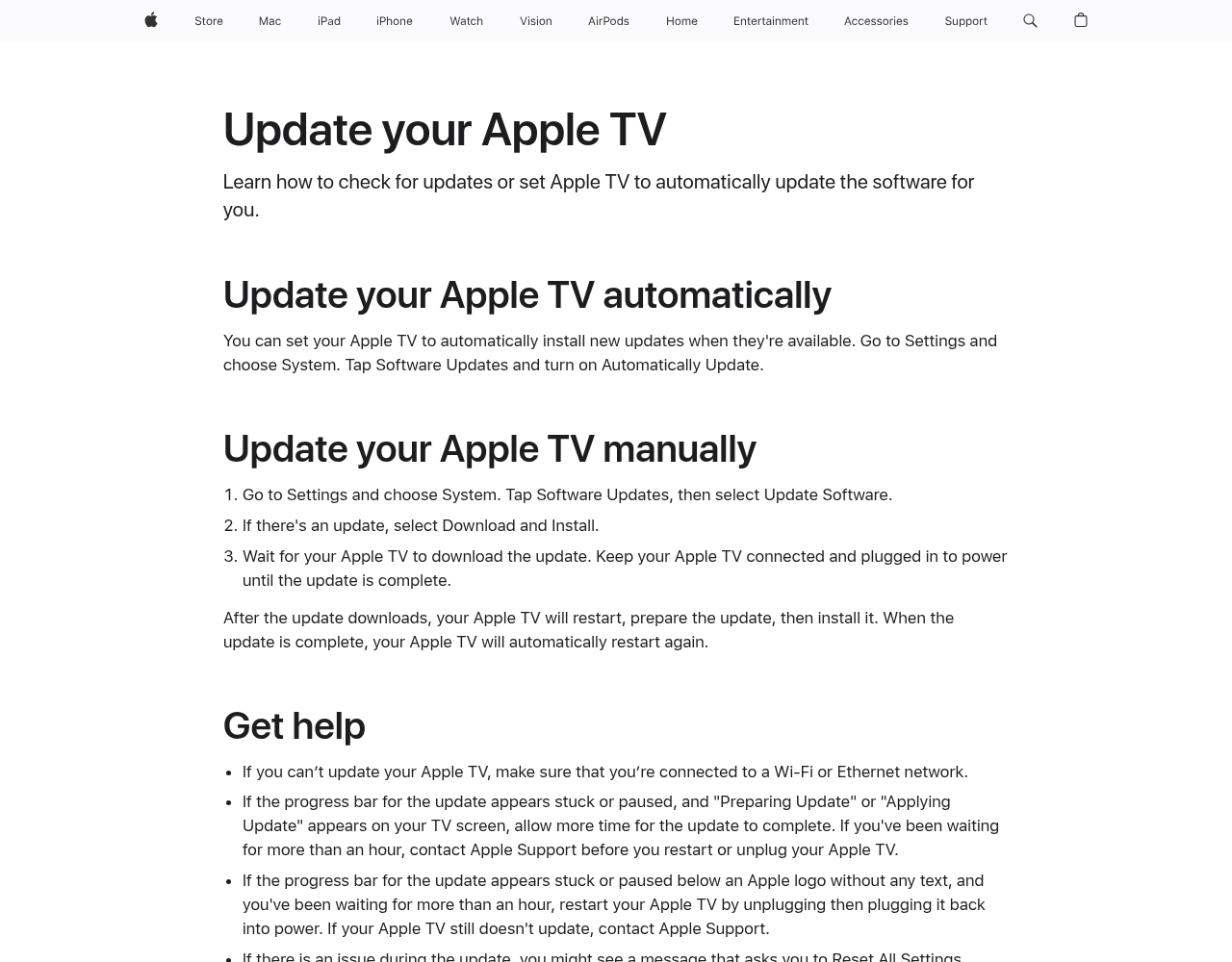
1. Update your Apple TV's software
- Open Settings on your Apple TV.
- Go to System > Software Updates, then select Update Software.
- If there's an update, select Download and Install.
- Wait. Keep the Apple TV plugged in and connected until the update is done. It restarts by itself when it finishes.
Reports from Nov 13 say you need tvOS 27.2 or later. Apple's update page lists tvOS 27.2.1 as the newest, so install the newest one you see. Apple's notes for 27.2.1 don't mention YouTube, so it may not fix YouTube by itself.
2. Restart your Apple TV
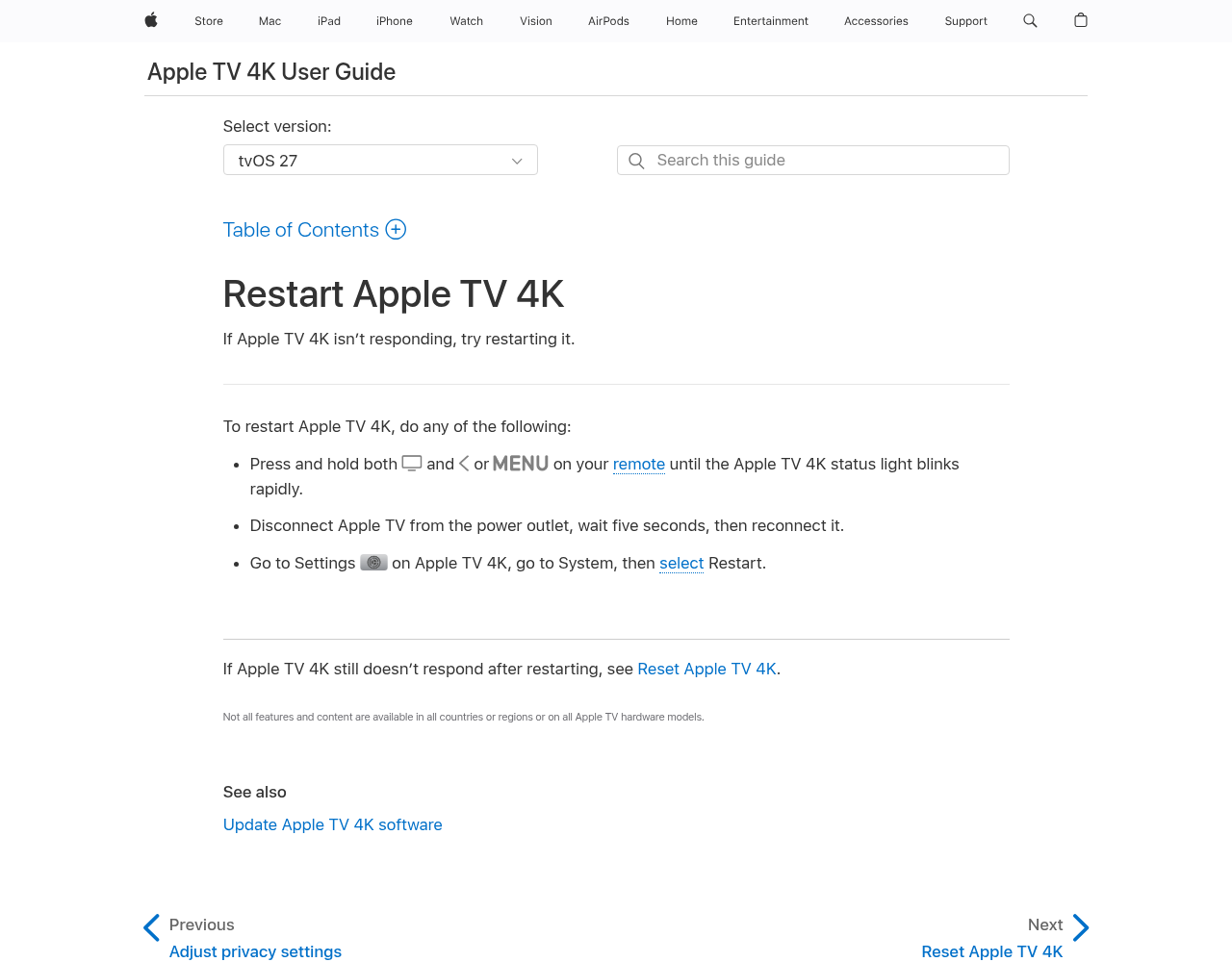
Do any one of these:
- Go to Settings > System, then select Restart.
- On your remote, press and hold the TV button and < or MENU until the Apple TV's status light blinks rapidly.
- Unplug the Apple TV from power, wait five seconds, then plug it back in.
Now open YouTube. If it works, you're done.
3. Delete YouTube and install it again
Some people still saw the error after updating and restarting. Deleting and reinstalling the app fixed it for them.
- On the Home Screen, move to the YouTube app.
- Press and hold the clickpad or touch surface on your remote.
- Select Delete App, then select Delete.
- Open the App Store, find YouTube, and download it again.
- Open YouTube and sign in again if it asks you to.
Deleting the app also deletes its data on the Apple TV. You may need to sign in again. Your YouTube account is not deleted.
Signing back in
YouTube lets you sign in on a TV two ways. Scan the QR code with your phone, or go to yt.be/activate on your phone or computer and type in the code on the TV. You can also sign in with the remote. If one way doesn't work, try the other.
If that didn't work
- Give it a little time. YouTube appears to have started a fix on its end. It may not reach every Apple TV at once, so try again later in the day.
- Check that the update really installed. Go back to Settings > System > Software Updates > Update Software. If another update shows up, install it, restart, and try YouTube again.
- The update won't download. Apple says the Apple TV needs a working Wi-Fi or Ethernet connection to update. Check that other apps can stream. If nothing loads, restart your router.
- The update looks stuck. If the screen says "Preparing Update" or "Applying Update," Apple says to give it more time. If you've waited more than an hour, contact Apple Support before you unplug or restart the Apple TV.
- Signing in with your phone fails. YouTube says to make sure your phone is on the same Wi-Fi as the TV and isn't using mobile data. Then check the code you typed at yt.be/activate.
- Still no luck? Contact Apple TV Support or YouTube Help. Tell them which message you see and which tvOS version is installed.
More detail
- Why this happened: The problem showed up as the first Apple TV 4K (4th generation) units reached people on Nov 13, 2026. Reports from MacRumors, 9to5Mac and The Verge describe the same two error messages and the same fix.
- Restart vs. reset: A restart just turns the Apple TV off and on. A reset erases everything on it, including your accounts. You don't need a reset for this YouTube problem.
The bottom line
Update the Apple TV, restart it, then delete and reinstall YouTube. If you still see the error, wait a bit for YouTube's fix to reach you, and then contact Apple or YouTube.
Helpful gear
iThis page has affiliate links. If you buy through one, we may earn a small commission at no extra cost to you. Learn more.
- Apple TV Siri Remote (4th generation) (opens in a new tab): Optional, for a spare or lost remote. The listing says it has a touch-enabled clickpad, a Siri button, Find My support and a USB-C port for charging. You don't need it to fix the YouTube error.
FAQ
Why does YouTube say it is "not yet available on this device"?
That message showed up on the new Apple TV 4K (4th generation) right after it arrived on Nov 13, 2026. It's a launch problem with the YouTube app on the new model, not a problem with your account. Update the Apple TV, restart it, and then reinstall YouTube.
How do I get rid of the red "device testing only" bar?
Use the same fix: update the Apple TV, restart it, then delete and reinstall YouTube. YouTube also appears to have started a fix on its end, so the bar may go away by itself.
Which tvOS version do I need?
Reports say tvOS 27.2 or later. Apple's update page lists tvOS 27.2.1 as the newest version. Install whatever update your Apple TV offers. Apple's notes for 27.2.1 don't mention YouTube.
Will deleting the YouTube app delete my YouTube account or my videos?
No. Deleting the app removes it and its data from the Apple TV. Your YouTube account, subscriptions and history stay with your Google account. You may just need to sign in again.
Should I reset my Apple TV?
Not for this problem. A reset erases everything on the Apple TV, including your accounts. Update, restart and reinstall YouTube first. If it still doesn't work, contact Apple TV Support.
References
All 9 reference links
- Apple Support: Update your Apple TV
- Apple TV 4K User Guide: Restart Apple TV 4K
- Apple TV 4K User Guide: Install or delete apps on Apple TV 4K
- Apple Support: About Apple TV 4K and Apple TV HD software updates (tvOS 27.2.1 notes)
- Apple TV 4K User Guide: Reset Apple TV 4K (what a reset erases)
- YouTube Help: Sign in to the YouTube app on your smart TV or game console
- MacRumors, Nov 13, 2026: YouTube App Not Working on Your New Apple TV? Here's the Fix
- 9to5Mac, Nov 13, 2026: PSA: YouTube app not working on your new Apple TV? Here's the fix
- The Verge, Nov 13, 2026: The new Apple TV has a YouTube problem
Get the next cheat code
Plain-English tech fixes and scam alerts. Tap Follow on Facebook or TikTok, or pick another below.
Want AI to answer your clients?
Our ready-made AI setups come with a plain step-by-step guide, plus the extra detail for anyone who wants it. You set them up yourself.
See the AI setups