On this page · 7 sections
Quick answer
Ask the hotel desk or airport staff for the exact network name and login steps, and ignore look-alike names in the Wi-Fi list. Turn off automatic joining of unknown networks (on iPhone: Settings > Wi-Fi > Ask to Join Networks, and set it to Notify or Off). Use https websites if you must sign in, and keep banking, shopping and other sensitive work on your phone's cellular connection instead. A personal hotspot from your phone is often the safer way to get a laptop online. If you use public Wi-Fi often, the FCC says to consider a VPN; use one your work already gives you, or a service you chose yourself, and do not click a random 'free VPN' ad.
CISA's travel tip card: confirm the network name and login procedure with staff; do not do shopping, banking or sensitive work on public Wi-Fi; prefer the mobile network; stop auto-connecting; keep Bluetooth off when you do not need it; do not leave devices unattended, including in a hotel room at meal times; skip hotel business-center PCs for anything sensitive; update software and back up before you go. On iPhone, Private Wi-Fi Address and Limit IP Address Tracking are under Settings > Wi-Fi > the information button for the network. iCloud Private Relay (Settings > [your name] > iCloud > Private Relay) needs an iCloud+ subscription and is not available in every country.
The Wi-Fi list in a hotel lobby or at gate B12 is a little too helpful. Two networks can look like the hotel, one of them put there by someone who is not the hotel. The fix is not a lecture. It is asking the desk for the real name, and saving the bank login for your cellular signal.
These steps follow the FCC's wireless security consumer guide and CISA's cybersecurity-while-traveling tip card, both opened Nov. 10, 2026, plus Apple's current iPhone Wi-Fi settings. They are for a phone or laptop you own, on a trip you are taking.
Easy Mode: confirm the name, then keep the valuable stuff off the shared network
1. Before you leave, update, back up and lock the device
CISA's travel card starts at home: keep the operating system and apps updated, back up photos and contacts, and get in the habit of locking the device when you step away. A strong passcode or PIN is part of that. If photos matter for the trip, finish the backup before you pack. A photo backup guide is coming soon.
2. Stop the phone from joining networks on its own
The FCC says to adjust your phone so it does not automatically connect to nearby Wi-Fi that is not on your short list of trusted networks. CISA says the same in fewer words: stop auto connecting, and turn Bluetooth off when you do not need it.
On an iPhone, go to Settings > Wi-Fi, tap Ask to Join Networks, and choose Notify or Off. Off means you pick the network yourself. Known home and work networks can still join automatically.
On Android, look in the Wi-Fi or connection settings for any switch that auto-joins open or suggested networks, and turn that off. Labels vary by maker, so use the one on your Settings screen rather than a path we have not checked for every brand.
3. Confirm the real Wi-Fi name with a person, not with the lobby list
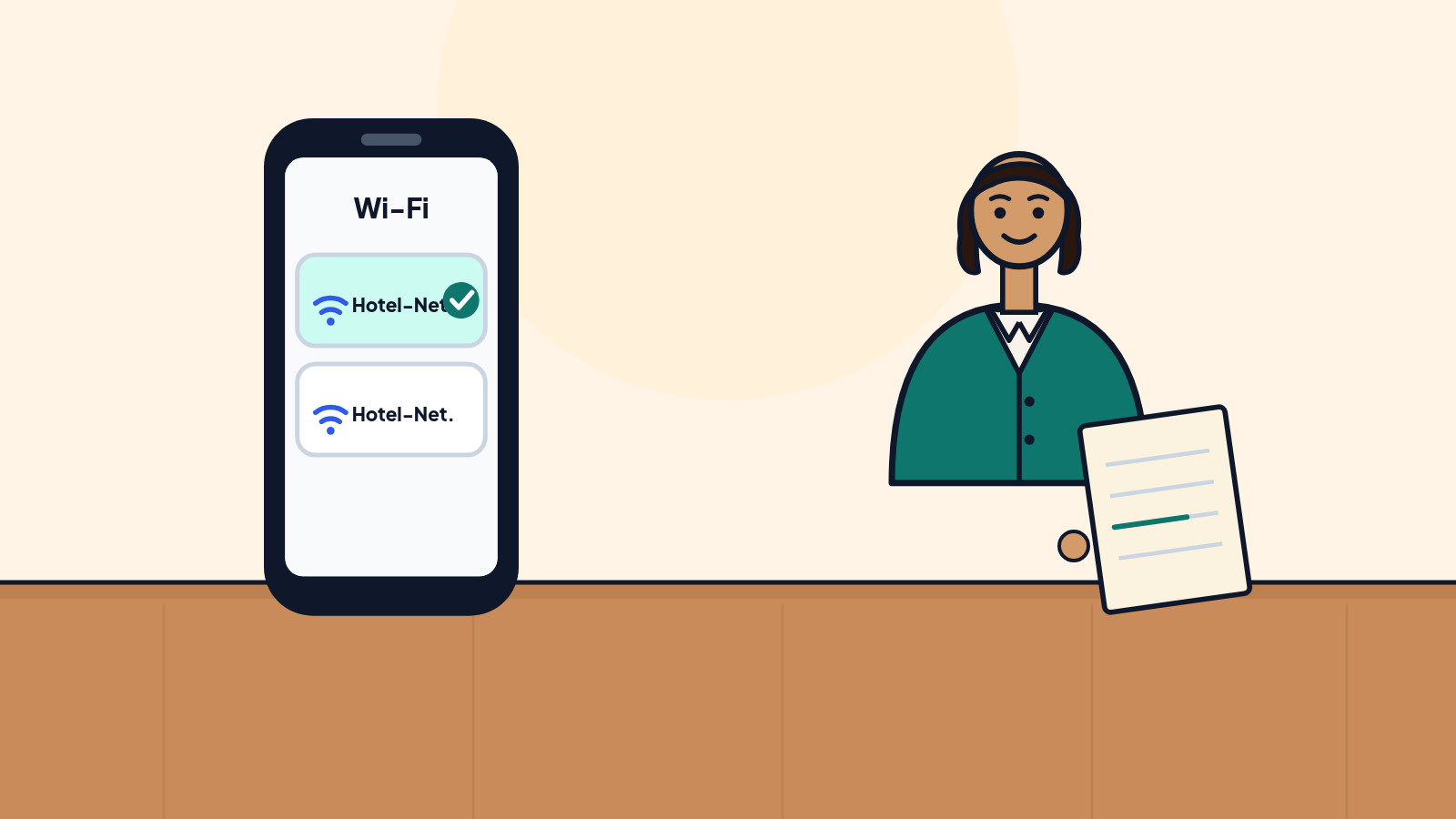
CISA is specific: before you connect to a public hotspot in an airport, hotel, train station or cafe, confirm the name of the network and the exact login steps with the appropriate staff. The FCC says that if more than one hotspot seems to belong to the place you are in, check with staff so you do not join an imposter.
That means the front desk, the gate agent, or a printed card the hotel handed you at check-in, not a friendly poster on a pillar and not a network named "Hotel_Guest_Free" that is one letter off. If the login wants a surprising app download or a payment page that does not look like the hotel, stop and ask again.
4. Keep banking and shopping off the public Wi-Fi
Both agencies agree on this part. CISA says not to do online shopping, banking or sensitive work on a public wireless network, and that your mobile network connection is generally more secure. The FCC says the same for sensitive information: using the phone's data plan instead of Wi-Fi may be more secure.
If you only need the map, the boarding pass already in the airline app, or a weather check, the hotel Wi-Fi is usually fine once you have the right name. If you need to look at a bank account or type a password into a work tool, switch to cellular, or turn the phone into a personal hotspot and put the laptop on that instead.
When you do use the public network, the FCC says to make sure sites where you exchange information start with https://. Log out when you are done. Skip the hotel business-center PC for anything you would not want a stranger to type over; CISA notes those shared computers may not be updated and may have been tampered with.
5. If you use public Wi-Fi often, use a real VPN, not a pop-up ad
The FCC says that if you use public hotspots regularly, consider a virtual private network, which encrypts the traffic between your device and the internet. Work often provides one. If you buy one yourself, pick it on purpose and install it from the company's own site or store listing. If you use the Proton VPN link in Helpful gear at the end of this page, I earn a small commission, and you pay the same price. Do not treat a random "Free VPN" button on the hotel or airport sign-in page as a recommendation.
Apple's iCloud Private Relay can also hide some Safari browsing if you already pay for iCloud+. That is Settings > [your name] > iCloud > Private Relay, and it is not available in every country. It is a browsing feature, not a full replacement for a work VPN.
On an iPhone you can also turn on Private Wi-Fi Address and Limit IP Address Tracking for a network: Settings > Wi-Fi, tap the information button next to the network, and use those switches. They help a little. They do not make a public hotspot private.
Do that, and the trip Wi-Fi is a convenience again, not an accidental confession of your passwords to the room next door.
Still stuck? Find your situation
| What you see | Likely cause | What to do |
|---|---|---|
| Two almost identical network names | One may be an imposter hotspot | Ask staff for the exact name (step 3) |
| The login wants a new app or odd payment page | It may not be the real portal | Stop and confirm at the desk |
| You need to check a bank account | Public Wi-Fi is the wrong tool for that | Use cellular or a personal hotspot (step 4) |
| The phone joined a network you did not pick | Auto-join is still on | Step 2 |
| You are on a hotel lobby PC | Shared computers are a poor place for logins | Use your own locked device instead |
Pro Mode
Pro Mode Pro Mode: what this does not replace, and a note about leaving the laptop in the room
CISA also reminds travelers that devices get stolen, and that meal times are a popular moment for someone to check a hotel room for an unattended laptop. A cable lock is optional. Taking the laptop to dinner, or locking it out of sight, is the part the tip card actually stresses. The same goes for airports and taxis.
A VPN does not fix a fake network you should not have joined, and it does not make a bad link safe. Confirm the network first, then encrypt the session if you have a VPN you trust.
When you get home, you can forget the hotel network so the phone is not still looking for it: on iPhone, Settings > Wi-Fi, tap the information button, then Forget This Network.
Helpful gear
iThis page has affiliate links. If you buy through one, we may earn a small commission at no extra cost to you. Learn more.
If you buy through the Proton link, I earn a small commission, and you pay the same price.
- Proton VPN (opens in a new tab): If you use public Wi-Fi often and do not already have a work VPN, Proton VPN is a service you choose yourself and install from Proton, not from a pop-up ad.
References
All 6 reference links
- Source: Wireless Connections and Bluetooth Security Tips - Federal Communications Commission
- Source: Cybersecurity While Traveling Tip Card - CISA
- Source: Best Practices for Using Public Wi-Fi Tip Card - CISA
- Source: Manage Wi-Fi settings on iPhone - Apple Support
- Source: Protect your web browsing with iCloud Private Relay on iPhone - Apple Support
- Source: Share your internet connection from your iPhone - Apple Support
Get the next cheat code
Plain-English tech fixes and scam alerts. Tap Follow on Facebook or TikTok, or pick another below.
Want AI to answer your clients?
Our ready-made AI setups come with a step-by-step guide in Easy Mode and Pro Mode. You set them up yourself.
See the AI setups