On this page · 2 sections
For the past couple of days, a screenshot of one iPhone setting has been bouncing around X with all-caps captions telling people to turn it off right now. The switch is called Remote Control, and it sits inside Live Listen, a hearing feature tucked deep in the Accessibility menu.
The posts make it sound like your iPhone has been quietly bugged. The pages we read describe a remote microphone feature, not anything like that. But the setting is real, it does involve your iPhone's microphone, and it takes a few taps to switch off if you don't use it.
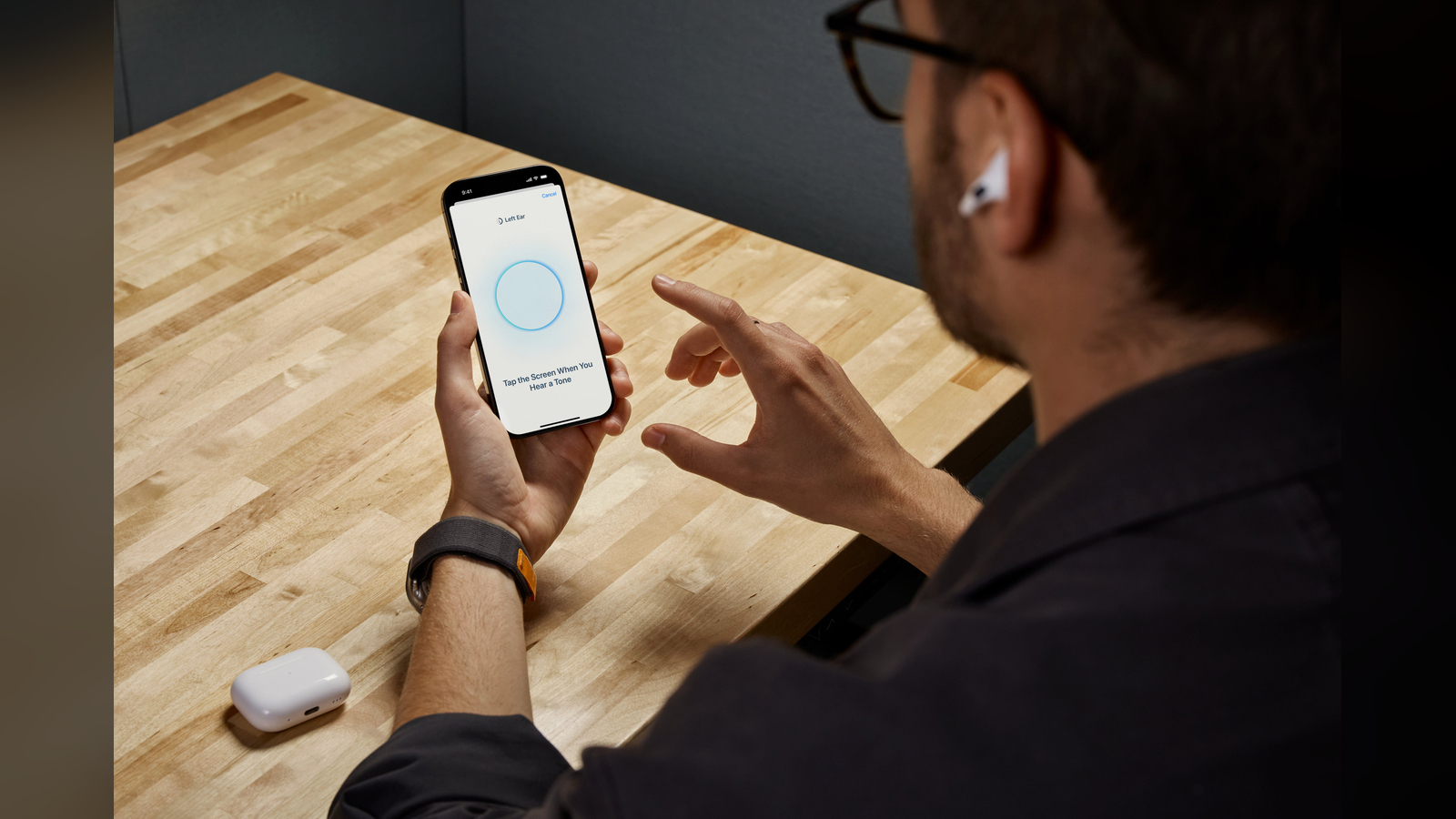
Live Listen is an accessibility feature that's been on the iPhone for years. It turns the phone into a remote microphone. You set the iPhone down near someone who's talking, and their voice streams to your AirPods, supported Beats headphones or Made for iPhone hearing aids. Picture a loud restaurant or a big lecture hall. If your hearing isn't great, you put the phone in the middle of the table, and it can help you hear the person across from you.
With iOS 26 and later, Live Listen can also show live captions of what the microphone picks up, so you can read the conversation as well as hear it. The captions aren't always accurate and shouldn't be relied on in high-risk or emergency situations.
Remote Control is the part people are worried about. With it on, you don't have to touch the iPhone to run a session. A paired Apple Watch can start Live Listen, stop it, jump back 10 seconds or show the live captions right on the wrist. Another nearby iPhone or iPad signed in to the same Apple Account can also control a session, and the captions show up on that device in real time. The pages we read don't say whether the Remote Control switch covers those devices.
That's handy for the person it was built for. They can leave the phone near the speaker and follow along on their watch without staring at their phone the whole time. It's also why the viral posts landed. On paper, the feature lets a device on your account start the microphone on a phone that's sitting across the room.
There's a big limit, though. Remote Control only works between devices signed in to the same Apple Account. A stranger's watch isn't signed in to your account, so it shouldn't be able to start a session on your phone. The watch or second device also has to be nearby, so someone would need to be close to the phone and signed in to your account before they could start a session on it from their wrist or their own iPad.
Our read: the risk is narrower and more personal. If someone else has access to your Apple Account, or a family shares one account across several phones and watches, that person's device may count as "yours" as far as this feature is concerned. That's the case worth thinking about. If you live alone and nobody else has your account, we'd expect little risk from leaving it on.
We couldn't confirm whether Remote Control is on by default. The setup steps for using an Apple Watch with Live Listen tell you to turn it on, which suggests it starts off, but that's our inference, not something the pages say. Some of the people sharing the warning say they found it on without touching it, and we couldn't verify that. Check your own phone instead of trusting a screenshot.
How to turn off Live Listen Remote Control
It's quick.
- Open the Settings app on your iPhone.
- Tap Accessibility, then tap Audio & Visual.
- Tap Live Listen.
- Turn off Remote Control.
The Apple Watch setup steps call for Remote Control to be on, so switching it off is how you stop a watch from running Live Listen on this iPhone. The pages we read don't say whether the switch also covers another iPhone or iPad on your account. It doesn't remove Live Listen itself. If you use it with hearing aids or AirPods, you can still start it from Control Center or from the same Live Listen screen in Settings, where there's a Start Live Listen button. If you rely on your Apple Watch to run it, leave Remote Control on.
If you ever see Live Listen active and you didn't start it, open Control Center, tap the hearing button, tap Live Listen, then stop the session.
While you're in Settings, it's a good moment to look at which devices are signed in to your Apple Account. Tap your name at the top of Settings and scroll down to the device list. If you see an old phone you sold, an iPad you gave away or anything you don't recognize, tap it and remove it. Depending on the device type, a device on that list can be used to receive verification codes or sync iCloud, so it's worth keeping the list clean.
If you're worried that someone you live with or used to live with has access to your account, Apple has a tool built for exactly that. It's called Safety Check, and you'll find it under Privacy & Security in Settings. It shows who you share things with and lets you cut access quickly.
For people who do rely on Live Listen, none of this is a reason to give it up. It can be a useful feature for someone with hearing loss, and an Apple Watch adds a way to run it from your wrist. Just know that the remote part is meant for devices signed in to your Apple Account, and decide if that's fine in your house.
References
- Source: Apple Support, Use iPhone as a remote microphone with Live Listen
- Source: Apple Support, Control Live Listen on iPhone from Apple Watch
- Source: Apple Support, Use Live Listen with AirPods or Beats
- Source: Apple Support, Review devices signed in to your Apple Account
- Source: Apple Support, Safety Check for an iPhone with iOS 16 or later
Never miss a cheat code
Get plain-English tech fixes and scam alerts: follow on TikTok, YouTube or Instagram.
Related fixes
Wi-Fi Keeps Dropping? 6 Free Fixes for Phones, Laptops and Smart Devices
Wi-Fi keeps dropping? Find what's cutting out and fix it free: restart in the right order, move the router, pick the right band. You don't need a booster.
Wi-Fi & Internet · 6 min read
Why Is My Computer So Slow? 6 Free Fixes to Try Before You Buy Anything
Why is my computer so slow? Find what's hogging your PC or Mac, cut startup apps, free up space and update with free built-in tools. No cleaner apps.
Computers · 6 min read
Forgot Your Wi-Fi Password? How to Find It on Your Phone, Computer or Router
Forgot your Wi-Fi password? Find it free on any iPhone, Android, Windows PC or Mac that's already connected, or on the sticker on your router.
Wi-Fi & Internet · 5 min read