
On this page · 7 sections
Quick answer
After the phone is on your account, turn on the finder first. On iPhone: Settings > [your name] > Find My > Find My iPhone, and leave Find My network and Send Last Location on so it is easier to locate if it is lost. On Android: Settings > Security > Find Hub, turn on Allow device to be located, keep Location on, and stay signed in; you can find it later at android.com/find. Then on iPhone go to Settings > Privacy & Security > Tracking and turn off Allow Apps to Request to Track if you do not want those prompts. Add two-step verification on the Apple or Google account, and save the backup codes. If you already have iCloud+, Private Relay is under Settings > [your name] > iCloud > Private Relay.
Find My iPhone includes Activation Lock, which is what makes a lost iPhone much harder to reuse. Find Hub needs Location and a signed-in Google Account; Google also tells you to keep 2-Step Verification backup codes somewhere you can reach without the phone. App Tracking is the official iPhone path verified here. Android advertising or My Ad Center clicks were not independently verified for this draft, so this guide does not invent that menu. Data transfer, if you still need it, is a separate guide.
A new phone is exciting for about twenty minutes, and then it is the thing that holds your photos, your mail and a way into your bank. The first settings that matter are the ones that help you find it if it walks off, and the ones that stop every app from asking to follow you around.
These steps follow Apple's Find My and App Tracking pages and Google's Find Hub help, all opened Nov. 10, 2026. They assume you already signed in. Moving messages and photos off the old phone is a different job: use the data-transfer guide.
Easy Mode: find it, then tighten the obvious privacy switches
1. Turn on the official finder and leave it on
iPhone: Go to Settings, tap your name, tap Find My, then Find My iPhone, and turn it on. Leave Find My network and Send Last Location on as well. Send Last Location tells the iPhone to try one last update when the battery is about to die. Find My also ties into Activation Lock, which is what makes a lost iPhone much harder for someone else to set up as new.
Android: Go to Settings > Security > Find Hub and turn on Allow device to be located. Location has to be on, and you have to stay signed in to the Google Account. Later, you can locate the phone at android.com/find. If you ever replace the phone, sign out of Find Hub on the old one so you are not searching a device you no longer have.
Do this before the phone goes in a coat pocket and leaves the house. It is a dull step. It is also the one people remember after a cab ride.
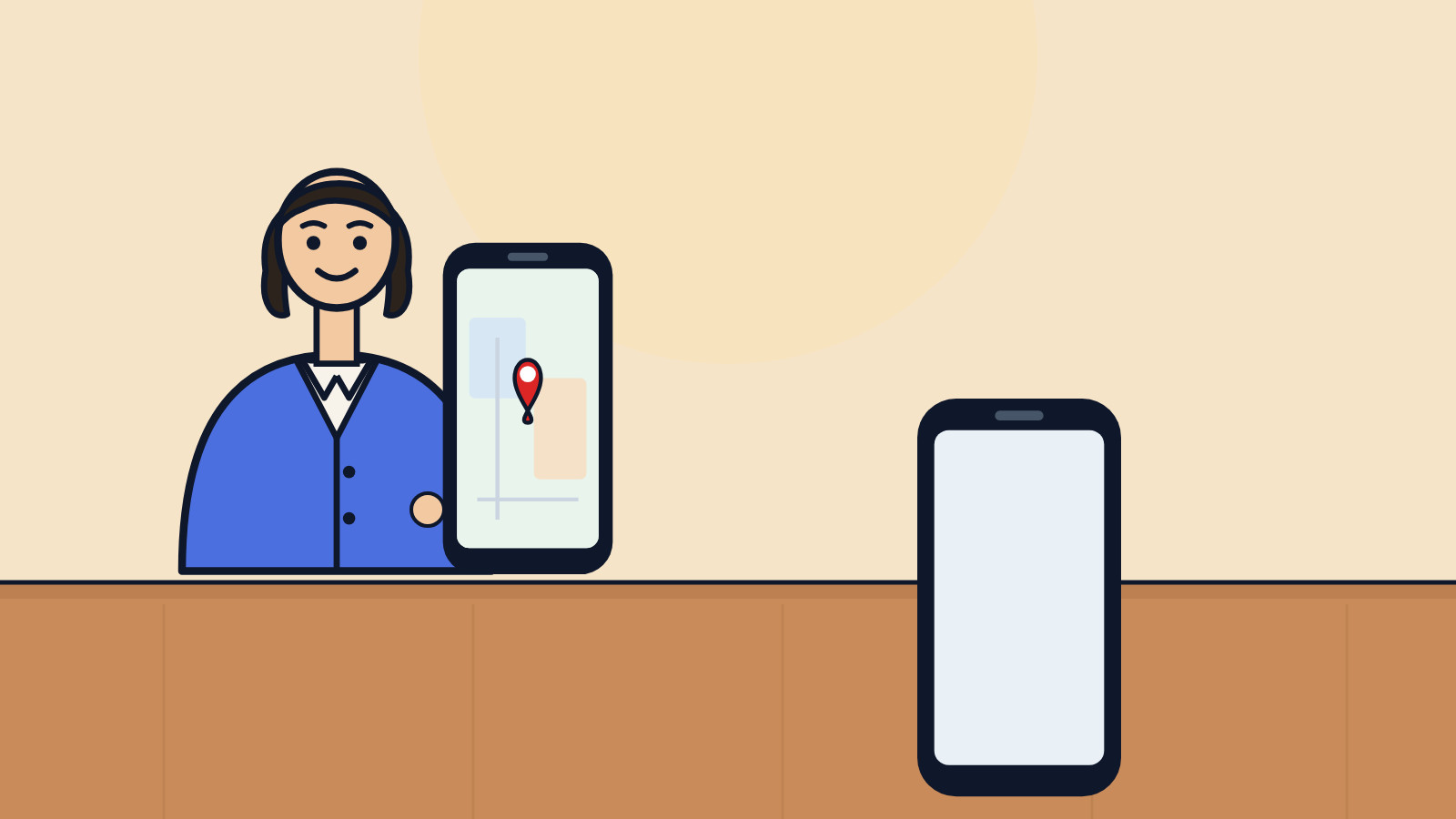
2. Decide what apps are allowed to ask to track you
On iPhone, go to Settings > Privacy & Security > Tracking. If you do not want apps asking to track your activity across other companies' apps and websites, turn off Allow Apps to Request to Track. That is the official switch. You can still allow a specific app later if you change your mind.
On Android, advertising and ad-personalization controls exist, but the exact menu names were not independently confirmed on an official page for this draft. Look in the phone's Privacy or Google settings for ad or personalization options, and use the labels on your screen rather than a guessed path.
3. Put two-step verification on the account, and save the backup codes
The Apple Account or Google Account on a new phone is the keys to the phone. Turn on two-step verification if it is not already on, and store the backup codes somewhere that is not only this phone. Google's Find Hub help specifically reminds you to keep those codes. The walkthrough is in our two-step verification guide.
4. Optional: Private Relay, if you already pay for iCloud+
On iPhone, Settings > [your name] > iCloud > Private Relay can hide some Safari browsing if you have an iCloud+ subscription. It is not available in every country, and it is not a reason to buy a plan you do not already want. If it is already part of your storage plan, turning it on is a short extra step.
If this phone is a gift for someone in the family, set up Family Sharing or Family Link next. A gifted-device sharing guide is coming soon.
Still stuck? Find your situation
| What you see | Likely cause | What to do |
|---|---|---|
| Find My or Find Hub is greyed out | You may not be signed in, or Location is off | Sign in; on Android, turn Location on (step 1) |
| Apps keep asking to track on iPhone | Allow Apps to Request to Track is still on | Step 2 |
| You still need photos off the old phone | That is transfer, not these settings | Use the data-transfer guide |
| You cannot find the Android ad setting | The path varies and was not verified here | Use the Privacy or Google settings on the phone (step 2) |
| Two-step codes would only live on this phone | A lost phone would lock you out of the account | Save backup codes off the device (step 3) |
Pro Mode
Pro Mode Pro Mode: Activation Lock and the backup-code problem
Activation Lock is the unglamorous reason Find My iPhone is worth turning on the first day, not the third. If you ever sell or trade the phone, sign out and remove it from your account so the next owner is not stuck. The wipe guide covers that end of the story.
On Android, Find Hub is only as good as the Google Account and the Location setting. A forgotten 2-Step Verification code, with the backup codes still sitting in an email on the missing phone, is a sad loop. Print them, or keep them in a password manager you can open from another device.
Helpful gear
iThis page has affiliate links. If you buy through one, we may earn a small commission at no extra cost to you. Learn more.
- Apple 20W USB-C Power Adapter (opens in a new tab): A compact 20W USB-C adapter is a simple first charger for a new phone that uses USB-C.
References
Get the next cheat code
Plain-English tech fixes and scam alerts. Tap Follow on Facebook or TikTok, or pick another below.
Want AI to answer your clients?
Our ready-made AI setups come with a step-by-step guide in Easy Mode and Pro Mode. You set them up yourself.
See the AI setupsRelated fixes
New Phone or Computer? How to Move Your Photos, Messages and Files Over for Free
Moving to a new iPhone, Android, Windows PC or Mac? Use the free, built-in transfer tools to bring your photos, messages and files along, step by step.
New Device Setup · 8 min read
How to Turn On Two-Step Verification
Add a second sign-in step to Google, Apple, Microsoft, Facebook, Instagram and Amazon: pick an app, text code or passkey, then save your backup codes.
Accounts & Security · 11 min read