
On this page · 7 sections
Quick answer
On iPhone, go to Settings > [your name] > iCloud > Photos and turn on Sync this device. Stay on Wi-Fi and let it finish; you can also go to Settings > [your name] > iCloud > Photos, tap Sync Immediately, and choose For Today if you want the latest shots uploaded first. On Android, open Google Photos, tap your profile picture, open Photos settings, and turn Backup on. Stay on Wi-Fi, then confirm the status says Backup complete (or tap Back up now). Do not delete photos from the phone until that status is complete. Edits and deletions in iCloud Photos sync everywhere, including Recently Deleted for 30 days.
iCloud Photos and Google Photos both count against the storage that also holds mail, drive files and device backups. Check the meter before a big library tries to upload and fails halfway. iCloud Optimize Storage keeps smaller versions on the phone and full-resolution copies in iCloud; it is not the same as a second, independent copy on a computer. Google Photos backup is the official Android path verified here; the iOS Google Photos path was not re-checked for this draft.
The photos you will actually miss are the ones already on the phone, not the ones you have not taken yet. A holiday trip is a great time for a phone to disappear into a seat-back pocket. Ten minutes of backup at home is cheaper than a week of hoping the airline lost-and-found desk is feeling generous.
These steps follow Apple's iCloud Photos page and Google's Photos backup page, both opened Nov. 10, 2026. They are for a phone you own, before you travel. This is not the full new-device transfer guide.
Easy Mode: turn backup on, then wait until it says it is done
1. Check that you have somewhere for the photos to go
iCloud Photos uses your iCloud storage. Google Photos backup uses the Google storage that is also shared with Drive and Gmail. Open the storage meter on the phone (on iPhone, that is under Settings > [your name]; in Google Photos, the backup or settings screens show it) and confirm there is room. If the meter is full, free some space or add storage before you start. This guide will not invent a price or a free-tier number; use the number on your own screen.
2. On iPhone, turn on iCloud Photos and let it sync
Go to Settings, tap your name, tap iCloud, tap Photos, and turn on Sync this device. Stay on Wi-Fi and keep the phone plugged in if you can. A large library can take a while.
Apple also lets you push the newest shots first: go to Settings, tap your name, tap iCloud, tap Photos, tap Sync Immediately, and choose For Today. That option is on current iPhone software (iOS 27 and later, as of the pages opened for this draft). To pause the upload, open the Photos app, tap Collections, tap your profile picture or initials, and tap Pause.
One thing that surprises people: edits and deletions sync to every device using iCloud Photos. If you delete a photo here, it is deleted there, and it sits in Recently Deleted for 30 days unless you remove it sooner. That is useful, and it is also why this is a sync, not a second, independent shoebox.
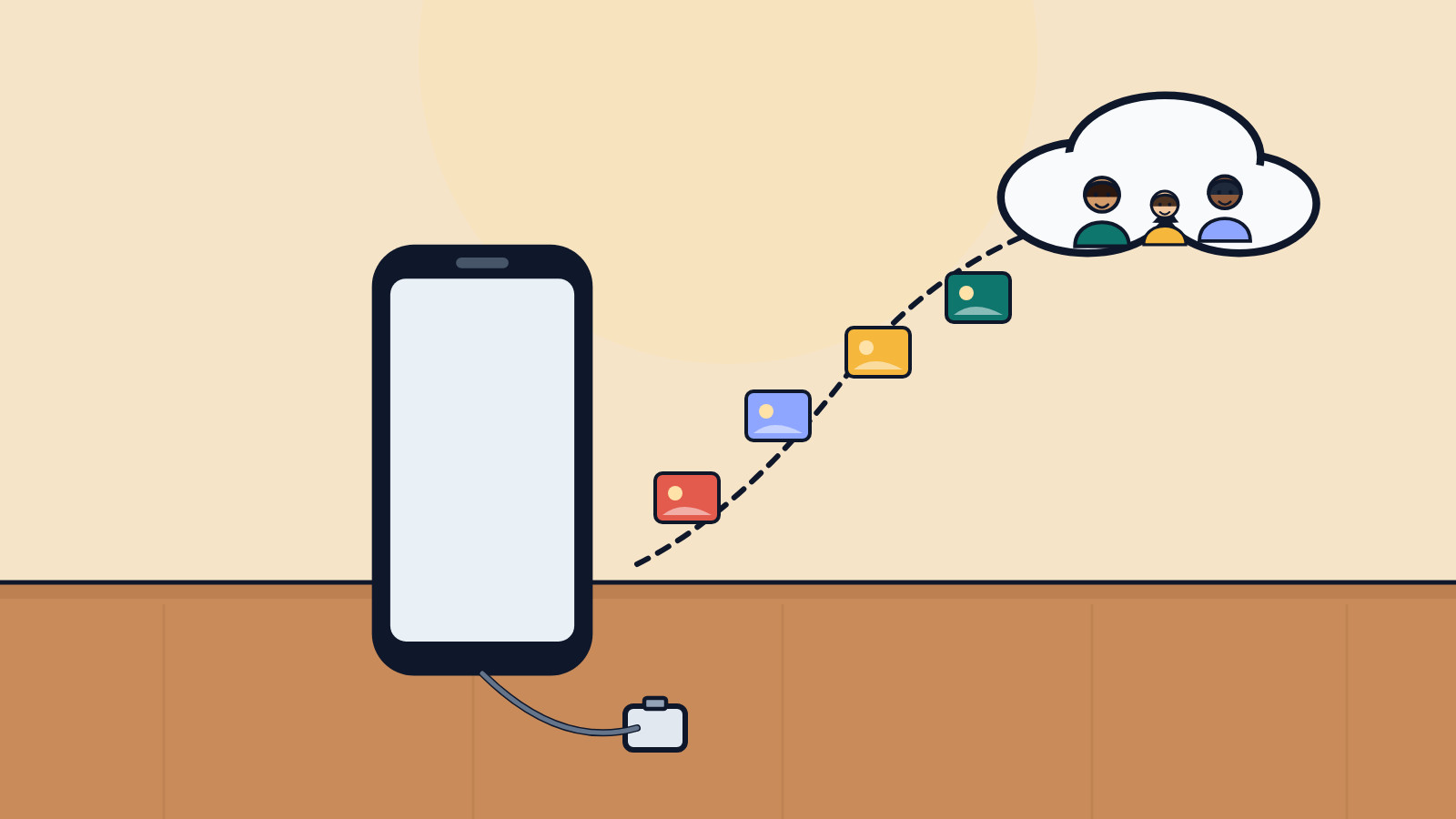
3. On Android, turn on Google Photos backup and confirm it finished
Open the Google Photos app, tap your profile picture, open Photos settings, and turn Backup on. Stay on Wi-Fi. When it is done, the status should say Backup complete. If you want to force a pass, use Back up now.
Do not start deleting photos from the phone to "make room for the trip" until that status is complete. A half-finished backup plus a tidy camera roll is how people lose the Thanksgiving pictures from last year.
If you use an iPhone with Google Photos as a second copy, follow the in-app backup switch on that phone; the Android path above is the one verified on Google's page for this draft, and the iOS menus should be confirmed before anyone treats them as official.
4. Give it time on home Wi-Fi, then pack
A coffee-shop upload on the way to the airport is a bad plan. Let the library finish at home, then pack the phone as usual. On the trip, you can keep backup on if you have a plan and Wi-Fi you trust, or pause it until you are back on a network you know.
If the phone is already low on space, iCloud's Optimize Storage (under Settings > [your name] > iCloud > Photos > iPhone Storage on current iOS, or just Optimize Storage on earlier versions) keeps smaller versions on the device and the full-resolution copies in iCloud. That is a space trade, not a second backup. If you want a copy that does not live in the same account, that is a computer or an external drive, and it is worth doing before a long trip if the library really cannot be replaced.
Still stuck? Find your situation
| What you see | Likely cause | What to do |
|---|---|---|
| iCloud Photos will not finish | The iCloud storage meter may be full | Step 1; free space or add storage |
| Google Photos still says backing up | The library is large, or you left Wi-Fi | Stay on Wi-Fi; use Back up now (step 3) |
| You deleted a photo and it vanished everywhere | iCloud Photos syncs deletions | Check Recently Deleted within 30 days |
| You already transferred to a new phone | That is a different job | Use the data transfer guide |
| You are about to use hotel Wi-Fi for the upload | Public Wi-Fi is a poor place to finish a first backup | Finish at home; see the travel Wi-Fi guide |
Pro Mode
Pro Mode Pro Mode: sync is not the same as a second copy
iCloud Photos and Google Photos are excellent at keeping the same library on more than one device. They are less excellent as the only copy of irreplaceable pictures, because a deleted account, a full meter, or a synced delete can take the copies with it. If the family archive matters, add a periodic copy to a computer or a drive you control, and do that before you travel, not after the phone is missing.
On current iPhone software, For Today under Sync Immediately is a handy way to make sure this morning's shots leave the phone first. It does not replace waiting for the rest of the library.
Helpful gear
iThis page has affiliate links. If you buy through one, we may earn a small commission at no extra cost to you. Learn more.
- Samsung T7 Shield 1TB (opens in a new tab): A portable SSD, a small fast drive that plugs in with a cable, is a second copy of your photos that does not depend on the phone.
References
All 2 reference links
Get the next cheat code
Plain-English tech fixes and scam alerts. Tap Follow on Facebook or TikTok, or pick another below.
Want AI to answer your clients?
Our ready-made AI setups come with a step-by-step guide in Easy Mode and Pro Mode. You set them up yourself.
See the AI setupsRelated fixes
New Phone or Computer? How to Move Your Photos, Messages and Files Over for Free
Moving to a new iPhone, Android, Windows PC or Mac? Use the free, built-in transfer tools to bring your photos, messages and files along, step by step.
New Device Setup · 8 min read
How to Use Hotel and Airport Wi-Fi Without Handing Over the Keys
Confirm the real hotel or airport Wi-Fi name, skip sensitive logins, and use cellular or a hotspot when you can.
Wi-Fi & Internet · 7 min read