
On this page · 7 sections
Quick answer
Don't delete anything yet. Back up your photos (iCloud Photos on iPhone, Google Photos on Android) and check the upload finished. Then turn on Optimize Storage (iPhone) or tap Free up space on this device in Google Photos (Android). Your photos stay in the app, and the full-size files stop filling your phone.
Your phone keeps telling you storage is full, and every photo on it feels like one you might need someday. A receipt. A screenshot from years ago. A video of a kid who's now taller than you. So you won't delete anything, and the phone keeps nagging.
Asked on X: "Phone storage full but can't delete anything, might need that screenshot from 2021." We answered it there too, and this is the longer answer.
That worry is the right one to work with. You don't have to pick between your photos and your phone. You're choosing where the full-size photos live.
What to do
Back up your photos, check that the backup finished, then let your phone hold small copies instead of full-size files. On iPhone, that's iCloud Photos with Optimize Storage. On Android, it's Google Photos backup, then Free up space. You can still open your photos in the app. Both routes use cloud space, so if your iCloud or Google account is full, check that first.
Do it in this order
-
See what's using the space. On iPhone, go to Settings > General > iPhone Storage. On Android, go to Settings > Storage. You should see a bar and a list, biggest first. If Photos or a camera app is at the top, do step 2 (iPhone) or step 3 (Android). If an app you barely open is at the top, jump to step 4. iPhone also shows Other and System, and you can't clear either one by hand, because your iPhone removes cached and temporary files itself when it needs room.
-
iPhone: turn on iCloud Photos, then Optimize Storage. Go to Settings > tap your name > iCloud > Photos and turn on Sync this device. Then tap iPhone Storage and choose Optimize Storage. On iOS 26 or earlier, Optimize Storage is right on that Photos screen. Your full-size originals stay in iCloud, and the phone keeps space-saving versions of your photos and videos. It starts with the ones you open least, so your 2021 screenshot is a likely candidate. It still opens when you tap it, and you can download the original over Wi-Fi or cellular.
Let the upload finish before you expect space back. How long that takes depends on your library size and your internet speed. Use Wi-Fi.
Warning: don't use the trash can to "move it off the phone." With iCloud Photos on, deleting a photo removes it from every device signed in to your Apple Account, and it sits in Recently Deleted for 30 days before it's gone for good. Optimize Storage is the button that keeps the photo.
Our read: for the one screenshot you'd hate to lose, keep a second copy somewhere else, like a computer. iCloud Photos aren't duplicated in your iCloud backup, so a second copy is a real safety net. You're done when iPhone Storage shows Photos shrinking.
-
Android: turn on Google Photos backup, then free up space. Open the Google Photos app, tap your profile picture, then Photos settings > Backup, and turn Backup on. Go back to your profile picture. When it reads Backup complete, the upload is done. To check one photo, open it, tap More > About, and look under Details for the backup status.
Now the part that deletes: tap your profile picture > Free up space on this device, then tap Free up. This removes the phone's copies of photos that are already backed up, and it is the step that actually deletes files from the phone. Don't tap it until you see Backup complete. If a photo shows "Not enough storage to back up," your Google account is full, and with no backup there is nothing safe to free up.
Two things change afterward. Photos and videos under 30 days old might stay on the phone. And the removed ones show up in Google Photos (the app or photos.google.com), but not in your phone's built-in gallery app and not when you're offline. You're done when the Storage screen from step 1 shows more free space.
-
Offload or archive apps you don't use. On iPhone, go to Settings > General > iPhone Storage, tap an app, then tap Offload App. That frees the app's space but keeps its documents and data. Pick Offload, not Delete App, because Delete App removes the app and its related data. On Android, open the Play Store, tap your profile picture > Settings > General, and turn on Automatically archive apps. Archived apps keep their icon, keep your personal data and can be downloaded again if the app is still on Google Play. You're done when the app list on your Storage screen looks shorter or smaller.
-
Empty the trash, but only for things you already chose to delete. Photos you already deleted may keep holding space until they leave the trash. On iPhone, open Photos > Collections, swipe up and tap Recently Deleted under Utilities, tap View Album and unlock it with Face ID, Touch ID or your passcode. On Android, in Google Photos tap Collections > Trash. Look through it first. Emptying it is permanent, and photos moved to the trash more than 30 days ago can't come back.
If it's still full
Message attachments, big downloads, Samsung steps and the iCloud or Google "storage full" notices are covered in our full storage-full checklist. Open it and start with the section that matches the biggest item on your Storage screen.
Stuck on something? Ask in the comments, and we might answer it in a video.
References
All 7 reference links
- Source: Apple Support, How to check the storage on your iPhone and iPad
- Source: Apple Support, Set up and use iCloud Photos
- Source: Apple Support, Delete photos on your iPhone or iPad
- Source: Android Help, Free up storage on your Android device
- Source: Google Photos Help, Back up photos & videos
- Source: Google Photos Help, Free up space on your device
- Source: Google Photos Help, Delete photos & videos
Never miss a cheat code
Get plain-English tech fixes and scam alerts: follow on TikTok, YouTube or Instagram.
Want AI to answer your clients?
Our ready-made AI setups come with a step-by-step guide in Easy Mode and Pro Mode. You set them up yourself.
See the AI setupsRelated fixes
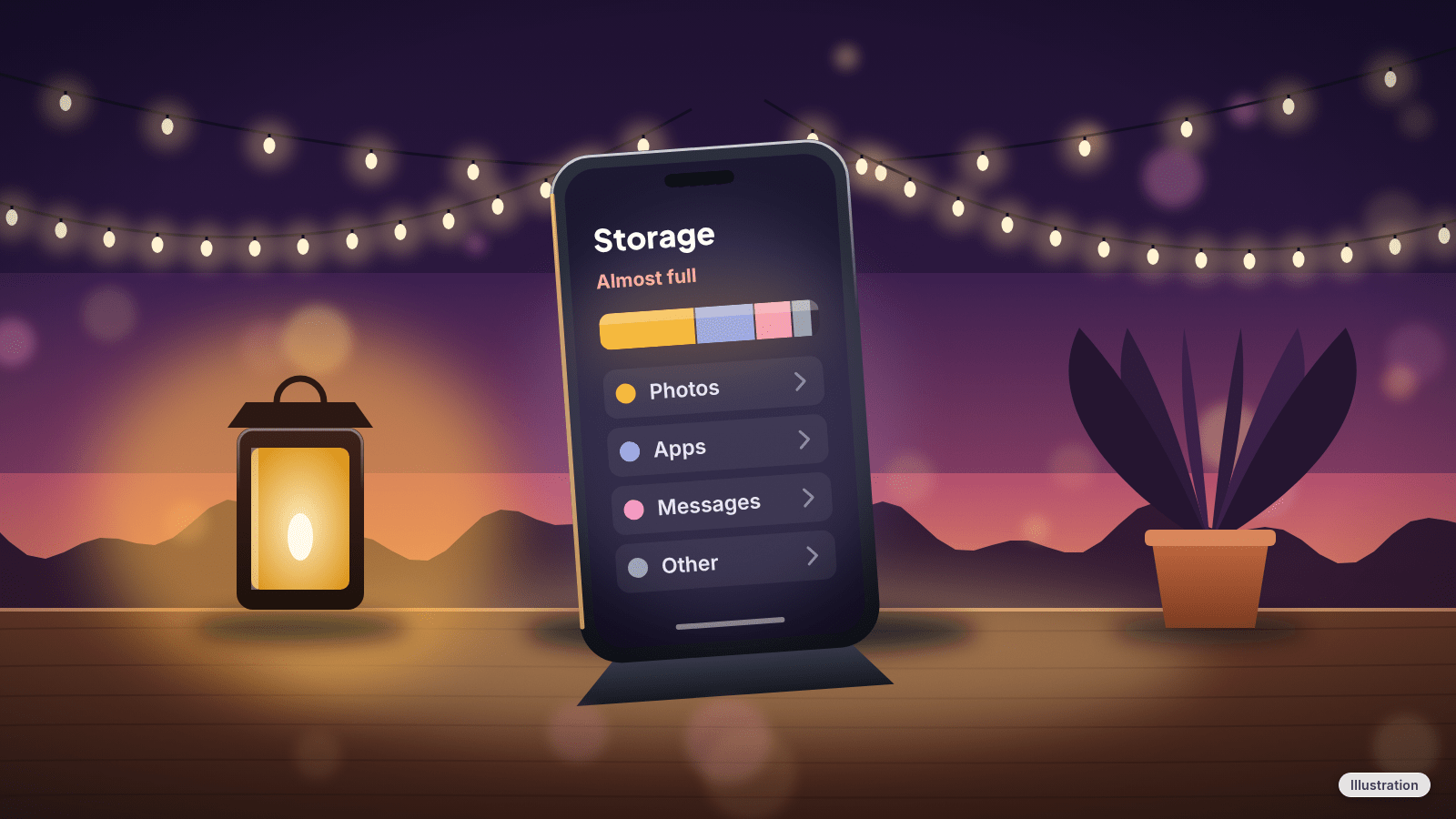
Phone Storage Full? How to Free Up Space on iPhone and Android
Phone storage full? See what's eating your space, then free it up on iPhone, Pixel or Samsung Galaxy with built-in tools. No cleaner app needed.
Phones & Storage · 11 min read
New Phone or Computer? How to Move Your Photos, Messages and Files Over for Free
Moving to a new iPhone, Android, Windows PC or Mac? Use the free, built-in transfer tools to bring your photos, messages and files along, step by step.
New Device Setup · 8 min read
Phone Battery Draining Fast? Free Fixes for iPhone and Android
Phone battery dying by lunch? Find what's draining it and fix it free on iPhone, Pixel or Samsung Galaxy before you pay for a new battery or phone.
Phones & Storage · 5 min read