On this page · 3 sections
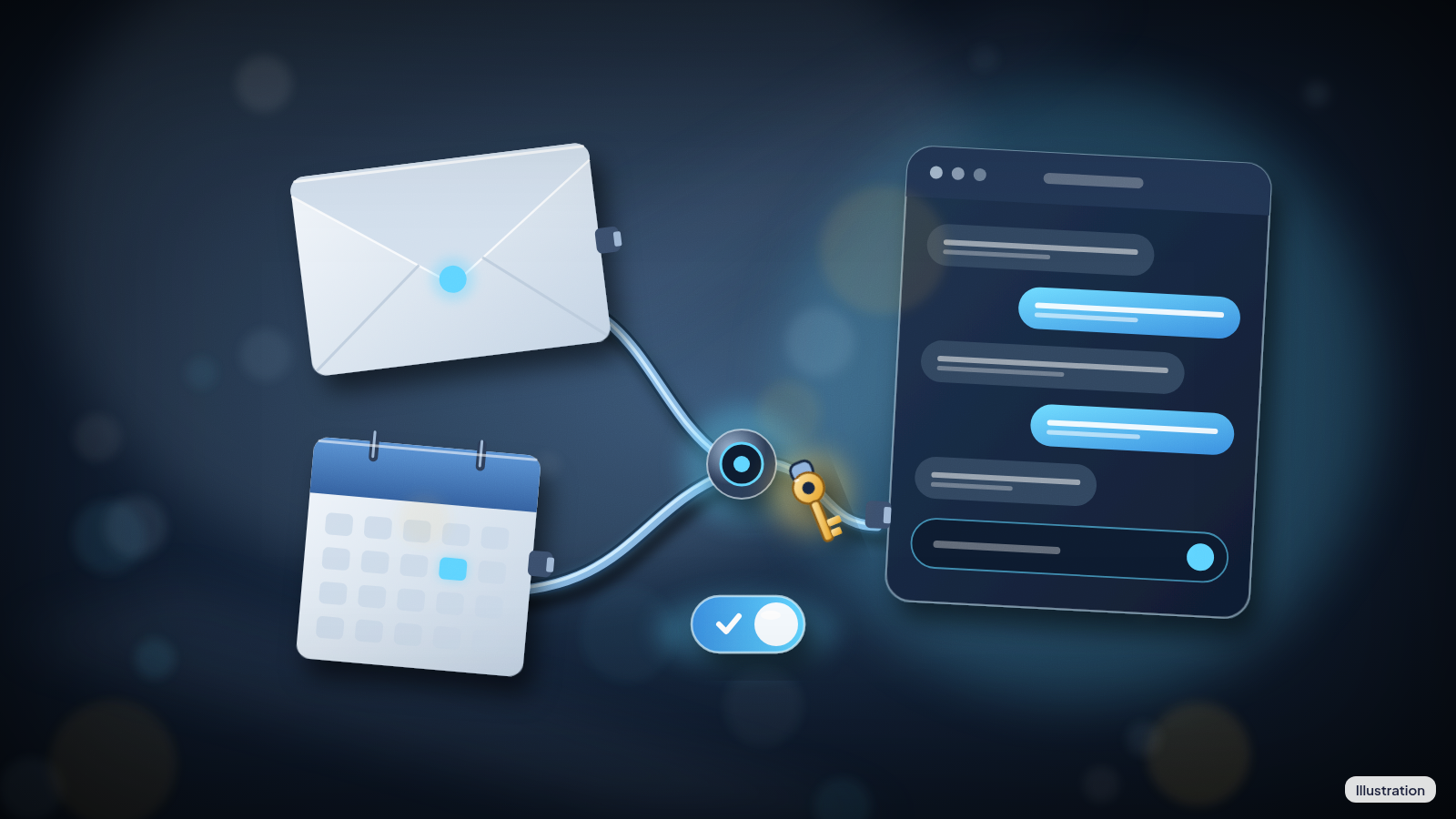
ChatGPT can now read, search and send email from your iCloud account, and edit your iCloud Calendar, if you connect it. OpenAI added iCloud Mail and iCloud Calendar plugins on Tuesday, and neither one does anything until you sign in with an Apple app-specific password.
If you use iCloud and want ChatGPT to find an old message or move a meeting, the setup takes a few minutes, but if you'd rather keep your inbox away from a chatbot you don't have to do anything, because nothing connects by itself. It's opt-in.
The Mail plugin lets ChatGPT search and read your iCloud Mail, manage messages and drafts, send email, and look up your iCloud contacts. The Calendar plugin lets it read, schedule and update events that show up in the Calendar app on your iPhone, or in any other app that uses iCloud Calendar. The contact lookup is read-only, and the plugins work on every ChatGPT plan, on the web, on desktop and in the iOS app. If your plan includes dots, OpenAI's always-on AI agents, your dot can use them too. Typical requests are to find an email, catch up on your inbox, check what's next on your calendar or update an event, which are the same chores people already hand to ChatGPT when their mail and calendar live in Google's apps, now extended to Apple's.
The scope is narrow in one way that matters. The plugins only see iCloud, and they work the way ChatGPT's Gmail and Google Calendar connections do. They are not the same as letting ChatGPT work with Apple's Mail and Calendar apps on a Mac. If the Mail app on your iPhone also holds a Gmail or Outlook account, ChatGPT can't see those through these plugins. iCloud Mail means an address ending in @icloud.com, @me.com or @mac.com.
You'll want to understand the sending part before you connect. A plugin that can send email can send email as you, so decide up front whether you're comfortable with that. OpenAI's help page notes that ChatGPT may ask for approval before reading information or completing an action, and that what's available depends on the app, your account and any workspace controls. It doesn't promise an approval prompt every time, so read what ChatGPT asks before you tap yes. Slow down there.
How to connect it
You need two-factor authentication turned on for your Apple Account, because Apple only lets you create app-specific passwords when it's on. An app-specific password is a separate, one-off password for a single app. It lets ChatGPT sign in without your regular Apple password.
- Go to account.apple.com and sign in.
- In the Sign-In and Security section, select App-Specific Passwords.
- Select Generate an app-specific password and follow the steps on screen.
- In ChatGPT, open Settings > Plugins and select the iCloud Mail or iCloud Calendar plugin. Select Install plugin if it's shown, then select Connect when prompted.
- In the connection form, enter your details and paste the app-specific password. For Mail, that's your iCloud Mail address. For Calendar, it's your primary Apple Account email, which can differ from your iCloud Mail address.
OpenAI's instructions are specific on two points. Don't use your regular Apple password, and don't paste a password into the chat itself. The same page notes that Mail and Calendar are connected separately, and installing one does not authorize the other, so if you want both, you do the connection twice. Making a separate app-specific password for each plugin is a cheap precaution, because other connections that share a password may stop working when it's revoked.
In a company or school ChatGPT workspace, an administrator may need to turn the plugin on first. Ask them.
How to turn it off
Disconnecting takes two steps, and the second is easy to miss. In ChatGPT, open Settings > Plugins, select the plugin, open the account's more options menu (the three dots) or the plugin's connection section, and select Disconnect. That ends access. It does not delete your past conversations, saved files or memories, so those need a separate review.
It also doesn't cancel the password you made for it. OpenAI's help page is direct about this, and the wording matters if you're relying on a disconnect to lock things down: disconnecting in ChatGPT does not revoke the app-specific password at Apple. To do that, sign in at account.apple.com, go to Sign-In and Security, select App-Specific Passwords, and then pick the Remove button next to that password, or Revoke All to clear every one. Apple allows 25 active ones at a time. After a password is revoked, the app that used it is signed out until you make a new one. That second step is the one that matters.
If you change or reset your main Apple Account password, Apple revokes every app-specific password automatically. ChatGPT would then lose its iCloud connection, and you'd need to create a new app-specific password and reconnect Mail and Calendar one at a time. If a connection stops working for any reason, reconnect it with a valid app-specific password. Reconnecting Mail does not update Calendar, so repeat it for each plugin you use.
New plugins don't always work with every ChatGPT feature right away, and it isn't yet clear how far the iCloud plugins reach inside tools such as Work and Codex. OpenAI's announcement names only the web, desktop and iOS versions, so check before assuming the plugins show up in other ChatGPT apps. Standalone Contacts and Reminders plugins are not part of this launch.
The plugins are live now on all plans, and each one needs its own app-specific password.
References
- Source: OpenAI Help Center, "Connecting and managing app accounts in ChatGPT" (checked Oct. 28, 2026)
- Source: Apple Support, "Sign in to apps with your Apple Account using app-specific passwords" (published Oct. 8, 2025, checked Oct. 28, 2026)
- Source: MacRumors, "ChatGPT Can Now Access Your iCloud Mail and Calendar" (Oct. 27, 2026)
- Source: Engadget, "ChatGPT can work with your iCloud Mail and Calendar thanks to new plugin support" (Oct. 27, 2026)
- Source: 9to5Mac, "iCloud Mail and Calendar plugins now work with ChatGPT" (Oct. 27, 2026)
Never miss a cheat code
Get a new 60-second fix every day: follow on TikTok, YouTube or Instagram.
Related fixes
How to Turn On Two-Step Verification for Google, Apple, Microsoft, Facebook, Instagram and Amazon
Add a second sign-in step to Google, Apple, Microsoft, Facebook, Instagram and Amazon: pick an app, text code or passkey, then save your backup codes.
Accounts & Security · 11 min read
Is This a Scam? 4 Warning Signs and What to Do Next, for Parents, Kids and Grandparents
Is this a scam? Learn the FTC's 4 warning signs, spot the tricks aimed at kids, teens and grandparents, and know exactly who to call if you already paid.
Scams · 6 min read
Phone Battery Draining Fast? Free Fixes for iPhone and Android
Phone battery dying by lunch? Find what's draining it and fix it free on iPhone, Pixel or Samsung Galaxy before you pay for a new battery or phone.
Phones & Storage · 5 min read