On this page · 5 sections
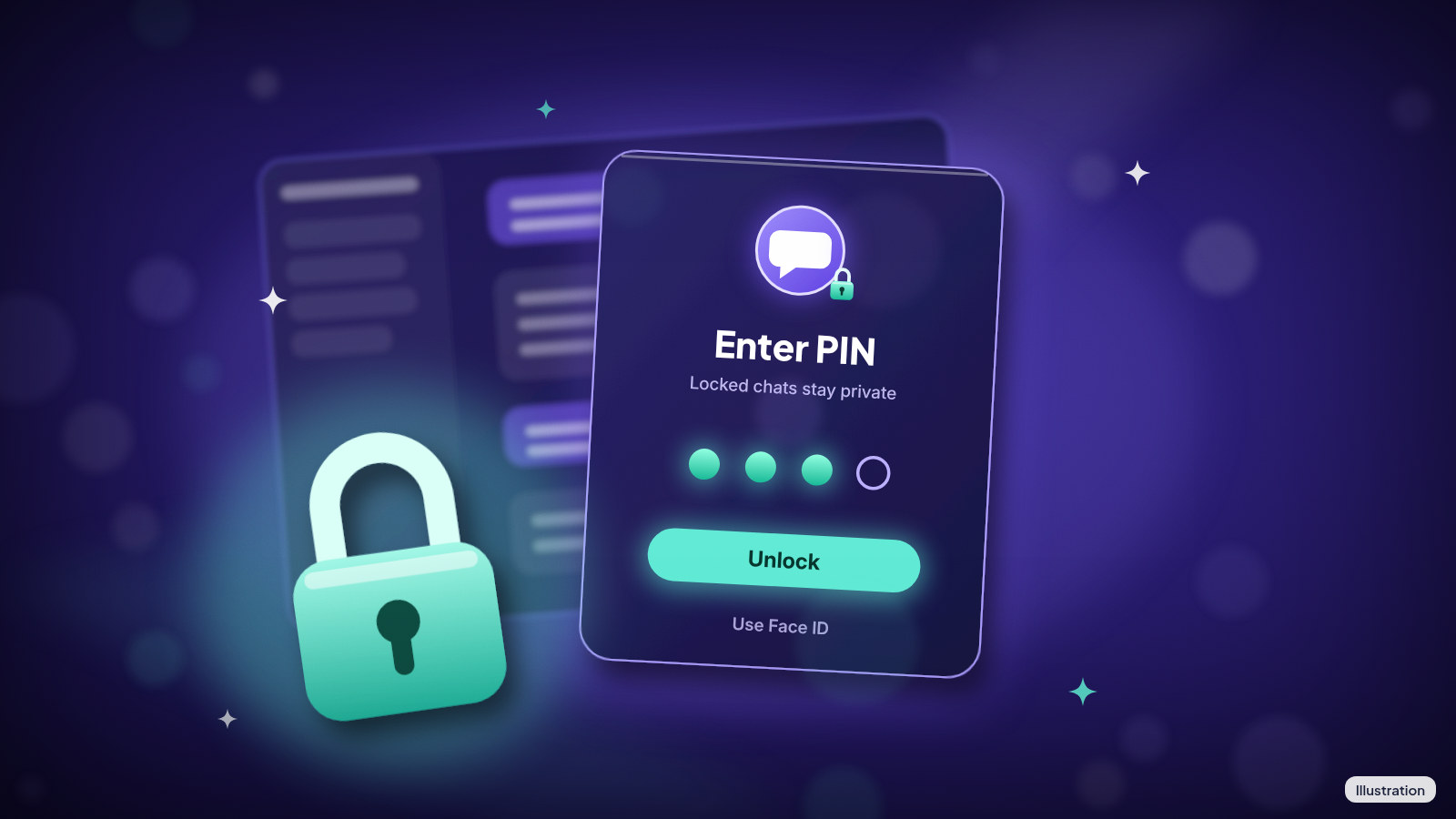
What happened: ChatGPT added locked chats on Oct. 21. You can move a conversation behind a 4-digit PIN so it disappears from your regular chat list and search. It's rolling out gradually on the web, the iPhone and Android apps, and the new desktop app.
What this means for you: If you've asked ChatGPT about a health worry, money trouble or a surprise gift, you can now keep that chat out of view when someone borrows your phone or you share your screen. There's a big catch, though. Forget the PIN, and resetting it deletes all your locked chats for good.
The details
Lots of people treat ChatGPT like a private notebook. They paste in medical test results, draft a hard email to a family member, or work through a budget. Until now, all of that sat in the sidebar where anyone holding your phone could scroll through it.
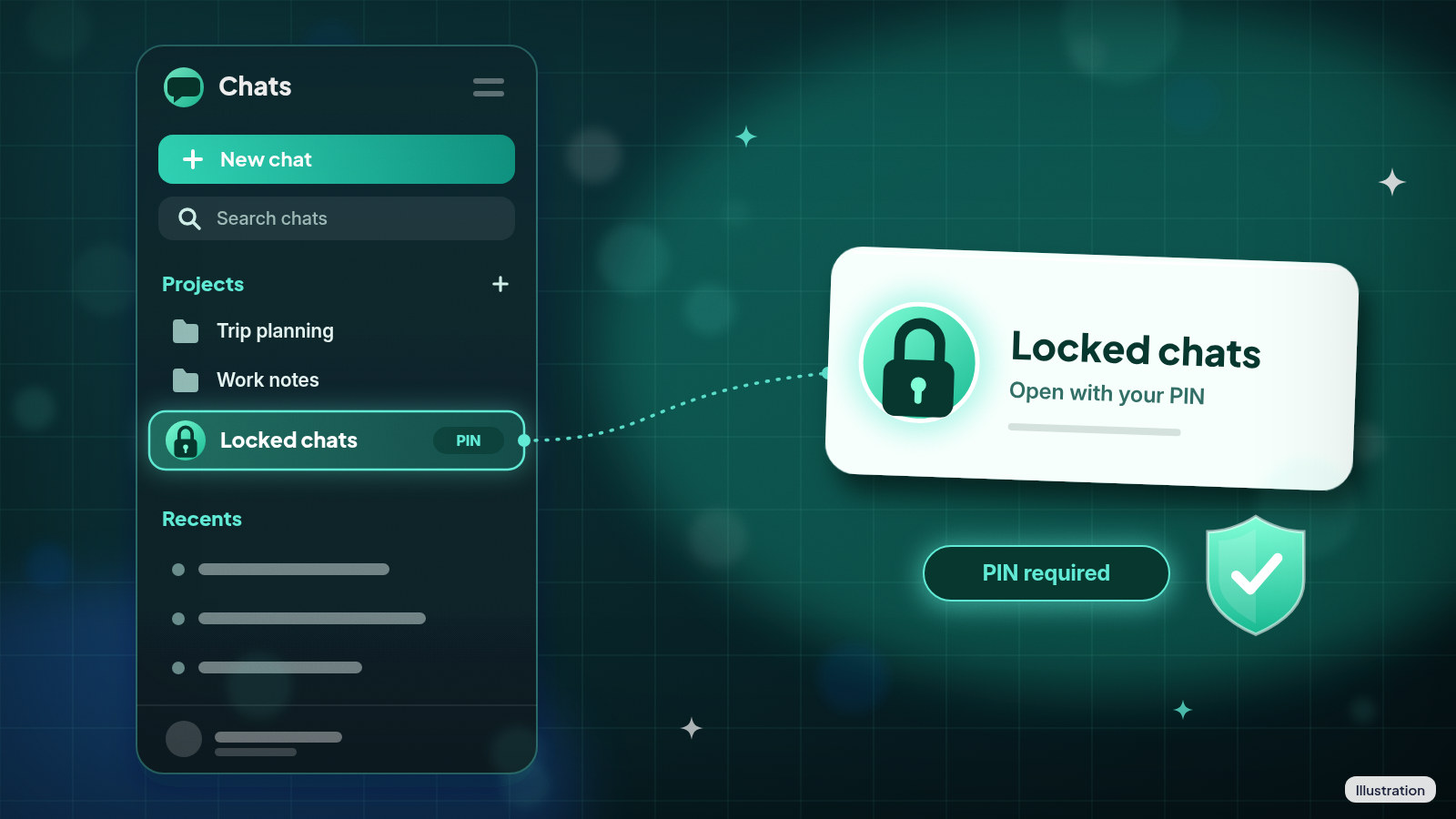
Locked chats change where those conversations live. A locked chat moves into a special area at Projects > Locked chats. Its title and content leave your regular history, pinned chats and conversation search. Getting back in takes your 4-digit account PIN. On a supported phone, you can use Face ID, Touch ID or your Android unlock method instead.
Here's who can use it:
| Detail | What you get |
|---|---|
| Plans | Free, Go, Plus, Pro, Business, Enterprise and Edu |
| Where | Web, iPhone app, Android app, new ChatGPT desktop app for Mac and Windows |
| Not included | ChatGPT for Healthcare |
| PIN | 4 digits, tied to your OpenAI account, works on supported devices when you're signed in to the same account |
| Face ID, Touch ID, phone unlock | Optional, set up separately on each phone |
| Voice | Works in locked chats on web, iPhone and Android, not in the desktop app |
If you don't see Lock chat in a conversation's menu yet, the feature hasn't reached your account. OpenAI is turning it on in waves.
It hides chats. It doesn't encrypt them.
This is the part most people will get wrong. Locking a chat changes where it shows up and how you open it. That's all. Here's what it doesn't do:
- It doesn't add end-to-end encryption (a lock that keeps even the company from reading your chats) or a separate encrypted vault.
- It doesn't change how long OpenAI keeps the chat.
- It doesn't change your "Improve the model for everyone" setting, which controls whether your chats can be used to train OpenAI's models.
- It doesn't erase anything ChatGPT remembered before you locked the chat.
Anyone who gets into a locked chat can still copy what's in it. Ads can appear in locked chats too, if your account gets ads.
Our read: think of this as a lock on a diary drawer, not a safe. It's great for keeping a spouse, child or coworker from stumbling onto something. It does nothing about what OpenAI stores.
Did you know? On Android, a screenshot of a locked chat may come out blank or black. The app hides protected content from screenshots on purpose.
The PIN catch
If you forget your PIN, nothing is lost right away. But the only way to get a new PIN is a reset. A reset permanently deletes all locked chats, anything ChatGPT remembered only inside them, and files protected by the old PIN. OpenAI Support can't get any of it back. A work or school administrator can't reset your PIN or unlock your chats either.
Changing a PIN you still remember is different. That keeps everything.
What to do now
Lock a chat you already have
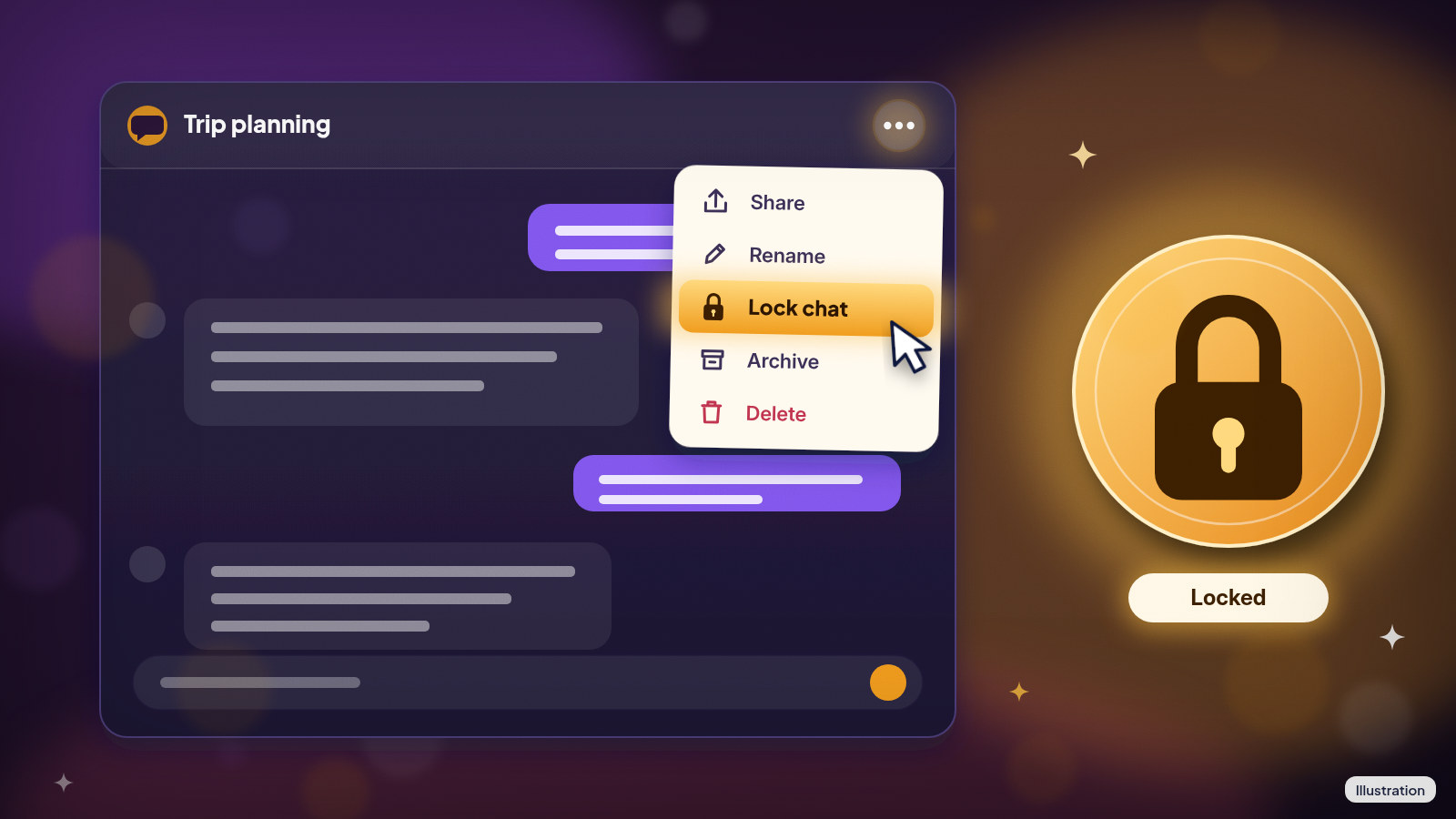
- Open the ••• menu (more options) for the chat.
- Select Lock chat.
- Select Lock chat again to confirm.
- Create or enter your account PIN when asked.
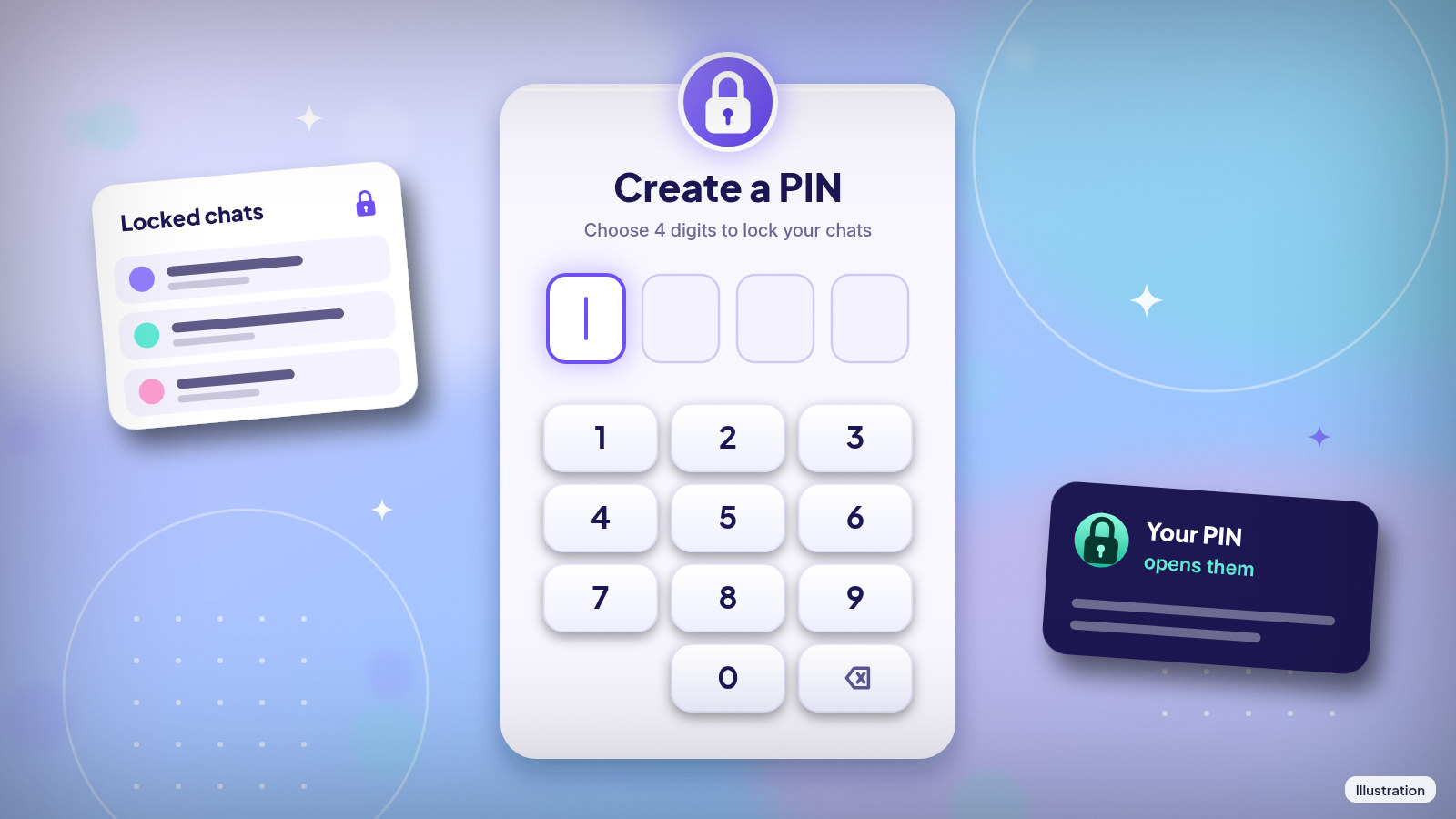
The first time, ChatGPT asks you to make a PIN. Select Create a PIN, type 4 digits, then type them again to confirm. Pick something you'll remember but that isn't your birthday or 1234. Write it down somewhere safe, away from your phone.
After you lock a chat, other devices where ChatGPT is already open can keep showing its title until their list refreshes. On an iPhone, chat content that already loaded can stay on screen until the app refreshes. Check your tablet or laptop before you hand it to someone.
Open a locked chat
- Select Projects.
- Select Locked chats.
- Enter your PIN, or use Face ID, Touch ID or your phone's unlock.
- Pick the chat.
To start a brand-new private chat, go to the same Locked chats area and type a message there. You need to lock at least one existing chat first.
When you're done, select Lock now to close access right away. On a phone, access ends by itself after 1 minute away from locked chats, or after 1 minute in the background. On the web, it ends when you refresh or close the tab, and it relocks after you've been away from that tab for a while.
Turn on Face ID or phone unlock
On an iPhone, turn on Use Face ID or Use Touch ID in your Account PIN settings. On Android, select Use device unlock when ChatGPT offers it. Your PIN still works as a backup.
Change your PIN
- Open Settings.
- Select Security and login.
- Select Account PIN.
- Under Change PIN, select Change (web or desktop) or Change PIN (iPhone or Android).
- Enter your current PIN, then create and confirm a new one.
Take a chat out of locked chats
Open the locked chat, open the ••• menu, select Unlock chat (or Unlock on iPhone), then confirm. It goes back to your regular history. If it came from a project, it doesn't return to that project.
What you can't lock
Some kinds of chats don't get the Lock chat option:
- Temporary chats
- Archived chats
- Group chats
- Chats started from someone's shared link
- Chats with scheduled tasks, meeting recordings or background tasks
A few more rules are good to know. Locking a chat that you already shared with a link doesn't kill the link. People with the link still see what was there before, so delete the link separately if that matters. You also can't search across your locked chats, pin them, archive them or share them while they're locked.
Locked chat or temporary chat?
They do different jobs. A temporary chat stays out of your history and isn't used to train OpenAI's models while it stays temporary, and it doesn't create or update memories. A locked chat is saved, sits behind your PIN, and follows your normal model-training setting. If you want to keep the conversation and come back to it, lock it. If you just want a quick question that leaves no trail in your sidebar, use a temporary chat.
The bottom line on who should use it
Parents who share a tablet with kids, people who hand their phone around at work, and anyone who shares a screen in meetings get the most from this. If you rarely let anyone else touch your devices, your phone's own lock screen already does most of the job. The PIN reset rule applies to everyone, so write the PIN down before you lock anything you'd hate to lose.
References
Never miss a cheat code
Get plain-English tech fixes and scam alerts: follow on TikTok, YouTube or Instagram.
Related fixes
How to Turn On Two-Step Verification for Google, Apple, Microsoft, Facebook, Instagram and Amazon
Add a second sign-in step to Google, Apple, Microsoft, Facebook, Instagram and Amazon: pick an app, text code or passkey, then save your backup codes.
Accounts & Security · 11 min read
Is This a Scam? 4 Warning Signs and What to Do Next, for Parents, Kids and Grandparents
Is this a scam? Learn the FTC's 4 warning signs, spot the tricks aimed at kids, teens and grandparents, and know exactly who to call if you already paid.
Scams · 6 min read
Phone Battery Draining Fast? Free Fixes for iPhone and Android
Phone battery dying by lunch? Find what's draining it and fix it free on iPhone, Pixel or Samsung Galaxy before you pay for a new battery or phone.
Phones & Storage · 5 min read