On this page · 6 sections
You're on an airline's check-in page and it wants your confirmation code. Normally that means opening a new tab, digging through Gmail for the booking email and copying six characters back over. Starting today, Chrome can skip that step and offer the code itself, pulled straight from your inbox.
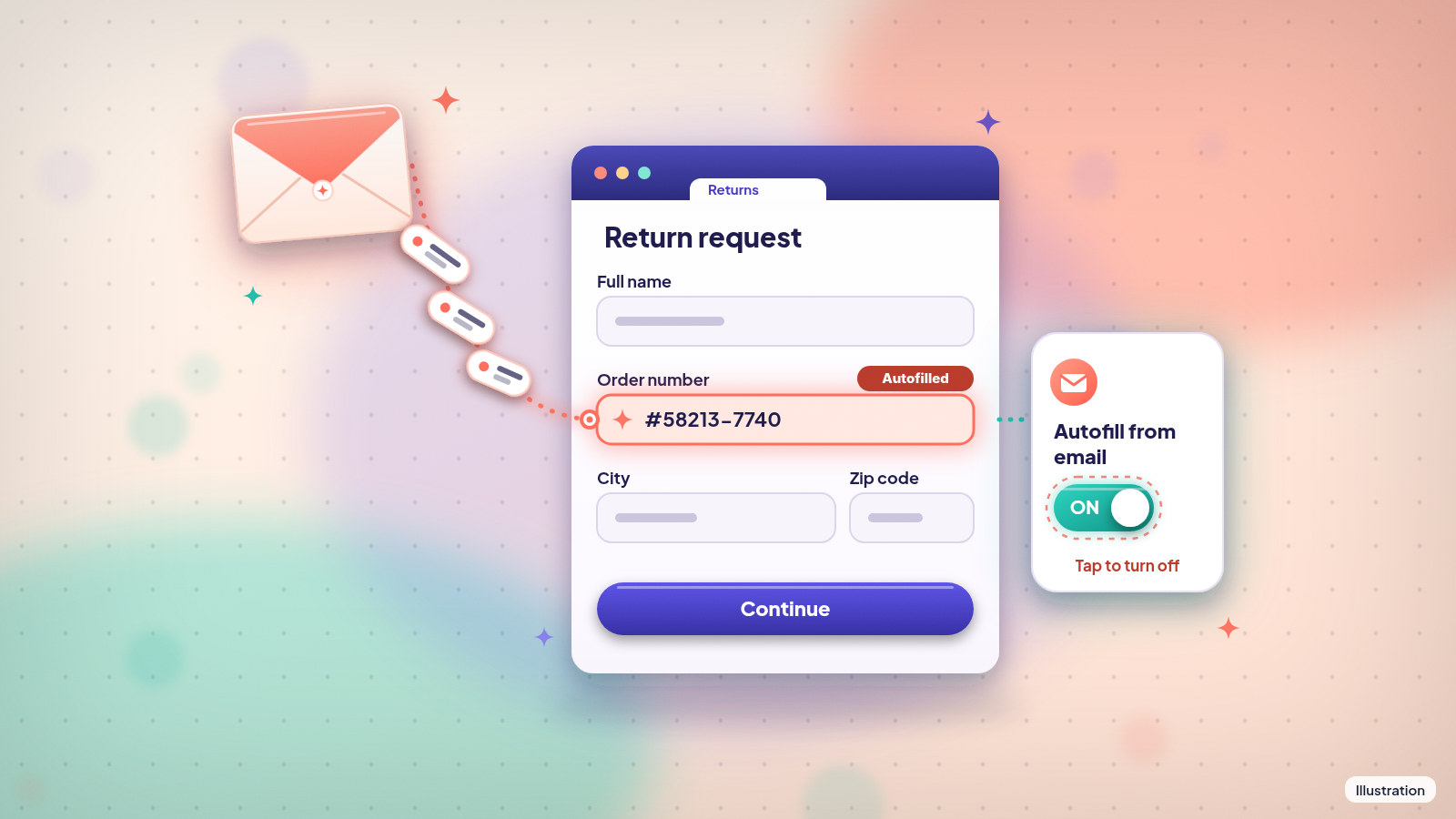
Google began rolling out the change on Wednesday. Chrome's enhanced autofill, which already fills in your name, address and saved cards, can now suggest things it finds in your Gmail while you're filling out a form. The examples Google gives are order numbers, package tracking details and flight bookings. When Chrome has one of these for you, it shows up in the usual autofill dropdown marked "Suggested by Gemini."
Who gets it
Not everyone. The feature runs on Gemini, Google's AI assistant, through a setting called Personal Intelligence, which lets Gemini look at your Google apps (Gmail, Calendar, Photos and others) to give more personal answers. You only get the new Gmail suggestions if you use Gemini in Chrome and have already turned Personal Intelligence on.
For now it's rolling out in the US, in Chrome on computers and in the Chrome apps for Android and iPhone. Google is releasing it gradually, so it may not show up for you right away even if you qualify. Personalized Gemini in Chrome is also limited to people 18 and over.
If you haven't set up Personal Intelligence, nothing about your autofill changes today. Chrome will keep filling the same basic details it always has.
Google also plans to extend the feature to your Google Photos library, so Chrome could pull details out of pictures you've saved, like a photo of a membership card or a receipt. There's no date for that yet.
Why you might want it, or not
The convenience is real. Anyone who has hunted for a tracking number to file a missing-package claim, or scrolled back through weeks of mail to find an order number for a return, knows how much time that eats. Having it appear in the form field is the kind of small thing people end up using every day.
The trade-off is that you're letting an AI read your email to do it. Google's privacy promise is that sensitive data is encrypted and you stay in control. You can manage the feature from Chrome's settings and delete individual suggestions you don't want. But your inbox holds a lot more than flight codes: bank alerts, medical appointment reminders, password reset links. Whether that's worth a few saved clicks is a personal call, and you can say yes to Gemini in general without saying yes to this.
One more thing worth knowing: if you already use Personal Intelligence, you don't need to do anything for the Gmail suggestions to appear. They may start showing up on their own as the rollout reaches you.
How to turn it off on a computer
These steps switch off enhanced autofill in Chrome entirely, including the new Gmail suggestions. Your regular saved addresses, passwords and cards keep working.
- Open Chrome and click the three-dot menu at the top right.
- Choose Settings, then Autofill and passwords.
- Under "Autofill settings," click Enhanced autofill.
- Turn off Find and fill with Gemini.
On the same page you'll find "Verify it's you when filling sensitive info." That one is on by default and makes Chrome ask for your fingerprint, face or screen lock before it fills something sensitive. If you keep enhanced autofill on, leave that switch on too.
On a phone, the autofill controls live in the Chrome app's settings in a similar place. You can manage the feature from Chrome's settings.
How to stop Gemini from reading Gmail at all
Turning off enhanced autofill only stops the form suggestions. If you'd rather Gemini not look at your email for anything, disconnect Gmail from Personal Intelligence instead.
- In Chrome, click Ask Gemini at the top of the browser.
- Click More, then Settings & help, then Personal Intelligence, then Connected Apps.
- Turn off Google Workspace, the group that includes Gmail, Calendar, Docs and Drive.
You can do the same thing from gemini.google.com by clicking Settings & help, then Personal Intelligence, then Connected Apps. A change made in either place applies to all of Gemini, not just Chrome, so Gemini on your phone will stop using those apps too.
What we'd do
If you already like Gemini's personal answers and you shop or travel a lot online, try the new suggestions for a week and see if they actually save you time. Keep "Verify it's you" turned on.
If you share a computer, or you just don't love the idea of an AI pulling things out of your inbox, turn off Find and fill with Gemini now. It only takes a few clicks, and you can flip it back on later if you change your mind.
References
- Source: Google Keyword blog, "Chrome's enhanced autofill helps you fill out forms with suggestions pulled from Gmail"
- Source: Google Chrome Help, "Fill out forms automatically in Chrome"
- Source: Google Chrome Help, "Customize your Gemini in Chrome experience"
- Source: Gemini Apps Help, "Connect your Google apps to personalize your Gemini experience"
- Source: 9to5Google, "Google Chrome rolling out 'Suggested by Gemini' autofill"
- Source: TechCrunch, "Chrome's AI-powered Autofill can now dig through your Gmail to fill out forms"
Never miss a cheat code
Get a new 60-second fix every day: follow on TikTok, YouTube or Instagram.
Related fixes
How to Turn On Two-Step Verification for Google, Apple, Microsoft, Facebook, Instagram and Amazon
Add a second sign-in step to Google, Apple, Microsoft, Facebook, Instagram and Amazon: pick an app, text code or passkey, then save your backup codes.
Accounts & Security · 11 min read
Locked Out of Your Account? Step-by-Step Recovery for Google, Apple, Microsoft and Facebook
Locked out of Google, Apple, Microsoft, Facebook or Instagram? Use each company's free, official recovery steps, and skip the paid 'recovery experts.'
Accounts & Security · 7 min read
Is This a Scam? 4 Warning Signs and What to Do Next, for Parents, Kids and Grandparents
Is this a scam? Learn the FTC's 4 warning signs, spot the tricks aimed at kids, teens and grandparents, and know exactly who to call if you already paid.
Scams · 6 min read