On this page · 3 sections
What happened: iPhone drivers who use Google Maps through Apple CarPlay can now tap a Gemini button on the car's screen and talk to Google's AI assistant in the middle of a route. It started rolling out on Oct. 21 everywhere Gemini is available, so it may not have reached your phone yet. A day earlier, Android Auto drivers started getting a more personal version of Gemini that can pull answers from your Gmail, Google Calendar and Google Photos, but only if you switch that on.
What this means for you: If you drive with Google Maps on CarPlay, update the app and look for the Gemini icon after you start a route. That's the whole setup. If you drive with Android Auto, none of your email or photos get connected unless you opt in, and you can disconnect them later in the Gemini app.
The details
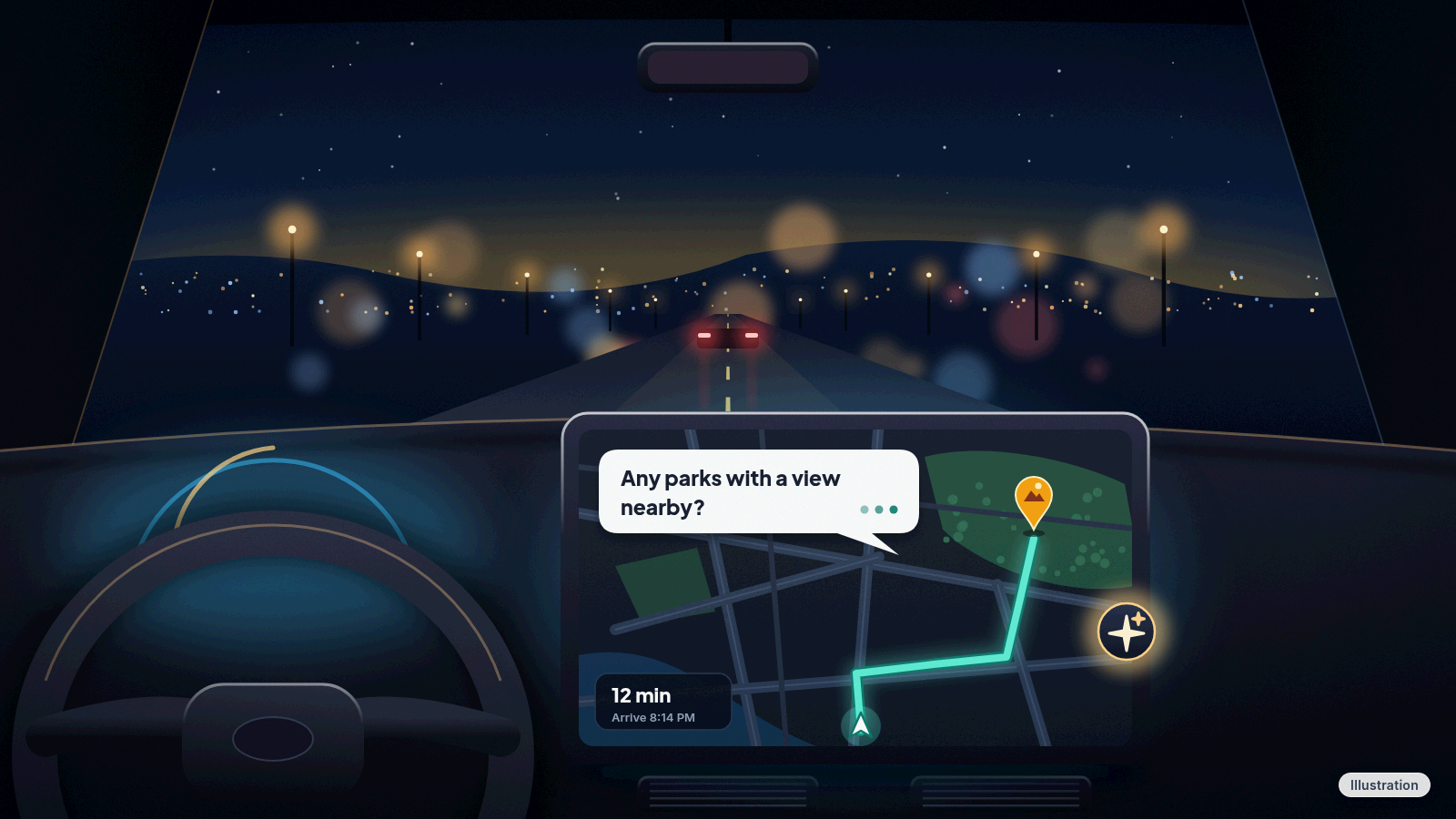
"What park is famous for gorgeous views overlooking the city?" That's one of the sample questions Google Maps posted when the CarPlay version went out, and it shows what changed. Until now, Google Maps on a CarPlay screen gave you a microphone button to search for a stop along your route, and that was about the extent of the talking. Now you can ask a question, ask a follow-up about whether it's a good time to go when it isn't crowded and the weather holds, and then tell Gemini to start the route and stay off toll roads, all without touching your phone.
It lives inside navigation. Start a route first, then tap the Gemini icon on the car's display. From there you can ask about places along the way and change the route out loud instead of poking at the screen.
One oddity. When we checked Google's help page for Gemini in Maps on iPhone on Oct. 26, it still carried the line "Gemini isn't currently available for CarPlay." Our read: the help page simply hasn't caught up with the launch. If you don't see the button yet, update Google Maps from the App Store and look again on your next drive.
Android Auto, the version of this for Android phones, has had Gemini for a while. What's new there is a feature Google calls Personal Intelligence. With your permission, Gemini connects to the Google apps you already use, including Gmail, Google Calendar, Google Photos, Google Maps, YouTube and Search, so it can answer questions that need your own information. Google's examples are the useful kind: "Take me to my doctor's appointment," when you don't remember the street address, or asking for your flight gate and whether the flight is on time in one go on the way to the airport. The oddest one asks Gemini to find a car wash from a photo you took last week and give you directions there.
Personal Intelligence began rolling out on Android Auto on Oct. 20, so it's reaching people in waves and may not show up for you yet. Cars with Google built-in, meaning cars whose dashboard runs Google's software without a phone plugged in, get it in the coming months. It's limited to personal Google accounts for people 18 and older. Work, school and business accounts don't get it, and neither do supervised accounts set up for kids. It isn't offered in the European Economic Area, Switzerland, the United Kingdom or Nigeria.
The CarPlay rollout doesn't mention Personal Intelligence at all, and nothing on Google's pages puts it on CarPlay yet. For now, iPhone drivers get the conversational help with directions and places, not answers pulled from their inbox.
| Google Maps on CarPlay (iPhone) | Android Auto (Android phone) | |
|---|---|---|
| How you start Gemini | Tap the Gemini icon during navigation | Say "Hey Google," tap the microphone on the car screen, or hold the voice button on the steering wheel |
| Where it's available | Rolling out since Oct. 21 wherever Gemini is available | Wherever Gemini and Android Auto are both available |
| Personal answers from Gmail, Calendar, Photos | Not part of the CarPlay rollout | Rolling out since Oct. 20, opt-in, ages 18+ |
| What your phone needs | An iPhone with the Google Maps app | Android 11 or newer, at least 2 GB of memory, Gemini set as your assistant |
If kids ride with you, know that Gemini in Android Auto talks to whoever is in the car, children included, and they may hear answers that aren't right for their age. Google asks parents to remind children that Gemini is an AI tool and not a person. Google's help page is also blunt about accuracy: Gemini in Android Auto "can hallucinate and present inaccurate information as factual so should not be relied on for critical information or safety-related matters while operating the vehicle." Treat its answers about hours, gas prices or a flight's status as a starting point, and check anything important once you're parked.
What to do now
For Google Maps on CarPlay:
- Update Google Maps on your iPhone from the App Store.
- Connect your iPhone to the car and open Google Maps on the car's screen.
- Tap Add destination, pick a place and tap Go.
- Once the route starts, tap the Gemini icon on the car's screen and ask your question.
Try it once in the driveway before your first real trip, so you know where the button sits on your screen.
For Android Auto, make sure your Google and Gemini apps are up to date. Then open the Gemini app, tap your profile picture in the top-right corner, go to Settings > Digital assistants from Google and choose Gemini. That replaces the older Google Assistant on your phone and in Android Auto. When Gemini is listening in the car, you'll see a small spark-shaped icon instead of the old colored dots.
To turn on Personal Intelligence, open the Gemini app. If you're eligible, a card appears where you tap Get started, then choose Connect all, Choose apps or Don't connect. If you'd rather keep your email out of the car, pick only the apps you want, or none.
To disconnect later, open the Gemini app, tap Menu, then your profile picture or initial, then Personal Intelligence > Connected Apps, and turn off any app you no longer want Gemini to read. Everything else in the car keeps working without it. You can still get directions, play music and make calls; the answers just won't be tailored to you.
Cars with Google built-in get Personal Intelligence in the coming months, and even then, the car shares personal answers only while you're in it with your phone connected.
References
- Google Maps on X: Gemini is coming to Google Maps navigation on CarPlay (Oct 21, 2026)
- Google: Get hands-free personalized help on the road with Gemini (Oct 20, 2026)
- Google Maps Help: Use Google Maps on CarPlay
- Google Maps Help: Use Gemini while you navigate (iPhone & iPad)
- Gemini Apps Help: Chat with Gemini in your car
- Gemini Apps Help: Connect your Google apps to personalize your Gemini experience
- Android: Your drive, upgraded: Meet Gemini in Android Auto
Never miss a cheat code
Get a new 60-second fix every day: follow on TikTok, YouTube or Instagram.
Related fixes
Phone Storage Full? How to Free Up Space on iPhone and Android
Phone storage full? See what's eating your space, then free it up on iPhone, Pixel or Samsung Galaxy with built-in tools. No cleaner app needed.
Phones & Storage · 11 min read
Phone Battery Draining Fast? Free Fixes for iPhone and Android
Phone battery dying by lunch? Find what's draining it and fix it free on iPhone, Pixel or Samsung Galaxy before you pay for a new battery or phone.
Phones & Storage · 5 min read
New Phone or Computer? How to Move Your Photos, Messages and Files Over for Free
Moving to a new iPhone, Android, Windows PC or Mac? Use the free, built-in transfer tools to bring your photos, messages and files along, step by step.
New Device Setup · 8 min read