
On this page · 6 sections
You can use your iPhone or Pixel abroad this holiday without a huge phone bill. The main ways are a travel eSIM, a roaming plan from your US carrier, or Wi-Fi with data roaming turned off.
Pick a plan before you fly. If you use your phone abroad with no plan, Verizon and AT&T say you can be billed at pay-per-use rates.
An eSIM is a digital SIM built into your phone. It lets you add a cellular plan without a plastic SIM card. Apple's Support pages say you need an iPhone XS, iPhone XS Max, iPhone XR, or later, and a carrier that supports eSIM, and that the iPhone cannot be locked if you want a plan from another carrier. To check, go to Settings, tap General, then About. If the phone is unlocked, No SIM Restrictions appears next to Carrier Lock. Google's Pixel help says US Pixel 10, Pixel 10 Pro, and Pixel 10 Pro XL models are eSIM-only.
Before you go
First, check what your US carrier already includes. Then decide whether you want that plan, a travel eSIM, or Wi-Fi only.
Verizon, AT&T and T-Mobile plans
Verizon says TravelPass is $12 a day in 210+ countries and destinations, and $6 a day in Canada and Mexico. You get 5 GB of high-speed data, then unlimited data at 3G speeds for the rest of that 24-hour session. Calling, texting and data in Mexico and Canada are included at no extra cost with Verizon's Unlimited mobile plans. TravelPass is added automatically to Unlimited Plus and Unlimited Welcome lines. It cannot be added to Unlimited Ultimate, because that plan already includes international data, talk and text.
Verizon says a 24-hour TravelPass session starts when you use your phone in a TravelPass country. That includes a call, a text or data. Background data, such as app refresh, email sync or a software update, can start a session once cellular data or data roaming is on. You are only charged on days you use your phone in a TravelPass country, and there is no TravelPass charge in the US. You can add it in My Verizon, in its Trip Planner, or by texting the word Travel to 4004. To use it, turn on cellular data or data roaming when you arrive. You do not need to remove it when you come home.
Verizon says Wi-Fi calling is not included with TravelPass. Wi-Fi calling to a country other than the US is charged at international long distance rates, whether or not you have a travel plan.
AT&T's International Day Pass page says International Day Pass is for customers with an eligible unlimited plan. On land, it is $12 a day in 210+ destinations, with unlimited talk, text and high-speed data. Each extra line that uses the pass in a 24-hour period is $6. For a cruise, the pass is $20 a day and includes unlimited talk and text, plus 500 MB of the best available speed data per day.
AT&T says a 24-hour session starts the first time you use data, send a text, or make or accept a call in an included destination, or on an included ship or airline. You do not need to remove the pass when you return to the US. If you do not want another daily fee, stop using your phone before the 24-hour session ends. Turn off Data Roaming and Wi-Fi Calling, and put your phone in Airplane Mode. You can find these options in your device Settings.
T-Mobile's international plans page says many qualifying plans already include data and texting in 215+ countries and destinations, with no international data-roaming charges in select countries. This is not for extended international use. You must live in the US, and your phone must register on T-Mobile's network before you travel. Taxes may be extra.
T-Mobile says T-Mix Loaded, Experience Beyond and Go5G Next plans include up to 15 GB of high-speed data in 215+ countries and destinations, then unlimited data at up to 256 kbps. T-Mix More, Experience More, Go5G Plus and Magenta MAX plans include up to 5 GB, then unlimited data at up to 256 kbps. Texts in those destinations are not charged on eligible plans. Calls are $0.50 a minute, with no charge for calls from those destinations to the US, Canada or Mexico. Calls, texts and data in Canada and Mexico are not charged.
T-Mobile says you can add an International Pass if you need more high-speed data and unlimited calling:
- 1 Day (2 GB) International Data Pass: 2 GB of high-speed data at up to LTE speeds and unlimited calling, for up to 24 hours, for $10.
- 10 day (15 GB) International Pass: 15 GB of high-speed data and unlimited calling, for up to 10 days, for $50.
- 30 Day (30 GB) International Pass: 30 GB of high-speed data and unlimited calling, for up to 30 days, for $75.
A primary account holder or authorized user can get a pass in the T-Life app, on T-Mobile's website, from a link in the welcome text when you enter an eligible country, or by calling 611 before your trip. Check T-Mobile's list to make sure your destination is included. T-Mobile says some countries do not get these benefits, and International Passes cannot be used there. If you are going on a cruise, turn off roaming while the ship is docked in a US port, or your phone may pick up the ship's network and you will be charged cruise-ship roaming rates.
Set up a travel eSIM
Apple's Support pages say you can roam with your home plan, or buy a travel eSIM from a local carrier or a worldwide provider. Many carriers sell prepaid plans on their websites or apps before you travel, or at an airport kiosk after you land. Worldwide providers offer prepaid data plans in over 190 countries or regions.
If your carrier gives you a QR code, use these steps after your iPhone is already set up:
- Open the Camera app and scan the QR code. When the Cellular Plan Detected notification appears, tap it.
- If you use iOS 17.4 or later and get a QR code in a default email app or browser, tap and hold the QR code, then tap Add eSIM.
- Tap Continue at the bottom of the screen.
- Tap Add Cellular Plan.
- If you are asked for a confirmation code, enter the number your carrier provided.
You can also use a carrier link or a carrier's app. With iOS 26 or later, if you buy a travel eSIM before you leave, you might be asked whether you plan to use it at home or while you travel.
Google's Pixel help says you can use a prepaid eSIM from an international carrier and activate it when you arrive to avoid roaming charges. To add an eSIM after setup, go to Settings, tap Network & internet, then SIMs, then Add SIM, then Set up an eSIM, and follow the instructions on the screen. You may use two eSIM profiles at once if you have a Pixel 7 or later and your carrier allows it.
Turn on Wi-Fi Calling on iPhone
Wi-Fi Calling lets you make or receive a voice call over Wi-Fi when cellular coverage is weak or missing. Turn it on before you leave, while you still have a normal connection:
- Open the Settings app.
- Tap Cellular.
- If your iPhone has more than one SIM, scroll to the line you want to use with Wi-Fi Calling.
- Tap Wi-Fi Calling and turn on Wi-Fi Calling on This iPhone.
- Tap Enable. You might need to enter or confirm your address for emergency services.
If Wi-Fi Calling is available, you will see "Wi-Fi" in the status bar while viewing Control Center. Not all Wi-Fi networks work with Wi-Fi Calling. Check with your carrier. On Verizon, Wi-Fi calling to a country other than the US can bring long-distance charges.
On the plane
Keep cellular data from connecting until you know which plan you are using.
On a Pixel, go to Settings, tap Network & internet, and turn Airplane mode on or off. You can also swipe down from the top of the screen to turn it on or off, and you can connect to Wi-Fi while Airplane mode is on.
Put your phone in Airplane Mode. You can find that option in Settings. To stop the phone from using a foreign cellular network, turn off data roaming and cellular data.
To turn off data roaming on iPhone, go to Settings, tap Cellular, then Cellular Data Options, and turn off Data Roaming. If your iPhone has more than one SIM, choose the line you want under SIMs, then use Cellular Data Options. Apple's Support pages say that if you have an international data plan, you may need to keep Data Roaming on.
To turn off cellular data on iPhone, go to Settings, tap Cellular, and turn Cellular Data off. When cellular data is off, data services use Wi-Fi only.
On a Pixel, go to Settings, tap Network & internet, then SIMs, and turn Roaming or Mobile data on or off. If you turn mobile data off, you can use data only on Wi-Fi. Some carriers charge extra for data roaming.
When you land
If you are using a Verizon, AT&T or T-Mobile roaming plan, turn data roaming back on for the line you want to use. A paid day starts when you use the phone, including data. If you do not want a session to start yet, leave roaming off until you are ready, and stay on Wi-Fi.
If you already have a travel eSIM and use iOS 26 or later, you may get a notification to turn it on:
- Tap Turn On Travel eSIM.
- Choose Travel eSIM Only or Travel eSIM and Current eSIM. Apple says that if you use both lines, the travel eSIM is used for data, and you might still get roaming fees from your home eSIM.
- Tap Continue.
- Choose Turn on Low Data Mode or Not Now.
- Your travel eSIM will activate.
You can also pick the data line by hand: go to Settings, tap Cellular, then Cellular Data, and select the line you want. FaceTime, iMessage and other apps can still work on your home line.
When you return home, iOS 26 or later can turn the travel eSIM off and turn your home SIM back on, depending on the country or region. If you do not get that notification, go to Cellular, make sure Turn On this Line is on for your home eSIM, and turn off travel eSIM lines you no longer need.
If service is missing after you arrive, turn on Airplane Mode for about 30 seconds, then turn it off again, and let the iPhone pick a network.
How to decide what to use
A carrier day pass or included roaming is often the simplest choice for a short trip, if your destination is on the carrier's list. Check that list before you fly. You keep your home number for calls and texts.
A travel eSIM can be a good fit if you want a prepaid data plan for the place you are visiting, and your phone is unlocked. You can set it up before you leave or after you land. If you keep your home line on, watch for roaming fees on that line.
Wi-Fi only can work if you will be on hotel, cafe or other Wi-Fi most of the time. Turn data roaming off, or use Airplane Mode and then turn Wi-Fi back on.
If you are not sure, add or confirm your carrier's travel plan so you are not billed at pay-per-use rates, then turn data roaming off until you decide to use it.
How to stop charges or leave a plan
You do not have to delete a Verizon or AT&T day pass when you get home. You are only charged on days you use your phone in an included destination, and the pass can stay on your line for the next trip.
To stop a new daily fee on the road, stop using cellular service before the 24-hour session ends. Turn off Data Roaming and Wi-Fi Calling, and put the phone in Airplane Mode. On iPhone, use the steps above to turn off Data Roaming or Cellular Data. On a Pixel, use the steps above to turn off Roaming or Mobile data.
If you used a travel eSIM, turn that line off when you no longer need it, and make sure your home line is on when you return.
Want the next fix in plain English? Follow Tech Cheat Codes on Facebook. Tap this link, then tap Follow: Follow Tech Cheat Codes on Facebook
References
- Source: Apple Support, Use eSIM while traveling internationally with your iPhone (published Oct. 22, 2026)
- Source: Apple Support, Set up eSIM on iPhone (published Oct. 22, 2026)
- Source: Apple Support, About cellular data roaming options for your iPhone and iPad (published Oct. 22, 2026)
- Source: Apple Support, Use cellular data on your iPhone or iPad
- Source: Apple Support, View or change cellular data settings on iPhone
- Source: Apple Support, Make a call with Wi-Fi Calling (published Oct. 7, 2026)
- Source: Pixel Phone Help, Set up a new eSIM
- Source: Pixel Phone Help, Learn more about eSIMs
- Source: Pixel Phone Help, Reduce & manage mobile data usage
- Source: Pixel Phone Help, Control airplane mode, private DNS & other network settings
- Source: Verizon Support, TravelPass FAQs
- Source: Verizon, International phone plans and travel services
- Source: AT&T, International Day Pass
- Source: T-Mobile, International Plans
- Source: T-Mobile Support, International roaming services
Get the next cheat code
Plain-English tech fixes and scam alerts. Tap Follow on Facebook or TikTok, or pick another below.
Related fixes
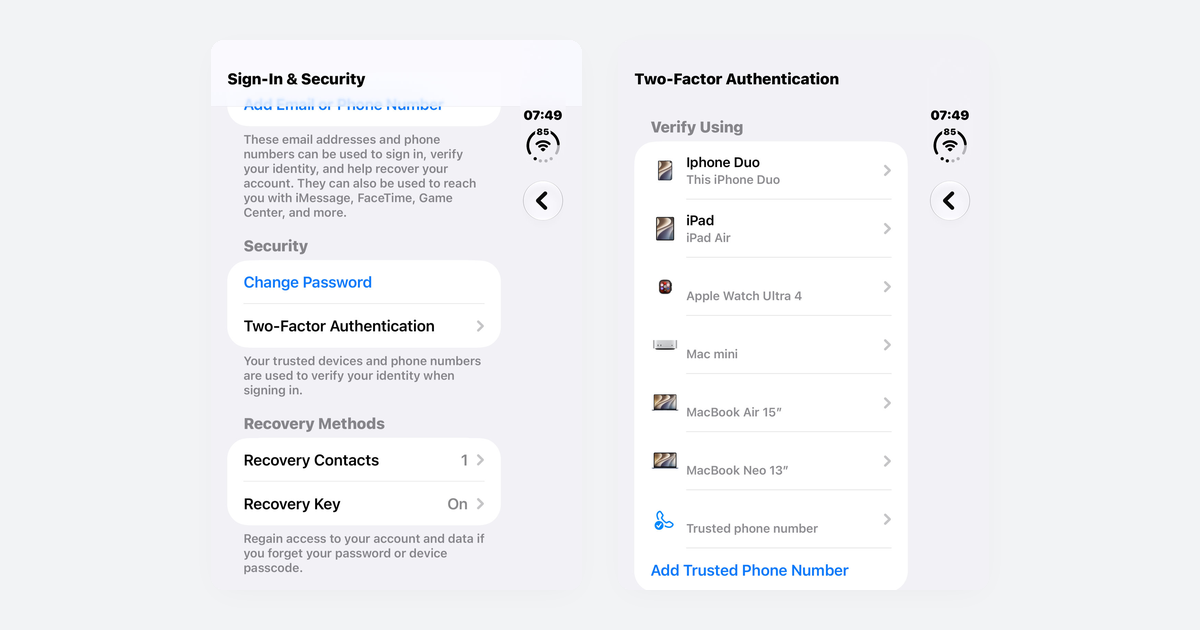
How to Turn On Two-Step Verification for Google, Apple, Microsoft, Facebook, Instagram and Amazon
Open each account's security settings, turn on two-step verification, and save backup codes plus a second way back in.
Accounts & Security · 14 min read
Is This a Scam? 4 Warning Signs and What to Do Next, for Parents, Kids and Grandparents
Watch for someone pretending to be trusted, a sudden problem or prize, pressure, and a request for gift cards, crypto, or a wire.
Scams · 8 min read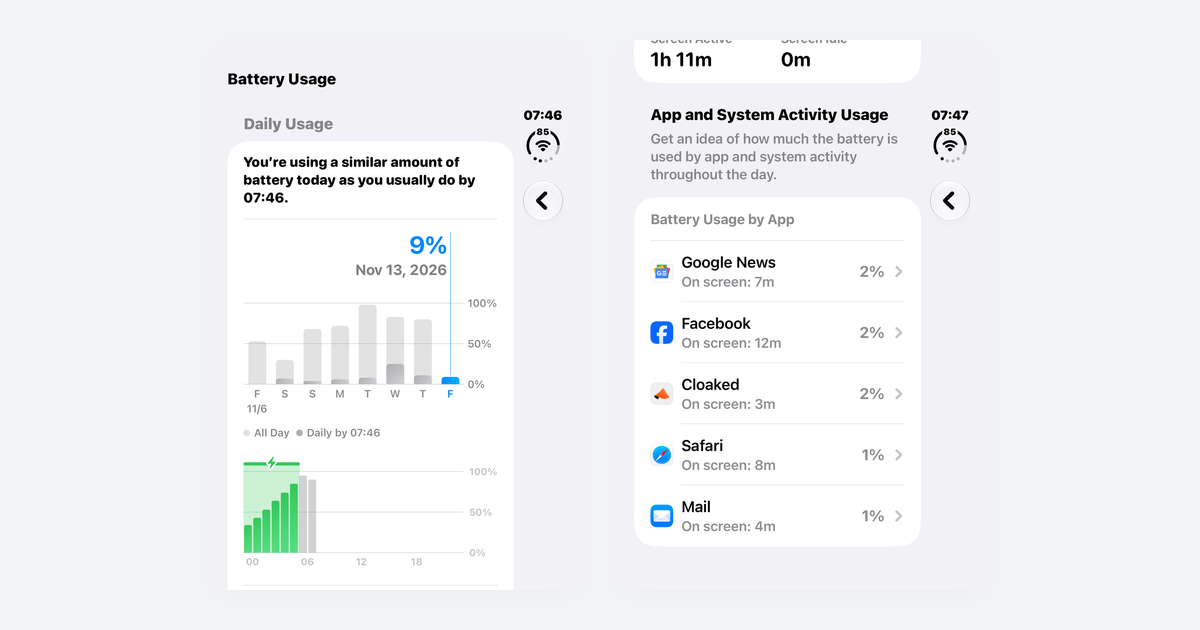
Phone Battery Draining Fast? Free Fixes for iPhone and Android
If you just updated, wait a few days; then check which app is using power, turn on battery saver, and dim the screen.
Phones & Storage · 10 min read