
On this page · 4 sections
Microsoft's November security update for Windows can stop some documents from printing. The company said the bug hits files that hold hidden images with no height or no width. A watermark in a Word file is one common example.
Microsoft warned business customers about the problem in a service alert, BleepingComputer reported. The alert, numbered WI1549472, covers the security updates Microsoft released on Tuesday, Nov. 10, and later updates.
"After installing the November 2026 Windows security update ... or later updates, printing might fail for documents containing images rendered with a height or width value of zero at the selected printing resolution," Microsoft said, according to BleepingComputer.
iThis page has affiliate links. If you buy through one, we may earn a small commission at no extra cost to you. Learn more.
Who is affected
The bug reaches home PCs and business servers. BleepingComputer reported that it affects Windows 10 and later, plus Windows Server 2016 and later. The Register reported that the alert lists most versions of Windows, from the newest Windows 11 26H2 back to Windows 10 Enterprise LTSC 2016, and Windows Server 2016 through 2025.
The Nov. 10 updates include KB5132061 for Windows 11 versions 24H2, 25H2 and 26H2, KB5131087 for Windows 11 version 23H2, and KB5131096 for Windows 10 versions 21H2 and 22H2, according to Microsoft's update pages. A KB number is the name Microsoft gives each update.
Microsoft said the problem showed up when people printed Word documents through GDI, the older part of Windows that draws pages for the printer. "Printing from other applications might also be affected," the company said, according to The Register.
Why an image you can't see breaks printing
A watermark is faint text or a picture, such as "DRAFT" or "CONFIDENTIAL," that sits behind the words on every page. Word keeps it in the header, the strip at the top of each page.
Microsoft said zero-size images can be part of "complex document formatting," such as "invisible" images used as a watermark or for layout anchoring. An anchor is the spot in the text that a picture is tied to, so the picture moves when that text moves.
You may not have added these images yourself. Microsoft said some tools that build documents automatically can insert image objects even when no picture shows on the page.
Microsoft is still looking into the bug, The Register reported. The company has not announced a fix.
What to do
Keep the update installed. Don't uninstall a security update to get printing back. These monthly updates close holes that attackers use.
Microsoft hasn't published a workaround. Because the bug is tied to zero-size images, removing them from the file is the most direct thing to try.
1. Remove the watermark in Word
Microsoft's support page gives these steps:
- Open the document in Word.
- Select Design, then Watermark.
- Select Remove Watermark.
- Try printing again.
If the watermark is still there, Microsoft says to remove it from the header by hand:
- Double-click near the top of the page to open the header.
- Move your pointer over the watermark until you see a four-way arrow.
- Select the watermark and press Delete.
- Repeat on any page that still shows one. A document split into sections can have a different header in each section.
2. Look for hidden pictures
Some zero-size images are invisible, so you can't click them on the page.
- In Word, go to Home, then Select, then Selection Pane. You can also press Alt+F10. On a small window, Select may sit under Editing.
- A list opens on the right showing the pictures, text boxes and shapes in the document, including ones you can't see.
- Click an item in the list to find it. If it is a picture you don't need, press Delete.
- Save, then print again.
3. Check the template
A template is the starter file a document is built from, such as a company letterhead. If every new document from the same template fails to print, the hidden image may live in the template. At work, ask your IT team to check it. At home, open the template file itself and remove the watermark or hidden picture with the steps above.
4. Print a PDF copy instead
If you need the pages now and can't change the file, save a PDF copy and print that. Microsoft's support page lists these steps for Word:
- Select File, then Save a Copy. If the file has never been saved, select Save As.
- Select Browse and pick a folder.
- In the drop-down list for the file type, select PDF.
- Select Save.
- Open the PDF and print it.
Microsoft has not said whether a PDF gets around the bug. It warned that other apps might also be affected. If the PDF still won't print, use steps 1 through 3 to clean up the original file.
This page has affiliate links. If you buy through one, we may earn a small commission at no extra cost to you. Learn more. Once your documents print again, a ream of Hammermill 20 lb copy paper (opens in a new tab) holds 500 letter-size sheets for everyday home printing. It does not fix this Windows bug.
Want the next fix in plain English? Follow Tech Cheat Codes on Facebook. Tap this link, then tap Follow: Follow Tech Cheat Codes on Facebook
References
- Source: BleepingComputer, "Microsoft says November security updates cause printing issues" (Nov. 13, 2026)
- Source: The Register, "Microsoft has an image problem with November's Windows security update" (Nov. 12, 2026)
- Source: Microsoft Support, November 10, 2026, KB5132061 security update for Windows 11 versions 24H2, 25H2 and 26H2
- Source: Microsoft Support, November 10, 2026, KB5131096 security update for Windows 10 versions 21H2 and 22H2
- Source: Microsoft, Windows release health
- Source: Microsoft Support, "Use the Selection pane to manage objects in documents"
- Source: Microsoft Support, "Remove a watermark"
- Source: Microsoft Support, "Save or convert to PDF or XPS in Office desktop apps"
Get the next cheat code
Plain-English tech fixes and scam alerts. Tap Follow on Facebook or TikTok, or pick another below.
Related fixes
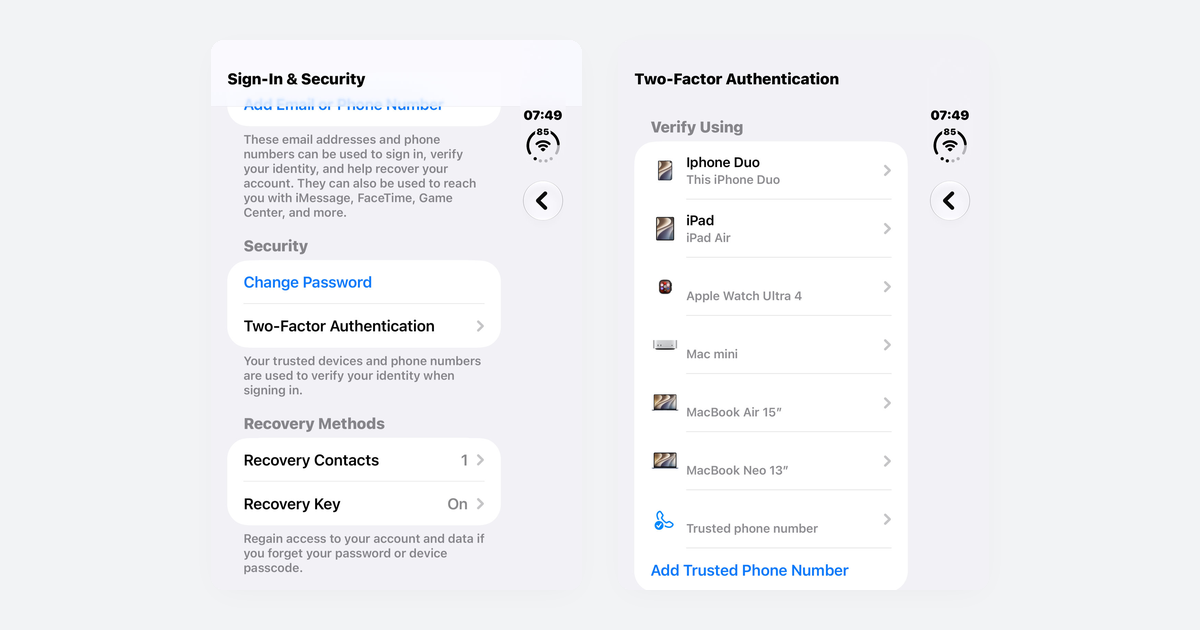
How to Turn On Two-Step Verification for Google, Apple, Microsoft, Facebook, Instagram and Amazon
Open each account's security settings, turn on two-step verification, and save backup codes plus a second way back in.
Accounts & Security · 14 min read
Is This a Scam? 4 Warning Signs and What to Do Next, for Parents, Kids and Grandparents
Watch for someone pretending to be trusted, a sudden problem or prize, pressure, and a request for gift cards, crypto, or a wire.
Scams · 8 min read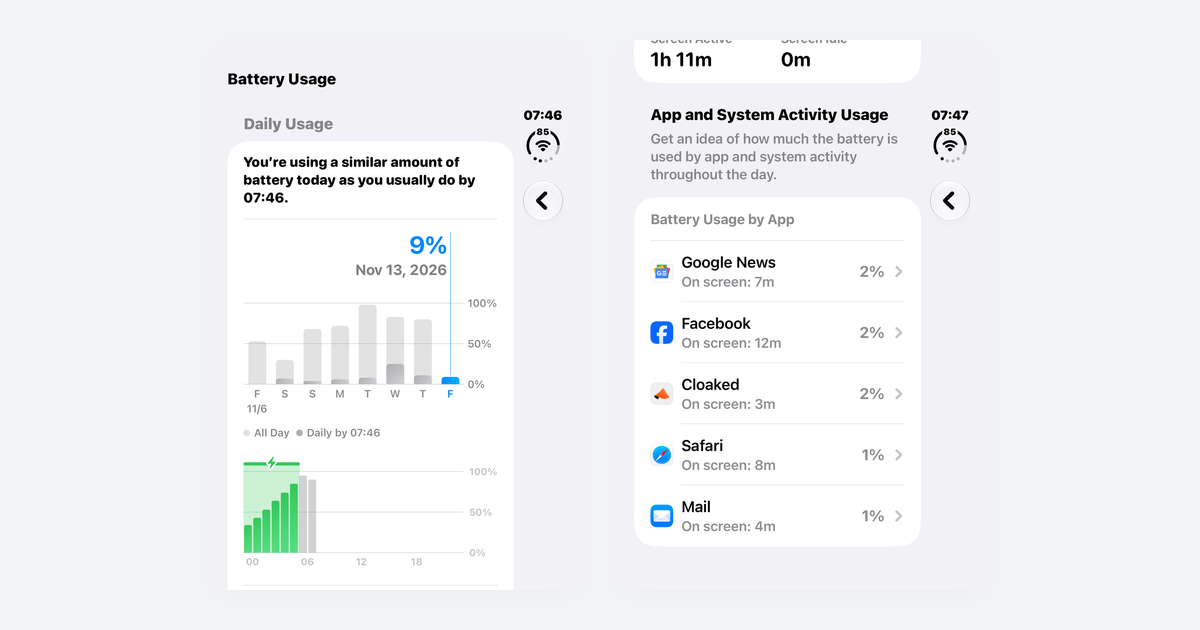
Phone Battery Draining Fast? Free Fixes for iPhone and Android
If you just updated, wait a few days; then check which app is using power, turn on battery saver, and dim the screen.
Phones & Storage · 10 min read