On this page · 3 sections
"They removed the only button I actually used." One YouTube viewer's reaction to the app's latest redesign sums up the problem nicely. For nearly a decade, the videos from every channel you follow sat one tap away, at the bottom of the YouTube app. That button is going away.
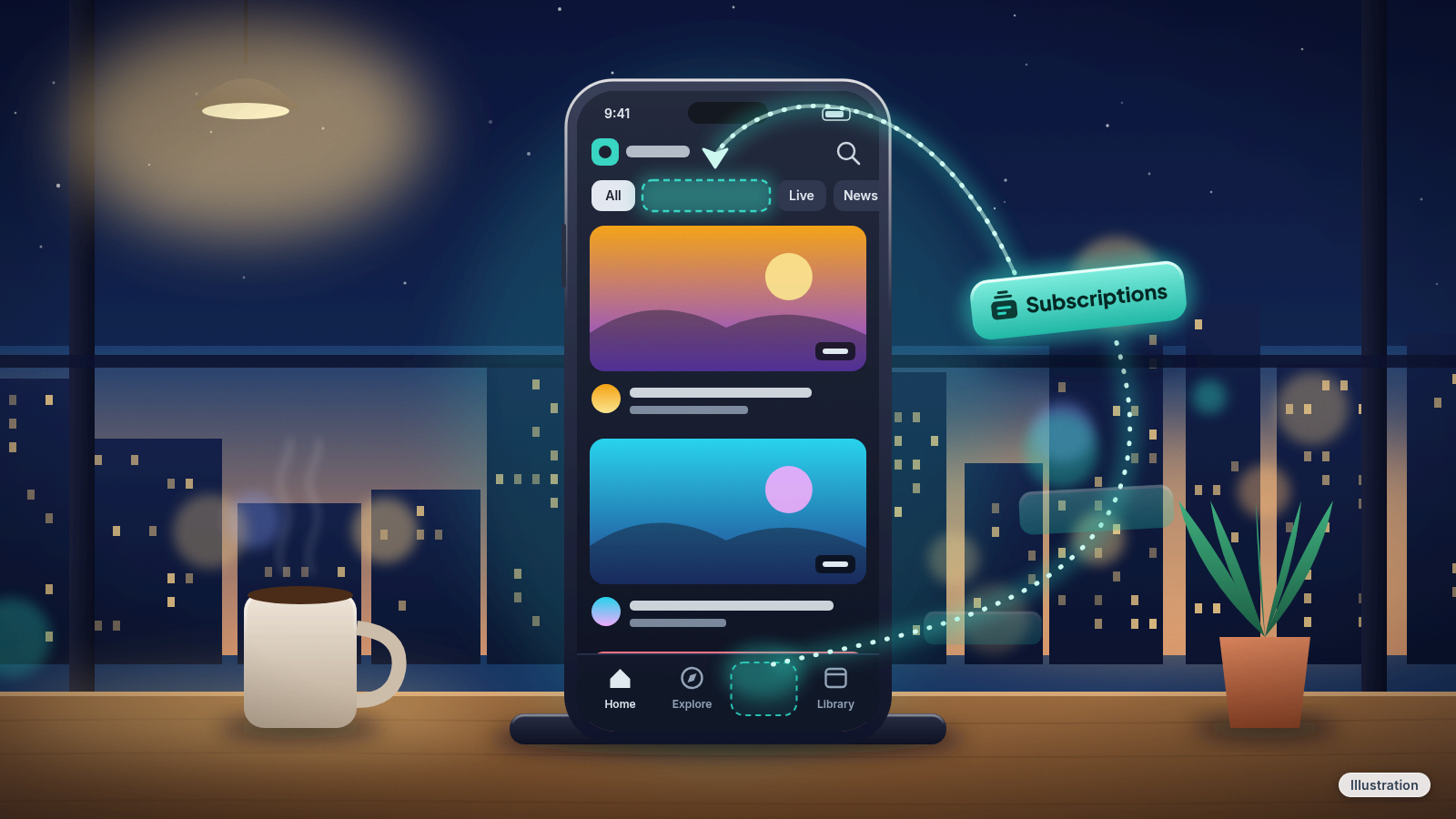
What happened: On October 22, YouTube announced a new layout for its Android and iPhone apps. Subscriptions is leaving the row of buttons along the bottom of the screen. It's been renamed "Subs," and it now lives in a row of tabs across the top of the Home screen. YouTube also launched "custom feeds," which let you type what you're in the mood for and get a feed of videos built around it.
What this means for you: Nothing you follow has been lost. Your subscriptions and your list of channels are all still there. You just have to look in a new place: tap Home at the bottom, then Subs at the top. If your app still looks the way it always has, the change hasn't reached your phone yet.
The details
The bottom row of the YouTube app is the part most people use without thinking, and Subscriptions has been one of its buttons since 2017, which is why so many people will reach for a spot that's suddenly empty before they find it in the new strip of tabs on the Home screen. Subs sits second, right after Home, and gets a red underline when you're in it. Inside, the familiar markers are still there. A dot next to a channel's name means it has something new, and the word "Live" next to a name means that channel is streaming right now. Tap All to see the full list of channels you follow.
Subs isn't alone up there. YouTube is adding ready-made feeds for Live, Music and Movies & TV, so you can jump straight to one kind of video. You'll only see Movies & TV if you pay for something on YouTube, such as a Primetime Channels add-on. If you don't, that tab won't appear at all. The slide-out menu YouTube used to tuck extra options into also goes away with this redesign.
This is the first of a series of updates to the Home screen, starting with the top bar. YouTube hasn't given a schedule for when every phone will have the new layout. YouTube's own help pages for Android and iPhone already describe the new spot, though, so don't be surprised if your app switches over soon. The announcement covers the phone app. Nothing in it mentions moving Subscriptions on the YouTube website or the app on your TV.
Custom feeds, the part you type
The other half of the update is new. At the top of the Home screen there's now a plus sign. Tap it, describe what you want to watch in plain words, and YouTube builds a feed around it. YouTube's own example is "help me unwind after work with guided meditations under 10 minutes." You could just as easily type "easy weeknight dinners for two" or "Steelers highlights from this season," and if you'd rather not type at all, YouTube offers a few suggested prompts you can tap instead to get a feed going.
Each feed you make gets saved as its own tab at the top of Home, after Home and Subs. Free accounts can keep three at a time. YouTube Premium members can keep eight. To change a feed later, tap the text box at the top of it and type something new. Feeds you make on your phone also show up on the YouTube website when you're signed in to the same Google account. They're private, so nobody else can see what you asked for.
There are strings attached. For now, custom feeds are only in English in the U.S., and only on phones and computers. They aren't on tablets. You have to be signed in, your device language has to be set to English, and both your YouTube watch history and your search history need to be turned on, which rules out anyone who switched them off for privacy. It's also limited to viewers 13 or older. A feed you don't open for 30 days expires and disappears, and you'd have to type a new prompt to bring it back.
One detail matters if you share a phone or care about what YouTube recommends. Anything you watch from a custom feed goes into your regular watch history, and those videos can shape what shows up on your main Home feed. So if you build a "cartoons for my 4-year-old" feed on your own account, expect a few cartoons to start showing up in your everyday recommendations.
For a feature built on typing a request to a computer, it's a pretty modest one. No chatbot. You type a prompt, YouTube turns it into a feed, and you can rate the results with the thumbs up or thumbs down under the prompt.
What to do now
If you mostly use YouTube to keep up with a handful of channels, retrain your thumb. Open the app, tap Home at the bottom of the screen, then tap Subs in the row at the top. To see every channel you follow in one list, tap All from there.
If you help a parent or grandparent with their phone, show them this one, because people who use YouTube to follow a church's livestream, a favorite cooking channel or a grandkid's videos are exactly the ones who'll open the app and think their channels are gone. Walk them through it once. Home, then Subs.
If there's a channel you don't want to miss, turn on its notifications instead of counting on finding it in a feed. Go to the channel or one of its videos and tap the bell icon near the channel's name. When the bell changes to a ringing bell, you'll get notified when that channel posts new videos.
If you want to try a custom feed, tap the plus sign at the top left of the Home screen, type what you're after, and tap Enter. No plus sign? Check that you're signed in, that your phone's language is set to English, and that YouTube watch and search history are both on, because custom feeds won't show up without all of them. Then use the feed. One you leave alone for 30 days expires.
References
- YouTube Community: New ways to explore YouTube from your Home page (Oct 22, 2026)
- YouTube Help: Create & manage your custom feeds on YouTube Home (Android)
- YouTube Help: Create & manage your custom feeds on YouTube Home (iPhone & iPad)
- YouTube Help: Following channels (Android)
- YouTube Help: Following channels (iPhone & iPad)
- 9to5Google: YouTube removing 'Subscriptions' bottom bar tab on Android, iOS (Oct 22, 2026)
Never miss a cheat code
Get a new 60-second fix every day: follow on TikTok, YouTube or Instagram.
Related fixes
How to Turn On Two-Step Verification for Google, Apple, Microsoft, Facebook, Instagram and Amazon
Add a second sign-in step to Google, Apple, Microsoft, Facebook, Instagram and Amazon: pick an app, text code or passkey, then save your backup codes.
Accounts & Security · 11 min read
Is This a Scam? 4 Warning Signs and What to Do Next, for Parents, Kids and Grandparents
Is this a scam? Learn the FTC's 4 warning signs, spot the tricks aimed at kids, teens and grandparents, and know exactly who to call if you already paid.
Scams · 6 min read
Phone Battery Draining Fast? Free Fixes for iPhone and Android
Phone battery dying by lunch? Find what's draining it and fix it free on iPhone, Pixel or Samsung Galaxy before you pay for a new battery or phone.
Phones & Storage · 5 min read