
On this page · 7 sections
Quick answer
Grand Theft Auto VI is rated M for Mature 17+ by the ESRB, with in-game purchases. On PlayStation, create a family, add a child account, then go to Settings > Family and Parental Controls > Family Management, select the child, and set age level for games, communication, playtime and the monthly spending limit (it starts at 0). You can also do this on the web or in the PlayStation Family app. On Xbox, a family organizer signs in at account.microsoft.com/family, adds the child as a Member, and can block specific apps and games under the Xbox tab. You can also add someone from the console under Profile & system > Settings > Account > Family settings > Manage family members > Add to family. Set this on the child's own account, not only on the adult profile.
ESRB listing (opened Nov. 10, 2026): M for Mature 17+; Blood and Gore, Intense Violence, Mature Humor, Nudity, Strong Language, Strong Sexual Content, Use of Drugs and Alcohol; In-Game Purchases; platforms PlayStation 5 and Xbox Series. PS5 path: Settings > Family and Parental Controls > Family Management. Late Teens / Early Teens / Child presets exist; Late Teens still restricts communication and user-generated content and keeps the spending limit at 0, and PS5 game starts are limited to content at or below the child's age. A child can request an exception for a blocked game or for in-game communication; a family manager or appointed parent can allow it from Notifications, Allowed Games, the web, or the PlayStation Family app. Microsoft: organizers add Members at account.microsoft.com/family or on the Xbox; block apps and games at account.microsoft.com under the child's Xbox tab > Apps, features, and games > Block app.
Grand Theft Auto VI is rated M for Mature 17+. That rating is on the official ESRB listing for a reason, and both consoles already have the tools to honor it, if someone sets them on the child's account before the game unlocks.
These steps are for a console and accounts you manage in your own household. They follow PlayStation's family-management pages, Microsoft's Family Safety pages, and the ESRB listing, all opened Nov. 10, 2026. PlayStation's GTAVI support page also points parents to those same family tools. The game still releases at midnight local time on Nov. 19, 2026, on PS5, and Rockstar's VI page lists PlayStation 5 and Xbox Series X|S. Our earlier parents story covers the rating, the missing disc and the price. This page is the checklist for the controls themselves.
Easy Mode: rate the game, then lock the account that will play it
1. Know what the rating actually says
The ESRB lists Grand Theft Auto VI as M for Mature 17+ on PlayStation 5 and Xbox Series. The content descriptors are Blood and Gore, Intense Violence, Mature Humor, Nudity, Strong Language, Strong Sexual Content, and Use of Drugs and Alcohol. The listing also includes In-Game Purchases.
That is the official rating, not a review. If a child in the house is under 17, the honest starting point is that this game is not rated for them. The rest of this guide is how to make the console agree with that decision, including for older teens whose playtime, spending or chatting you still want to limit.
2. On PlayStation, start with a family and a child account
Parental controls only work if the young person is signed in to a child account in your family, not to an adult profile. PlayStation's own pages start there.
You can add a child from the PlayStation Family app, from the web (sign in to Account Management, open Family Management, then Add a Child), or on a PS5: sign in, select the profile icon, then Switch User > Add User > Get Started > Create an Account, and follow the screens to set parental controls. Once a child is in the family, PlayStation says they cannot be removed from it.
On the PS5, go to Settings > Family and Parental Controls > Family Management, select the child, and set the controls. You can do the same in a browser or in the PlayStation Family app, which also lets you manage this from your phone. For the controls to stick, PlayStation says the child needs to have finished email verification and be signed in, and you should change the console settings so the child cannot edit the parental controls.
If you change a setting while they are in a game, have them sign out and back in so it takes effect.
3. Set the game age level, communication and spending on PlayStation
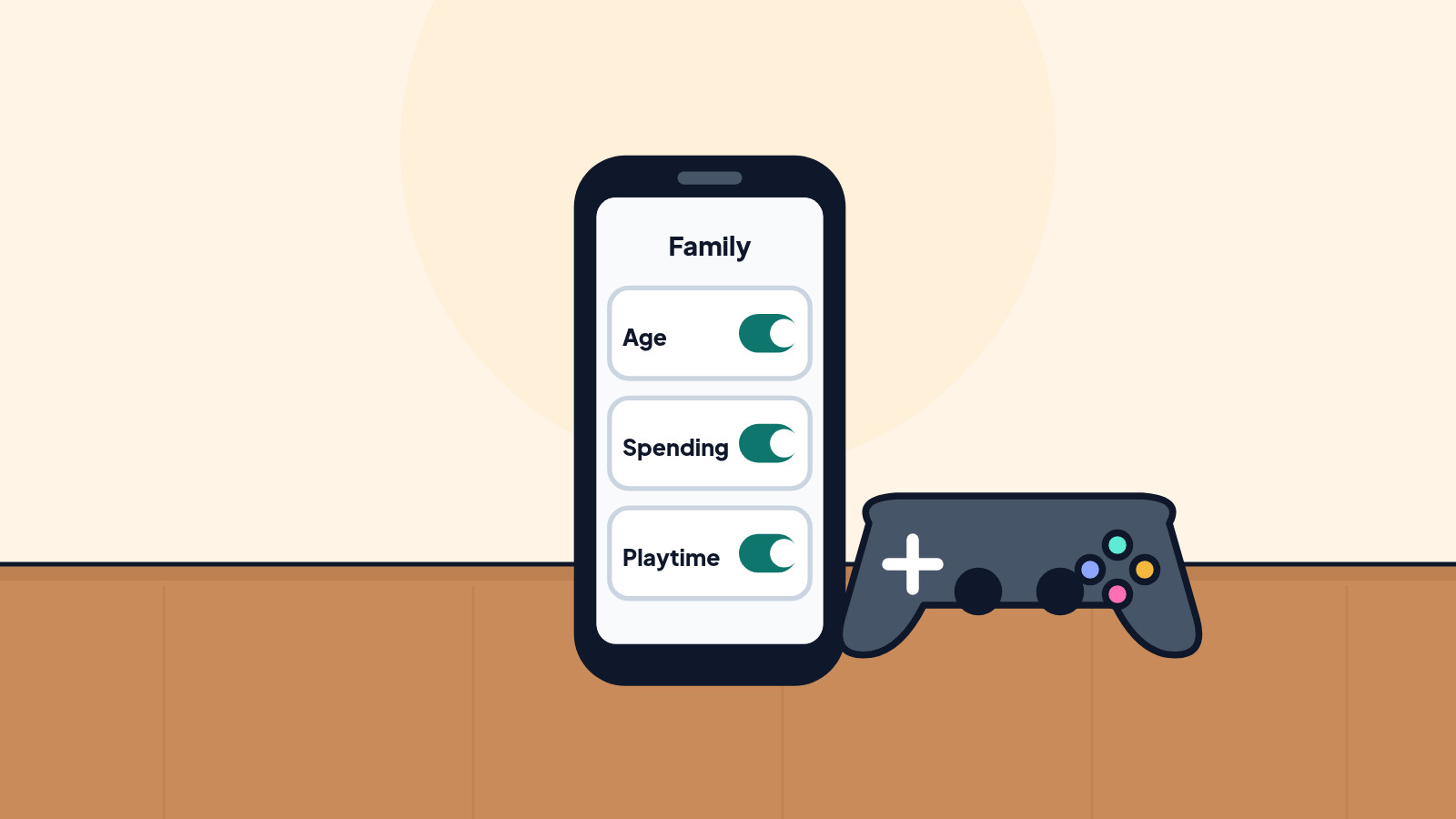
The setting that matters most for an M-rated game is the age level for PS5 games and apps. PlayStation also offers preset restriction levels:
- Late Teens or Older: PS5 games and apps can start if the age rating is the same as or lower than the child's age. Communication and user-generated content are restricted. The monthly spending limit starts at 0.
- Early Teens: Tighter game and Blu-ray ages, plus web browsing restricted, communication restricted, spending at 0.
- Child: Still tighter ages, PlayStation VR restricted, web browsing restricted, communication restricted, spending at 0.
If you edit a preset, the level changes to Customize. For a child under 17, an age level that follows the child's actual age will block an M 17+ title unless you later make an exception.
Also set, while you are there:
- Communication and User-Generated Content. If you choose Restrict, PlayStation disables text and voice chat with other players (pre-written in-game messages can still go out), sharing the child's own clips and screenshots, seeing other players' user-generated content, and linking some third-party communication apps.
- Monthly Spending Limit. Purchases on a child account come from the family manager's wallet. The default limit is 0. Leave it at 0 if you do not want store or in-game purchases on that account.
- Playtime Settings and, if you need it today only, Change Playtime for Today.
A child who hits a blocked game sees a screen and can send a request for an exception. The family manager and any appointed parent or guardian get a notification and an email. You can allow or decline that request in the PlayStation Family app, in Account Management under Allowed Games, or on the PS5 from Notifications or from Family Management > [child] > Allowed Games. The same kind of request exists for in-game communication features. You do not have to say yes.
4. On Xbox, add the child to a Microsoft family group
A family organizer signs in at account.microsoft.com/family and selects Add a family member. Choose Member for a child, then enter their email or phone number. They have to accept the invite by signing in. If they are already in another family group, Microsoft says they must leave it (or use a different Microsoft account) before they can join yours.
You can also add someone on the Xbox itself. Press the Xbox button, go to Profile & system > Settings > Account > Family settings > Manage family members > Add to family, and follow the path that matches their situation (new Microsoft account, an account already on the console, or an account that is not on the console yet). Microsoft's support page walks all three.
Microsoft Family Safety is the app and website for limits and permissions. Organizers can add money and spending limits to a child's Microsoft account, set screen-time limits, and block apps and websites. Privacy and online safety settings for Xbox are also linked from that setup page at xbox.com/user/settings/privacy-and-safety.
To block a specific game or app, sign in at account.microsoft.com, open the child's card, choose the Xbox tab, open Apps, features, and games, then use Block app. Only organizers can do this, and you repeat it for each app, device and child. You can unblock the same way.
We did not open a current Microsoft page today that spells out an age-rating slider for Xbox games, so this draft does not name one. If that control is in Family Safety under a child's Xbox or apps settings, add the exact path before this page is published. Blocking the GTA 6 app or tile for a child who should not have it is the step we can document now.
5. Set this before Nov. 19, on the account they actually use
Controls that live on your adult profile will not help if the child signs in as you, or if Console Sharing lets them start the game on a profile that is not limited. Put the child on their own account, set the age and spending limits there, and then decide, separately, whether your copy of the game is shared with other people on the console. A family console-sharing guide is coming soon.
Do the setup on a quiet evening this week. Thursday night is a poor time to invent a family PIN.
Still stuck? Find your situation
| What you see | Likely cause | What to do |
|---|---|---|
| The child can still start GTA 6 on PS5 | They are on an adult account, or the age level is too high, or an exception was allowed | Step 2 and step 3; check Allowed Games |
| Settings do not stick | The child has not verified email, is not signed in, or can edit the controls | PlayStation's checks in step 2; have them sign out and back in |
| A store or in-game purchase went through | The monthly spending limit is not 0, or they used an adult account | Step 3; confirm they are on the child account |
| You cannot add the child to an Xbox family | They already belong to another family group | They must leave that group, or use a different Microsoft account (step 4) |
| You cannot find an Xbox age-rating slider | That path was not verified on a page we opened today | Block the game from the child's Xbox apps list, and refresh this guide before publish |
Pro Mode
Pro Mode Pro Mode: who can change what, and what this rating does not decide for you
On PlayStation, only the family manager can add or remove adult members and appoint a parent or guardian. A parent or guardian can set parental controls, see playtime, and allow a game or communication exception, but they cannot spend the family manager's wallet or reset the child's password. Child accounts cannot add payment methods or change their online ID. When a child is old enough to upgrade to an adult account, they get a notification; the upgrade cannot be undone, and it is not required.
Privacy settings on a child account can be set by the parent or by the child, depending on which option you pick. If the child can change them, you still get a notification each time they do.
The ESRB rating is information, not a lock that appears by itself. The lock is the family setting you turn on. In-game purchases are listed on that same ESRB page, which is why the spending limit belongs in the same sitting as the age level.
This guide does not tell you whether a particular teen in your house should play the game. It tells you how to make the console match the decision you make.
Helpful gear
iThis page has affiliate links. If you buy through one, we may earn a small commission at no extra cost to you. Learn more.
- DualSense Wireless Controller (opens in a new tab): An official PlayStation controller is the simple way to set up and play on a PS5.
- Xbox Wireless Controller (opens in a new tab): An official Xbox controller is the simple way to set up and play on an Xbox.
References
All 9 reference links
- Source: Grand Theft Auto VI - ESRB
- Source: Grand Theft Auto VI support (US) - PlayStation Support
- Source: How to set parental controls on PlayStation consoles - PlayStation Support
- Source: How to set up family accounts on PlayStation - PlayStation Support
- Source: Set up Microsoft Family Safety - Microsoft Support
- Source: Add people to your family group - Microsoft Support
- Source: Block or unblock apps with Microsoft Family Safety - Microsoft Support
- Source: Grand Theft Auto VI - Rockstar Games
- Source: GTA 6 Arrives Nov. 19: Price, Preload Date, the Missing Disc and What Parents Should Know - Tech Cheat Codes
Get the next cheat code
Plain-English tech fixes and scam alerts. Tap Follow on Facebook or TikTok, or pick another below.
Want AI to answer your clients?
Our ready-made AI setups come with a step-by-step guide in Easy Mode and Pro Mode. You set them up yourself.
See the AI setupsRelated fixes
GTA 6 Arrives Nov. 19: Price, Preload Date, the Missing Disc and What Parents Should Know
How to Preload GTA 6 on PS5 and Xbox (Before Launch Night)
Preload times for PS5 and Xbox, the Rest Mode and Sleep settings to switch on, and how to fix a stuck GTA 6 download before launch on Nov. 19.
Computers · 8 min read