On this page · 9 sections
Somewhere in your house there's a sticky note with a password on it. We won't tell. But if that note, or your dog's name plus a "1", opens your email, your bank and your shopping sites, one leak at one store can open all of them.
A password manager is a locked app that remembers every password for you, fills them in when you visit a site, and makes a new strong one each time you sign up, so the only thing left for you to remember is one master password. That's the whole deal.
iThis page has affiliate links. If you buy through one, we may earn a small commission at no extra cost to you. Learn more.
You can follow every step here without buying anything. Prices were checked on each company's own pages on Nov 2, 2026.
Quick answer
- Start with Proton Pass's free plan. It needs no credit card, and it works on as many of your devices as you like.
- Pick NordPass if you're happy to pay so you can stay signed in on all your devices at once. Its free plan lets you be signed in on one device at a time.
- If you already use Apple Passwords or Google Password Manager, with a different password on every site, you're in good shape. Stay put.
- Whichever you pick, do the same first job: change your email password first, then your bank.
Get Patch Notes: plain-English tech fixes and scam alerts. Free.
Proton Pass and NordPass side by side
| Proton Pass | NordPass | |
|---|---|---|
| Free plan | Yes. Unlimited logins, notes and cards, no credit card | Yes. Autofill and secure storage, signed in on 1 device at a time |
| Paid price | Pass Plus $2.99 a month, billed $35.88 every 12 months (list price shown: $4.99) | Premium and Family. We couldn't read the price on NordPass's pages, so check it at checkout |
| Devices | Unlimited, on every plan | Free: 1 signed-in device at a time. Premium: unlimited at once |
| Apps | Browser, phone and computer | Browser, phone and computer |
| Ease of use | Autofill, password maker and import from your old manager on every plan | Autosave and autofill on every plan; paid plans add weak-password checks |
| Family plan | Pass Family, up to 6 people, $4.99 a month billed $59.88 a year | Family, 6 separate vaults |
| Try-it period (paid plans) | 30 days | 30 days on personal paid plans |
Prices are in US dollars on Nov 2, 2026. Sales tax may apply, and a sale price can be different from what you pay when the plan renews, so look at the renewal price before you check out.
1. Proton Pass, the free plan to try first
Proton Pass (opens in a new tab) gives away more than you'd expect. The free plan has unlimited logins, notes and credit cards, on unlimited devices, with apps for your browser, phone and computer. It also has a password maker, alerts for weak and reused passwords, passkey support and easy import if you're moving from another manager. And it has 10 hide-my-email aliases, which are throwaway email addresses that forward to your real inbox, so a shop never gets your real one.
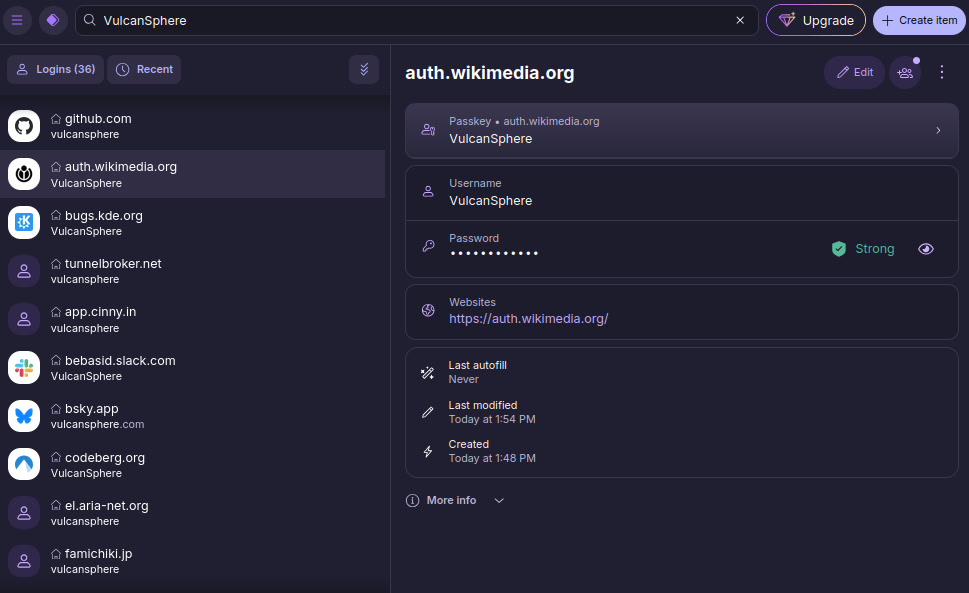

Proton Pass keeps every login in one list. Open one and it shows the username, the website, and whether the password is strong.
The free plan has two limits to know about. You get 2 vaults (think of a vault as a folder for a group of logins), and you can share a vault with 2 other people. Paid Pass Plus adds a built-in spot that stores and fills in your two-step verification codes, sharing single items, Dark Web Monitoring, file attachments and Emergency Access. It's $2.99 a month, billed $35.88 every 12 months, and Proton shows $4.99 a month as the usual price. The page doesn't state what it renews at, so check that before you pay. If you change your mind, you can cancel a paid plan within 30 days and get your payment back.
Proton is a Swiss company that also makes Proton Mail. If you already have a Proton account, you can sign in to Pass with it.
Good for: anyone starting out, and anyone who wants one free app on every device they own. Skip if: you want to share lots of single logins with family on the free plan. Free sharing stops at 2 vaults and 2 other people.
2. NordPass, the paid option for all your devices
NordPass (opens in a new tab) comes from the company behind NordVPN. Its free plan saves and fills in logins in your browser and phone, and it keeps them in secure storage. The catch is devices. NordPass's help page explains that Free allows one active session on one device at a time. You can install the apps on as many devices as you want, but you'd be signed out of one when you sign in on another.
Premium removes that limit: you can stay signed in on unlimited devices at once. It also adds Password Health, which flags weak, old and reused passwords, a Data Breach Scanner that checks whether your details turned up in known leaks, password sharing and file attachments. The Family plan gives six people their own separate vault with all the Premium features, and personal plans give you 30 days to cancel and get your payment back.
We couldn't read NordPass's prices on its own pages, since they didn't show up when we looked. They change with sales, so treat the number at checkout as the real one. Check what it costs after the first term, too.
Good for: someone happy to pay for one app that stays signed in on phone and computer together. Skip if: you want the free plan to work on your phone and laptop together. Proton Pass does that for $0.
How to pick
Start with money. If you don't want to pay today, Proton Pass is the one to try, because its free plan has no device limit. If you'd pay anyway, either one works, and the real test is which app feels better in your hands once you've set it up on your own phone and computer. We haven't used either one for this guide, so we can't rank how they feel. Both let you cancel a paid plan within 30 days and get your payment back, so you can try one without much risk. If it annoys you in the first few weeks, cancel and move your saved logins to the other one.
What to do if you reuse passwords now
You don't have to fix every account tonight. Do it in this order and the risky ones get done first.
- Pick one manager and install it on your phone and in the browser on your computer. Both apps can bring in passwords you already saved elsewhere, so you won't start from zero. Check that the developer listed is Proton or NordPass, so you don't grab a copycat.
- Make your master password. A short sentence of four or five random words is easy to remember. Write it on paper and keep it somewhere safe at home, because the company may not be able to get you back in if you forget it.
- Change your email password first. Whoever gets into your email can reset everything else. Let the manager make a new strong one, save it, and turn on two-step verification while you're there.
- Next, change your bank, your card and payment apps, Amazon and your phone carrier account.
- After that, change the rest as you log in to them. When a site asks for a password, let the manager fill it, then update it to a new one.
If you think someone else is already in an account, stop and follow Email Hacked? How to Take It Back first. Our two-step verification guide covers the big accounts.
A word on scams
A text with a link to a "bank login" is a classic trap. Don't type your password there. Open the bank's app, or type the bank's address yourself. Our free scam checker can help with a text you're unsure about, and our guide on how to stop political texts covers the campaign texts that won't stop. And if you're on public Wi-Fi a lot, see Do You Need a VPN?.
Want the next fix in plain English? Follow Tech Cheat Codes on Facebook. Tap this link, then tap Follow: Follow Tech Cheat Codes on Facebook
Get the password managers from this guide
- Proton Pass (opens in a new tab): start with the free plan, with unlimited devices.
- NordPass (opens in a new tab): a paid plan that stays signed in on unlimited devices at once.
References
All 5 reference links
- Source: Proton, Proton Pass pricing and plans (prices checked Nov 2, 2026)
- Source: NordPass, Free and Premium plans (checked Nov 2, 2026)
- Source: NordPass, Pricing (checked Nov 2, 2026)
- Source: NordPass Help Center, Premium vs Free version of NordPass
- Source: Wikimedia Commons, Proton Pass screenshot
Get the next cheat code
Plain-English tech fixes and scam alerts. Tap Follow on Facebook or TikTok, or pick another below.