
On this page · 7 sections
Quick answer
You can do most of this before Nov. 19. On a PS5, go to Settings > Saved Data and Game/App Settings > Game Presets and set Performance Mode or Resolution Mode, plus subtitles, if you want those defaults. Rockstar's Nov. 10 Newswire post says the game targets 30 frames per second and does not list a Performance or Resolution mode, so that preset may not apply. Then go to Settings > Screen and Video > Video Output, turn HDR on, and use Adjust HDR. Accessibility and controller layouts live under Settings > Accessibility. Rockstar has not published GTA 6's own in-game settings menu yet, so treat these as console defaults and look inside the game after it unlocks. On Xbox, use the TV and display settings and the official HDR calibration tool, and re-check those menu names before this page is published.
PS5 Game Presets apply only to games that offer those options, and only to PS5 games. Performance Mode vs Resolution Mode, difficulty, camera invert, and Subtitles and Audio are all on that screen. HDR is Settings > Screen and Video > Video Output > HDR (Always On or On When Supported) and Adjust HDR. Closed captions for media are Settings > Accessibility > Closed Captions, which is separate from the Game Presets subtitle toggle. Button remaps: Settings > Accessibility > Controllers > Custom Button Assignments for DualSense Wireless Controller. Vibration and trigger intensity: Settings > Accessories > Controller (General). In-game GTA 6 paths are unconfirmed as of Nov. 10, 2026.
The download can be finished and the clock can still ruin the first night. You sit down, start Grand Theft Auto VI, and spend twenty minutes squinting at a washed-out picture or hunting for the subtitle toggle while everyone else waits on the couch.
These are console settings you can set now, on a PS5 or Xbox you own, before the game unlocks. PlayStation's support page says Grand Theft Auto VI releases at midnight local time on Nov. 19, 2026, on PS5. Rockstar's official VI page still lists that same date, and lists PlayStation 5 and Xbox Series X|S. What we do not have, as of Nov. 10, 2026, is Rockstar's own list of in-game graphics, HDR or accessibility menus. The same day's Newswire post, "Pre-Load Grand Theft Auto VI Now," says the game targets 30 frames per second on current-generation consoles and does not list a Performance or Resolution mode. If a setting below is a system default, it will only stick if the game actually offers that option. After launch, look in the game's own menu and treat anything new as a refresh.
Easy Mode: set the defaults before Thursday night
1. Set the PS5 Game Preset for Performance Mode or Resolution Mode
On a PS5, go to the home screen and choose Settings > Saved Data and Game/App Settings > Game Presets. Under Performance Mode or Resolution Mode, PlayStation's wording is straightforward: Performance Mode makes motion smoother, and Resolution Mode goes for higher graphic quality. This applies only to games that offer those modes.
On Nov. 10, 2026, Rockstar's Newswire post "Pre-Load Grand Theft Auto VI Now" said the game targets 30 frames per second on current-generation consoles. That post does not announce a Performance Mode, a Resolution Mode, or any other in-game graphics option. You can still set the PS5 Game Preset you prefer. If the game later offers those modes, the preset will be waiting. If it does not, the preset will simply not apply, and you can change whatever the game itself offers after it unlocks.
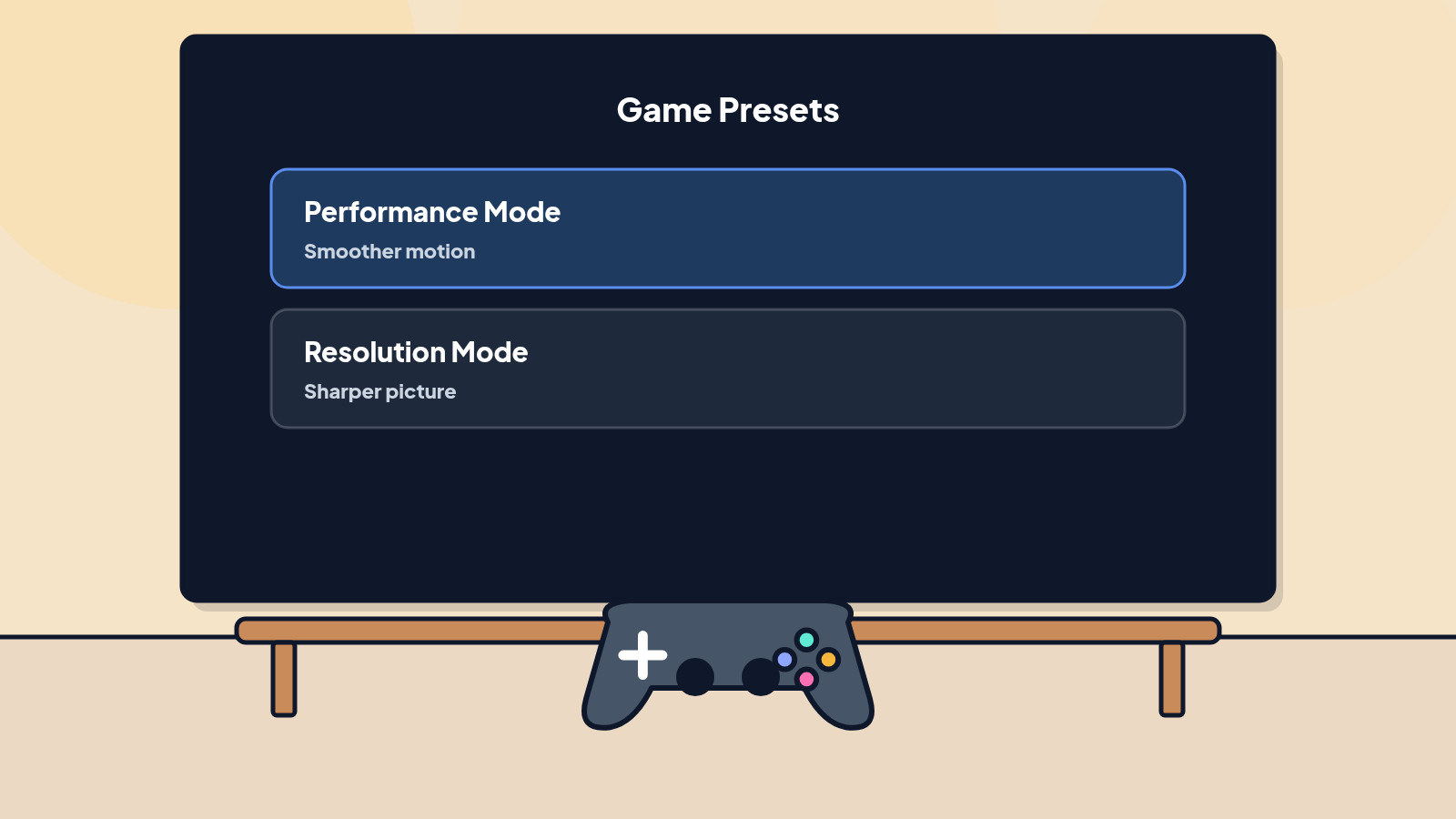
2. Turn subtitles on before you need them
On the same Game Presets screen, open Subtitles and Audio. You can turn subtitles on for your games, and you can set the game language to match the console language or to use the game's original audio.
Those toggles, PlayStation says, apply only to PS5 games, and some settings may not apply to every game. They are still worth setting now. PlayStation's GTAVI support page lists English as having both voice and text, with a long list of other languages offered as text only, so a subtitle default is useful if you play in English or if you want the on-screen text in another listed language.
Closed captions for video and some other media are a different switch: Settings > Accessibility > Closed Captions, then turn on Display Closed Captions. You can customize the font, color and background under Closed Captions Settings.
3. Calibrate HDR on the console, not later in the dark
HDR is the difference between a picture that looks bright and one that looks blown out, and it is easier to set with the lights the way you actually watch.
On a PS5, go to Settings > Screen and Video > Video Output > HDR. On When Supported leaves non-HDR games and apps in standard dynamic range. Always On converts even non-HDR games and apps to HDR. Then choose Adjust HDR and follow the on-screen brightness steps.
PlayStation notes that every PS5 can output 4K and HDR, but what you actually see depends on the TV and the HDMI setup. If the picture still looks wrong, check the set itself. A TV Game Mode, VRR and ALLM guide is coming soon.
On an Xbox, Microsoft has a built-in HDR calibration tool for games in the TV and display settings. We could not open Xbox Support's current page today, so we are not naming a menu path we have not checked. Before this page is published, open Microsoft's current HDR help and copy the path exactly.
4. Set accessibility and the controller the way you actually play
On a PS5, go to Settings > Accessibility. From there you can enlarge text, turn on high contrast or a color filter, reduce motion, and turn on the screen reader. You can remap buttons under Controllers > Custom Button Assignments for DualSense Wireless Controller: pick a button, pick its new function, then select Apply.
For vibration and trigger intensity, go to Settings > Accessories > Controller (General). Vibration Intensity and Trigger Effect Intensity are both there. Trigger effects only appear in games that support them.
You can also view a game's listed accessibility features from its PlayStation Store hub: open the hub, then press the triangle button or open the side panel. After GTA 6 unlocks, that is the first place to look, and then the in-game menu itself.
On Xbox, use the console's accessibility and controller settings, and confirm the current labels on Microsoft's support pages before this guide is published.
5. After it unlocks, look inside the game once
When Grand Theft Auto VI starts on Nov. 19, open its own settings and confirm the HDR, subtitles and any accessibility or graphics options it actually has. The console presets are a head start, not a substitute for that one check. If Rockstar's menu uses different names, this page should be updated to match.
Do that, and the first night is the story, not a scavenger hunt in Settings.
Still stuck? Find your situation
| What you see | Likely cause | What to do |
|---|---|---|
| No Performance or Resolution option in the game | The game may not offer those modes, or it uses its own names | Set the PS5 Game Preset anyway, then check the in-game menu after launch (step 5) |
| HDR looks too dark or too bright | The console or the TV is not calibrated, or the TV is not in a game-friendly picture mode | Step 3, then a TV Game Mode guide (Coming soon) |
| No subtitles in the game | The Game Presets toggle may not apply to this title | Look for a subtitle option in the game's own menu after launch |
| Controller buttons feel wrong | A custom assignment is still on, or in-game controls differ | Step 4, then check the in-game controls |
| Xbox menu names do not match this page | We could not open current Xbox Support display pages today | Follow the on-screen Settings labels and refresh this page before publish |
Pro Mode
Pro Mode Pro Mode: what the presets actually cover, and what is still unconfirmed
PlayStation's Game Presets page also lets you set a default difficulty, invert the first-person and third-person camera axes, and change who can join or send invites for online multiplayer sessions. Those last options apply only to games that have online multiplayer. The existing parents story on this site describes Grand Theft Auto VI as a single-player game; we have not seen a Rockstar page, opened today, that announces a GTA VI online mode at launch. Do not assume an online session setting will do anything in this game until Rockstar says it does.
The Game Presets apply only to PS5 games. Some settings may not apply to all of them. A game can still offer its own menu that overrides or ignores a preset, which is why step 5 matters.
If you invert colors under Accessibility, PlayStation says HDR is turned off while that setting is on. Turn the invert off before you chase an HDR problem.
For a shared household, set these on the account that will actually start the game. A family sharing guide is coming soon if more than one person will play the same copy.
Helpful gear
iThis page has affiliate links. If you buy through one, we may earn a small commission at no extra cost to you. Learn more.
- DualSense Wireless Controller (opens in a new tab): An official PlayStation controller is the simple way to set up and play on a PS5.
- Xbox Wireless Controller (opens in a new tab): An official Xbox controller is the simple way to set up and play on an Xbox.
References
All 11 reference links
- Source: Grand Theft Auto VI - Rockstar Games
- Source: Grand Theft Auto VI support (US) - PlayStation Support
- Source: How to customize game presets on PS5 consoles - PlayStation Support
- Source: How to enable HDR on a PS5 console - PlayStation Support
- Source: How to change PS5 console resolution - PlayStation Support
- Source: How to use accessibility settings on PS5 consoles - PlayStation Support
- Source: How to adjust general controller settings on PS5 consoles - PlayStation Support
- Source: Grand Theft Auto VI - PS5 Games - PlayStation
- Source: Grand Theft Auto VI Comes to Xbox One and Xbox Series X|S Through Xbox Cloud Gaming on November 19 - Xbox Wire, Nov. 10, 2026
- Source: GTA 6 Arrives Nov. 19: Price, Preload Date, the Missing Disc and What Parents Should Know - Tech Cheat Codes
- Source: Pre-Load Grand Theft Auto VI Now - Rockstar Newswire, Nov. 10, 2026
Get the next cheat code
Plain-English tech fixes and scam alerts. Tap Follow on Facebook or TikTok, or pick another below.
Want AI to answer your clients?
Our ready-made AI setups come with a step-by-step guide in Easy Mode and Pro Mode. You set them up yourself.
See the AI setupsRelated fixes
How to Preload GTA 6 on PS5 and Xbox (Before Launch Night)
Preload times for PS5 and Xbox, the Rest Mode and Sleep settings to switch on, and how to fix a stuck GTA 6 download before launch on Nov. 19.
Computers · 8 min read
GTA 6 Needs Up to 212 GB: How to Free the Space on PS5 and Xbox
GTA 6 needs up to 212 GB. Check free space on PS5 and Xbox, what to delete or move, and why to leave extra room for patches before Nov. 19.
Computers · 7 min read