
On this page · 7 sections
Quick answer
If you can, plug the console into the router with an Ethernet cable. On a PS5, go to Settings > Network > Settings > Set Up Internet Connection, choose Set Up Wired LAN > Connect, then go to Settings > Network > Connection Status > Test Internet Connection. If you have to use Wi-Fi, pick your network on that same setup screen and move the console closer to the router. Avoid stacking two routers (double NAT). Xbox menu paths could not be verified today; use the console's network settings and Microsoft's current help, and refresh this page before it is published.
PS5 wired: Settings > Network > Settings > Set Up Internet Connection > Set Up Wired LAN > Connect. Wi-Fi is the same screen; a padlock means a password (WPA, WPA2, WEP or WPA3). PS5 supports IPv6 but not IPv6-only; switch the router to IPv4 as well if needed. Advanced Settings (IP, DNS, MTU, Proxy, and Multi-Link Operation on CFI-7000 / PS5 Pro only) should be left alone unless an ISP or network admin is helping. PlayStation's connection-error steps include a five-minute router restart, a wired try, and removing extra NAT routers. Test path: Settings > Network > Connection Status > Test Internet Connection. We did not find a current official PlayStation page, opened today, that labels PS5 NAT types, so this guide does not name them.
A finished install does not help if the console is hanging off a crowded Wi-Fi band in the next room, or sitting behind two routers that are fighting each other. Launch night is a bad time to find that out.
These steps are for a console you own, on a home network you control. They follow PlayStation's current connection pages, opened Nov. 10, 2026. Grand Theft Auto VI still unlocks at midnight local time on Nov. 19 on PS5, per PlayStation Support, and Rockstar's VI page lists the same date for PlayStation 5 and Xbox Series X|S. What Rockstar has not published, on the pages we opened today, is whether the game needs an online check or a day-one patch before you can start. A clean, wired connection is still the setup that leaves you the most room if it does.
Easy Mode: prefer a cable, then test the link
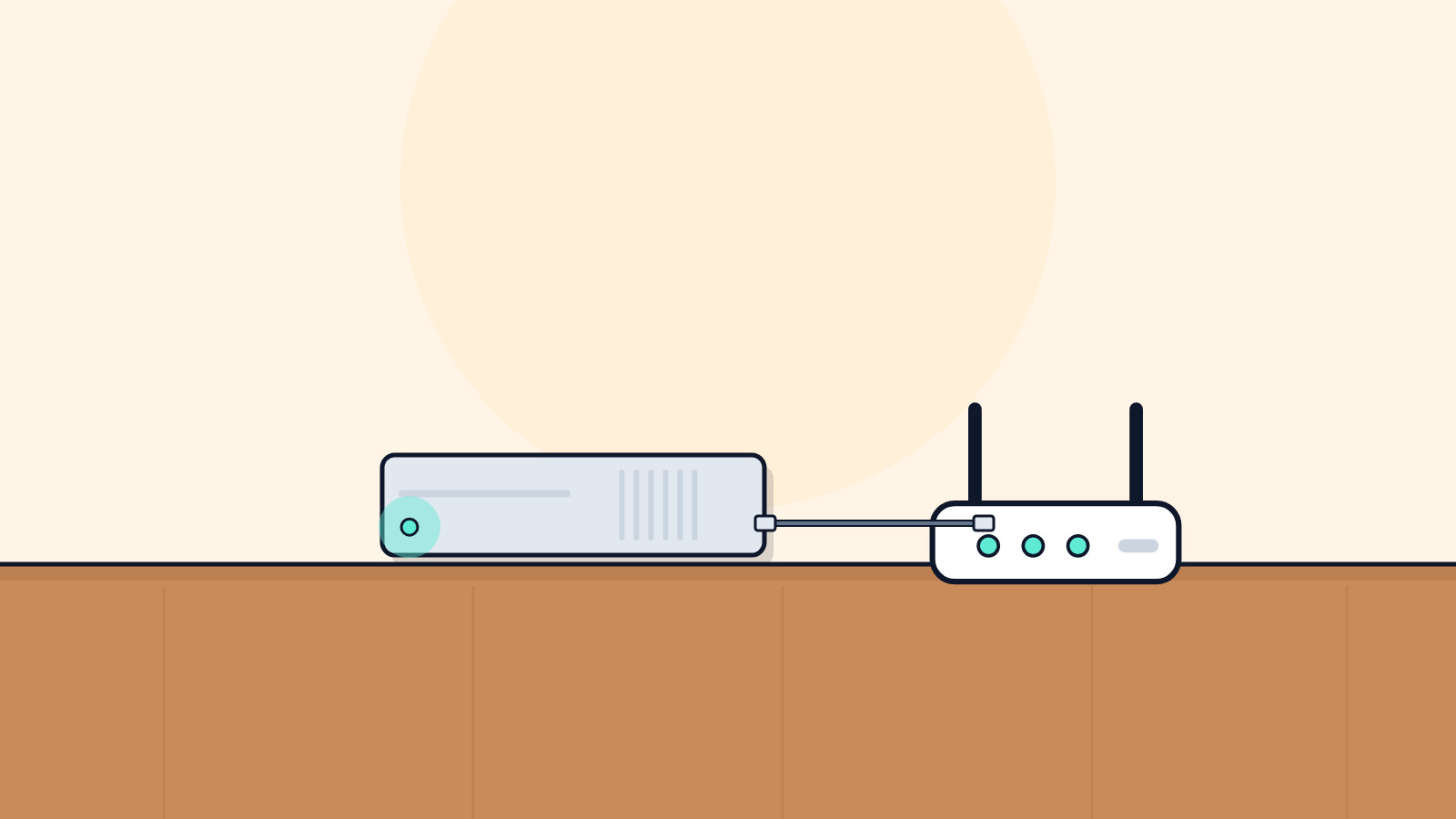
1. Use a wired connection if you can
PlayStation's own troubleshooting for a console that cannot get on the network includes this line: if possible, connect with a wired connection. That is the first change to make, not the last.
Plug an Ethernet cable into the LAN port on the back of the PS5 and into a LAN port on your router, not into a random wall jack unless you already know that jack goes to the router. The exact port location depends on the model (PS5, the slimmer CFI-2000 group, or PS5 Pro / CFI-7000). Then, on the PS5, go to Settings > Network > Settings > Set Up Internet Connection, choose Set Up Wired LAN, and select Connect.
On an Xbox, use the Ethernet port on the console and the network section in Settings. We could not open Xbox Support's current connection pages today, so we are not inventing a click path. Follow the on-screen labels, and refresh this page with Microsoft's current steps before it is published.
2. If it has to be Wi-Fi, give it a clear path
On a PS5, go to the same screen, Settings > Network > Settings > Set Up Internet Connection. Your saved and nearby networks appear there. Pick yours and select Connect. A padlock means it needs a password. PlayStation lists WPA, WPA2, WEP and WPA3. The password is often on a sticker on the router; if it is not, ask whoever runs the network.
PlayStation's fix for a wireless console that cannot connect is practical: move it closer to the router and get objects out of the way, then restart the router if you still have trouble. A console in a closed cabinet at the other end of the house is doing this the hard way.
If the network does not appear, scroll down and choose Set Up Manually, or Set Up Using WPS Button if your access point supports WPS. On a PS5 Pro (CFI-7000 group), Multi-Link Operation is an advanced option for compatible access points: highlight the access point, press the options button, open Advanced Settings, and turn Multi-Link Operation on. If that causes trouble, PlayStation says to try with it off as well.
3. Test the connection, and do it before Thursday
On a PS5, go to Settings > Network > Connection Status > Test Internet Connection. Make sure the console is on the internet. If the test fails, reconnect and run it again.
Do this in the next day or two, not at 11:50 PM on Nov. 18. A test that fails on a Tuesday is a short repair. The same failure after midnight is a ruined start.
On Xbox, run the console's own network test from Settings and follow Microsoft's current help for the result, including any NAT status the console shows. Those menu names need a refresh from Xbox Support before this page goes live.
4. If the test fails, work through the official checks
PlayStation's steps for a PS5 that cannot connect, in order, are:
- Restart the PS5.
- If you are on Wi-Fi, move the console closer to the router and clear what is blocking the signal.
- Turn the router off, wait at least five minutes, then turn it back on.
- Switch to a wired connection if you can.
- If you are using more than one NAT router, remove the extras.
"More than one NAT router" is the quiet household problem: a router plugged into another router, or an ISP gateway plus a second Wi-Fi box, each doing network address translation. PlayStation's advice is to remove the extras, not to invent a port-forward recipe. If you are not sure whether you have two, look at how many boxes in the house are handing out Wi-Fi or running a routing mode, and ask your internet provider if you need help combining them.
Leave Advanced Settings (IP address, DNS, MTU, Proxy) alone unless your ISP or a network administrator is walking you through them. PlayStation is blunt about that.
PS5 consoles can use IPv6, but they do not support IPv6-only networks. If the router is set to IPv6-only, PlayStation says to change it so IPv4 is available too, and to ask the router maker for those steps.
5. A note on Xbox Cloud Gaming, announced today
On Nov. 10, 2026, Xbox Wire said Grand Theft Auto VI will be playable on day one through Xbox Cloud Gaming on Xbox One and Xbox Series X|S, starting at 1:00 AM ET on Nov. 19. On Xbox Series X and Series S, the post still points people to play the game natively and to pre-install it. On Xbox One, it says to stream the game through Xbox Cloud Gaming. Streamed play, it says, uses Xbox Series S graphics settings.
The same post says that starting Nov. 11, players in supported markets can buy cloud playtime to stream supported games without a Game Pass subscription, that Grand Theft Auto VI must be purchased separately, and that availability, devices, accounts and features may vary by market and device. We are not adding setup steps we have not opened an official how-to for. If you plan to stream, read that Xbox Wire post and Microsoft's current Cloud Gaming help, and expect this section to need a refresh before publish.
A wired home setup still helps a stream, and it is the right setup for a Series X or Series S that will play the game on the console itself.
Get the cable in, pass the test, and launch night is one less thing you have to solve in the dark.
Still stuck? Find your situation
| What you see | Likely cause | What to do |
|---|---|---|
| PS5 will not get online on Wi-Fi | Distance, interference, or a wrong password | Step 2, then the restart and wired steps in step 4 |
| Wired setup will not connect | The cable is in the wrong port, or the router is the problem | Check the LAN port, try another cable, restart the router (step 4) |
| Connection works, then drops | A weak wireless link, or two routers in a row | Prefer wired; check for extra NAT routers (step 4) |
| You only have an Xbox One | The game is not a native Xbox One install, per Xbox Wire | See the Cloud Gaming note in step 5; the game is still sold separately |
| Xbox menus do not match this page | Current Xbox Support network pages could not be opened today | Follow on-screen Settings labels and refresh this guide before publish |
Pro Mode
Pro Mode Pro Mode: what we are not guessing about NAT, patches or online play
We did not find a current official PlayStation page, opened today, that names PS5 NAT types the way older PlayStation 4 pages did. This guide therefore does not tell you to aim for a specific NAT type on PS5. What PlayStation does say, in its connection-error steps, is to avoid multiple NAT routers and to prefer a wired link. That is the advice we are repeating.
On Xbox, NAT type is a real Microsoft concept, but we could not open the current support article today, so we are not quoting menu names or target types. Refresh this with Xbox Support's current NAT help before publish.
Day-one patches and any online license check are also unconfirmed for GTA 6 on the Rockstar and PlayStation pages we opened. A clean connection is still worth having. It is how the preload finishes, and it is how a patch would download if one appears.
This page is not a router-brand setup guide. If your internet provider has already given you a single gateway, and the console is plugged into it, you are in the simple case, which is the one you want.
Helpful gear
iThis page has affiliate links. If you buy through one, we may earn a small commission at no extra cost to you. Learn more.
- Amazon Basics Cat 6 Ethernet Cable (15 ft) (opens in a new tab): A short Ethernet cable lets you plug the console into the router when Wi-Fi is not steady enough for a big download.
References
All 8 reference links
- Source: How to set up an internet connection on PlayStation consoles - PlayStation Support
- Source: PS5 Error Code NW-102468-1 - PlayStation Support
- Source: PS5 Error Code CE-118527-4 - PlayStation Support
- Source: Grand Theft Auto VI support (US) - PlayStation Support
- Source: Grand Theft Auto VI - Rockstar Games
- Source: Grand Theft Auto VI Comes to Xbox One and Xbox Series X|S Through Xbox Cloud Gaming on November 19 - Xbox Wire, Nov. 10, 2026
- Source: How to Preload GTA 6 on PS5 and Xbox (Before Launch Night) - Tech Cheat Codes
- Source: GTA 6 Arrives Nov. 19: Price, Preload Date, the Missing Disc and What Parents Should Know - Tech Cheat Codes
Get the next cheat code
Plain-English tech fixes and scam alerts. Tap Follow on Facebook or TikTok, or pick another below.
Want AI to answer your clients?
Our ready-made AI setups come with a step-by-step guide in Easy Mode and Pro Mode. You set them up yourself.
See the AI setupsRelated fixes
How to Preload GTA 6 on PS5 and Xbox (Before Launch Night)
Preload times for PS5 and Xbox, the Rest Mode and Sleep settings to switch on, and how to fix a stuck GTA 6 download before launch on Nov. 19.
Computers · 8 min read
GTA 6 First-Boot Settings on PS5 and Xbox: HDR, Subtitles and Console Presets
Set PS5 Game Presets, HDR and accessibility now, so GTA 6 is ready when it unlocks at midnight local time on Nov. 19.
Computers · 7 min read