
On this page · 7 sections
Quick answer
Use the HDMI cable that came with the console, and plug it into an HDMI 2.1 port on the TV if the set has one. Turn the TV's game mode on: on many Samsung TVs, Settings > Game Mode, set to On or Auto; on many LG TVs, All Settings > General > Game Optimizer, then use ALLM in that menu. On a PS5, go to Settings > Screen and Video > Video Output and review VRR, 120 Hz Output, ALLM and HDR. PlayStation says that if the TV supports ALLM, it switches to a low-latency mode while you play, and that turning ALLM off is not enough if VRR is still on. We could not verify Sony or current Xbox Support menu paths today.
PS5: Settings > Screen and Video > Video Output. Information for the Connected HDMI Device shows whether the TV is reporting VRR and HDR. Resolution Automatic uses the highest the TV supports; 2160p is 4K. VRR can be applied to unsupported games, and PlayStation says to turn that off if you see odd behavior. ALLM is also on this screen; to stop ALLM completely, set VRR to Off as well. PS5 does not send an ALLM signal while a media app is running. Use the included HDMI cable or an Ultra High Speed HDMI cable, and a direct run to the TV rather than through a receiver if 4K 120 Hz or VRR misbehaves. Samsung Game Mode: Settings > Game Mode > Off, Auto or On (select models; a console must be connected). LG: Game Optimizer under All Settings > General, then ALLM inside that menu (select models).
The console can be ready and the TV can still be working against you. A lot of sets keep a film-style picture mode on the HDMI input until you ask them not to, and that mode is built to look pretty, not to keep up with a stick.
These steps are for a TV and a console in your own living room. Menu names change by brand, year and model, so the paths below are the official U.S. ones we opened on Nov. 10, 2026, for PlayStation 5, Samsung and LG. Sony's official Game Mode pages would not load today, and Xbox Support's display pages would not either, so those parts stay general and should be refreshed before this page is published. Rockstar's Nov. 10 Newswire post, "Pre-Load Grand Theft Auto VI Now," says the game targets 30 frames per second on current-generation consoles. That post, and the Rockstar and PlayStation GTAVI pages we opened today, do not list VRR, 120 Hz or ALLM support. The TV and console settings are still worth getting right. If the game can use them, you will already be in the right mode when it unlocks at midnight local time on Nov. 19.
Easy Mode: the cable, the TV mode, then the console
1. Use the right HDMI port and the right cable
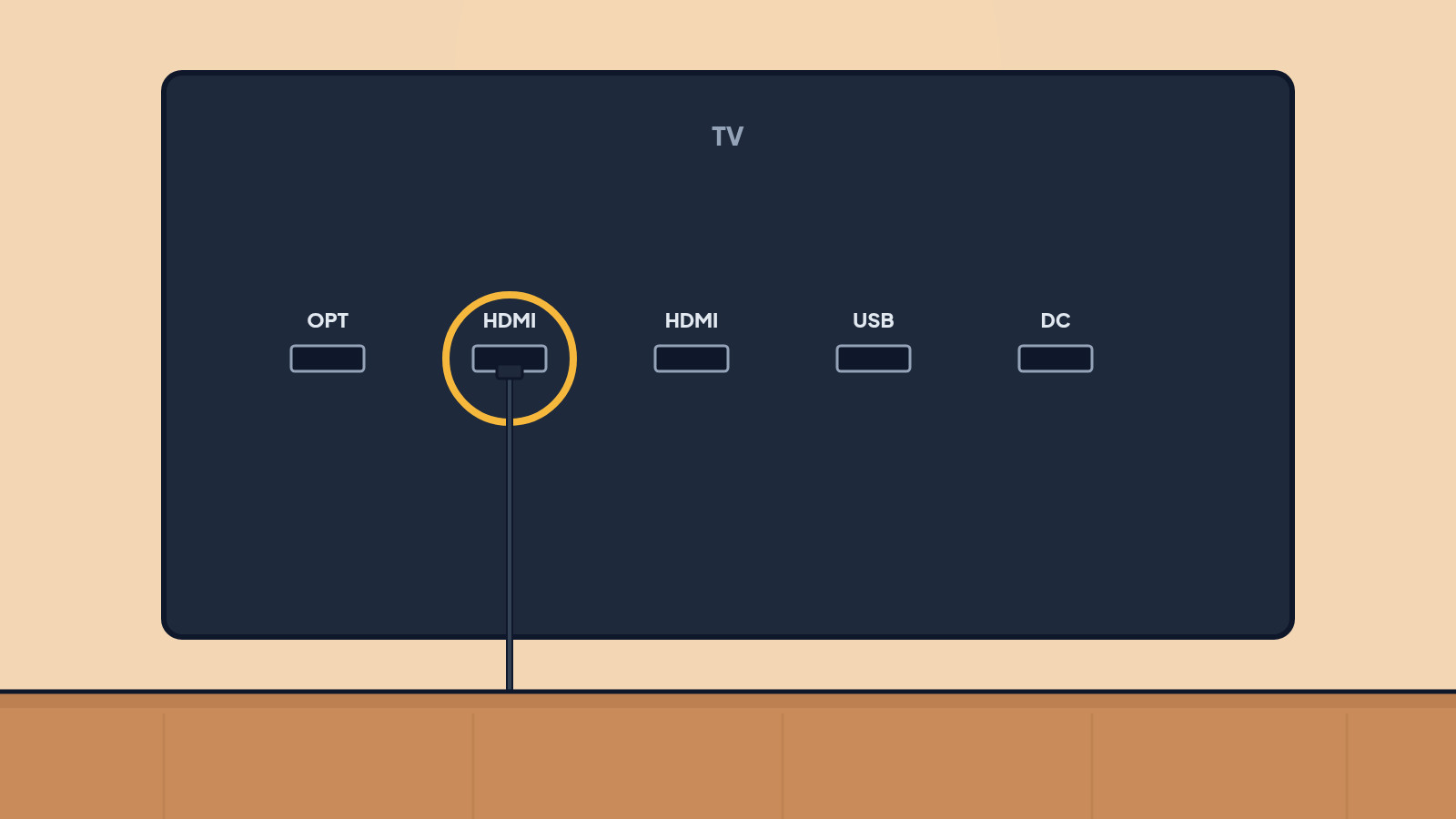
PlayStation recommends the HDMI cable that came with the PS5, or an Ultra High Speed HDMI cable rated for HDMI 2.1, especially if you want ALLM or 4K at 120 Hz. Plug the console directly into the TV if you can. A soundbar or receiver in the middle of that run is a common reason a 4K 120 Hz or VRR signal never shows up.
If the TV has an HDMI 2.1 port, use that one. PlayStation's 4K guide says HDMI 2.1 support on the set may also need a setting turned on in the TV's own menu. Check the TV manual for the port and any "enhanced" or "HDMI 2.1" format switch. Not every HDMI 2.1 TV includes ALLM; PlayStation says to confirm that in the set's manual too.
2. Turn on the TV's game mode
This is the setting that cuts the extra picture processing that makes movies look smooth and games feel late.
Samsung (select models): Samsung's U.S. support page says to go to Settings > Game Mode and choose Off, Auto or On. Auto turns Game Mode on when a connected game console is on and showing on that input. The page also notes that Game Mode is not available unless a game console is connected, and that once it is on, you may see a slight drop in graphics quality in exchange for speed. On many recent Samsung sets, you can open a Game Bar by pressing and holding the Play/Pause button on the Samsung remote while Game Mode is On or Auto, and see things like input lag, HDR and VRR. Features vary by year; if the steps do not match your set, use the manual for that model.
LG (select models): LG's U.S. support page says to connect the console by HDMI, switch to that input, then go to All Settings > General > Game Optimizer. ALLM is turned on or off inside the Game Optimizer menu. If some Game Optimizer options are greyed out, LG says to set the TV's picture and sound to Game Optimizer mode first. LG also notes that when ALLM is set to Auto, some picture-quality sliders cannot be changed, which is intentional. Game Optimizer is only on some models; check the manual if you do not see it.
Other brands, including Sony: Use the TV's game, low-latency or ALLM mode, and confirm the name in the official manual. We could not open Sony's official Game Mode and ALLM articles today, so we are not guessing at Sony menu names.
3. Switch on VRR, ALLM and 120 Hz on the PS5
On a PS5, go to Settings > Screen and Video > Video Output. At the top, Information for the Connected HDMI Device shows what the TV is reporting for resolution, VRR and HDR. If VRR or HDR shows as not supported there, the missing piece is usually the port, the cable, a TV setting, or the set itself, not a hidden console toggle.
From that same screen:
- Resolution: Automatic uses the highest resolution the TV supports. To force 4K, set it to 2160p, which PlayStation says requires a compatible 4K screen.
- VRR: This lets the refresh rate adjust in real time on TVs and games that support variable refresh rate. Results vary by TV. Apply to Unsupported Games can stabilize the frame rate in games that do not officially support VRR; if you see odd visual behavior, turn that option off.
- 120 Hz Output: Turns on 120 Hz for TVs and games that support it. If a monitor or other display has video problems, turn it off.
- ALLM: If the TV supports auto low-latency mode, the PS5 tells it to switch to a low-latency mode while you play. If you set ALLM to Off but leave VRR on, PlayStation says the TV still switches to low-latency mode during VRR output. To turn ALLM off completely, set VRR to Off as well. The latest system software is required. The PS5 does not send an ALLM signal while a media app is running.
- HDR: Use On When Supported or Always On, then Adjust HDR, as in the first-boot guide.
If 4K at 120 Hz will not display, PlayStation's own checklist is the one to walk: confirm the TV actually claims 4K 120 Hz, update the TV's firmware, use the included or Ultra High Speed cable, try a direct HDMI run, use an HDMI 2.1 port, set Resolution to Auto or 2160p, and set Video Transfer Rate to Auto.
4. On Xbox, use the TV and display settings, then confirm the current names
Xbox consoles also have TV, refresh-rate, VRR and HDR controls. We could not open Xbox Support's current display pages today, so this guide will not invent those labels. Open Profile & system > Settings and look for the TV and display section, then follow Microsoft's current 4K, 120 Hz and HDR articles before this page is published.
5. Check the picture once with a game you already have
You do not have to wait for Nov. 19 to see whether Game Mode and VRR are doing their job. Start a game you already own, look at how the stick feels, and glance at the TV's game menu (Samsung's Game Bar, LG's Game Dashboard, or your set's equivalent) if it shows input lag, VRR or HDR. If the picture looks smoother in a movie mode but the controls feel late, you are probably in the wrong TV mode. If something looks broken after you turn VRR on, turn off "apply to unsupported games" on the PS5, or turn VRR off, which is the official advice when the image misbehaves.
When GTA 6 unlocks, you should be starting the game, not the TV manual.
Still stuck? Find your situation
| What you see | Likely cause | What to do |
|---|---|---|
| Controls feel delayed | The TV is still in a movie or standard picture mode | Step 2, and confirm ALLM on the PS5 (step 3) |
| VRR or HDR shows as unsupported on the PS5 | The port, cable, TV setting or the set itself | Steps 1 and 3; try a direct HDMI 2.1 run |
| Blank or 1080p screen when 4K 120 Hz is on | The TV, cable or a receiver in the middle cannot hold the signal | Walk PlayStation's 4K 120 Hz checklist in step 3 |
| Odd artifacts after turning VRR on | A poor match between the TV and VRR, or an unsupported game | Turn off Apply to Unsupported Games, or turn VRR off (step 3) |
| No Game Mode menu on the TV | The feature is missing on that model, or no console is on that input | Check the manual; Samsung says a console must be connected |
Pro Mode
Pro Mode Pro Mode: ALLM quirks, PS5 Pro notes, and what we are not claiming about GTA 6
PlayStation is specific about ALLM: it needs current system software, it does not fire during media apps, and it stays active during VRR output even if the ALLM item is set to Off. That last point is the one that surprises people who think they turned it off.
On a PS5 Pro (CFI-7000 group), the same Video Output screen includes Allow 8K Output and Enhance PSSR Image Quality. PlayStation says VRR is disabled during 8K output, and 8K has a list of other limits (Share Screen, Remote Play, VR, and so on). Unless your TV is a genuine 8K, 60 Hz, DSC-capable set and you mean to use it, leave 8K off for a launch-night game.
We are not stating that GTA 6 supports VRR, 120 Hz or a particular HDR mode. Those features are console and TV capabilities. Whether the game uses them is a refresh item for after Rockstar or the platform holders publish it.
If your living-room setup has to keep a soundbar in the chain, look for an HDMI 2.1 passthrough or eARC arrangement in the bar's official manual, then test VRR and 4K 120 Hz again. If they fail, a direct run to the TV plus audio another way is the setup PlayStation's troubleshooting points toward.
Helpful gear
iThis page has affiliate links. If you buy through one, we may earn a small commission at no extra cost to you. Learn more.
- Amazon Basics HDMI 2.1 Cable (10 ft) (opens in a new tab): An Ultra High Speed HDMI cable is needed for 4K at 120 Hz and VRR on a TV and console that support them. Game Mode itself is a free TV setting.
References
All 8 reference links
- Source: How to change PS5 console resolution - PlayStation Support
- Source: How to enable HDR on a PS5 console - PlayStation Support
- Source: Adjust picture settings on your Samsung TV - Samsung US Support
- Source: Game Bar on your Samsung TV - Samsung US Support
- Source: How to enable ALLM, Game Optimizer, and Game Dashboard - LG US Support
- Source: Grand Theft Auto VI support (US) - PlayStation Support
- Source: Grand Theft Auto VI - Rockstar Games
- Source: Pre-Load Grand Theft Auto VI Now - Rockstar Newswire, Nov. 10, 2026
Get the next cheat code
Plain-English tech fixes and scam alerts. Tap Follow on Facebook or TikTok, or pick another below.
Want AI to answer your clients?
Our ready-made AI setups come with a step-by-step guide in Easy Mode and Pro Mode. You set them up yourself.
See the AI setupsRelated fixes
GTA 6 First-Boot Settings on PS5 and Xbox: HDR, Subtitles and Console Presets
Set PS5 Game Presets, HDR and accessibility now, so GTA 6 is ready when it unlocks at midnight local time on Nov. 19.
Computers · 7 min read
Get Your PS5 or Xbox Network Ready for GTA 6 Launch Night
Use a wired connection if you can, test the PS5 link, and get the console ready for GTA 6's Nov. 19 launch.
Computers · 8 min read
How to Preload GTA 6 on PS5 and Xbox (Before Launch Night)
Preload times for PS5 and Xbox, the Rest Mode and Sleep settings to switch on, and how to fix a stuck GTA 6 download before launch on Nov. 19.
Computers · 8 min read